
Support Access for Vertex Sync: Faster Support, Zero Compromises on Security
We are excited to introduce Customer Support Access in Vertex Sync — a seamless, secure, and customer-controlled way for Vertex support specialists and engineers to assist you directly in your Sync environment. Troubleshooting complex CAD environments, custom setups, or building models often requires hands-on investigation. With this update, resolving issues is faster and smoother than ever—with no file packages over email, no credential sharing, and zero impact on your user licenses.
What’s New?
When you open a support ticket, authorized Vertex staff can request temporary, permission-governed access to your Sync organization.
You remain in complete control at every step:
-
You Approve Every Request: No one from Vertex can access your organization without your explicit approval. Review who is asking, why they need access, and the linked support ticket.
-
Permission Control: Choose the exact level of access you want to grant (Read, Edit, Revise, or System Admin) and restrict scope to specific objects or your entire organization.
-
Automatic Expiration & Instant Revocation: Set access to expire automatically (default 2 weeks) or revoke access instantly with a single click once the task is finished.
-
Does Not Consume Your Licenses: Enabling temporary support access never consumes your team's active Sync seats or licenses.
-
Privacy & Auditability: Access requests and activities are strictly auditable, keeping your proprietary building data and confidential projects protected.
Improved measuring workflows
Measurement and dimensioning tools now offer new shortest distance tool, better precision with magnifier, clearer feedback, and improved visibility.
-
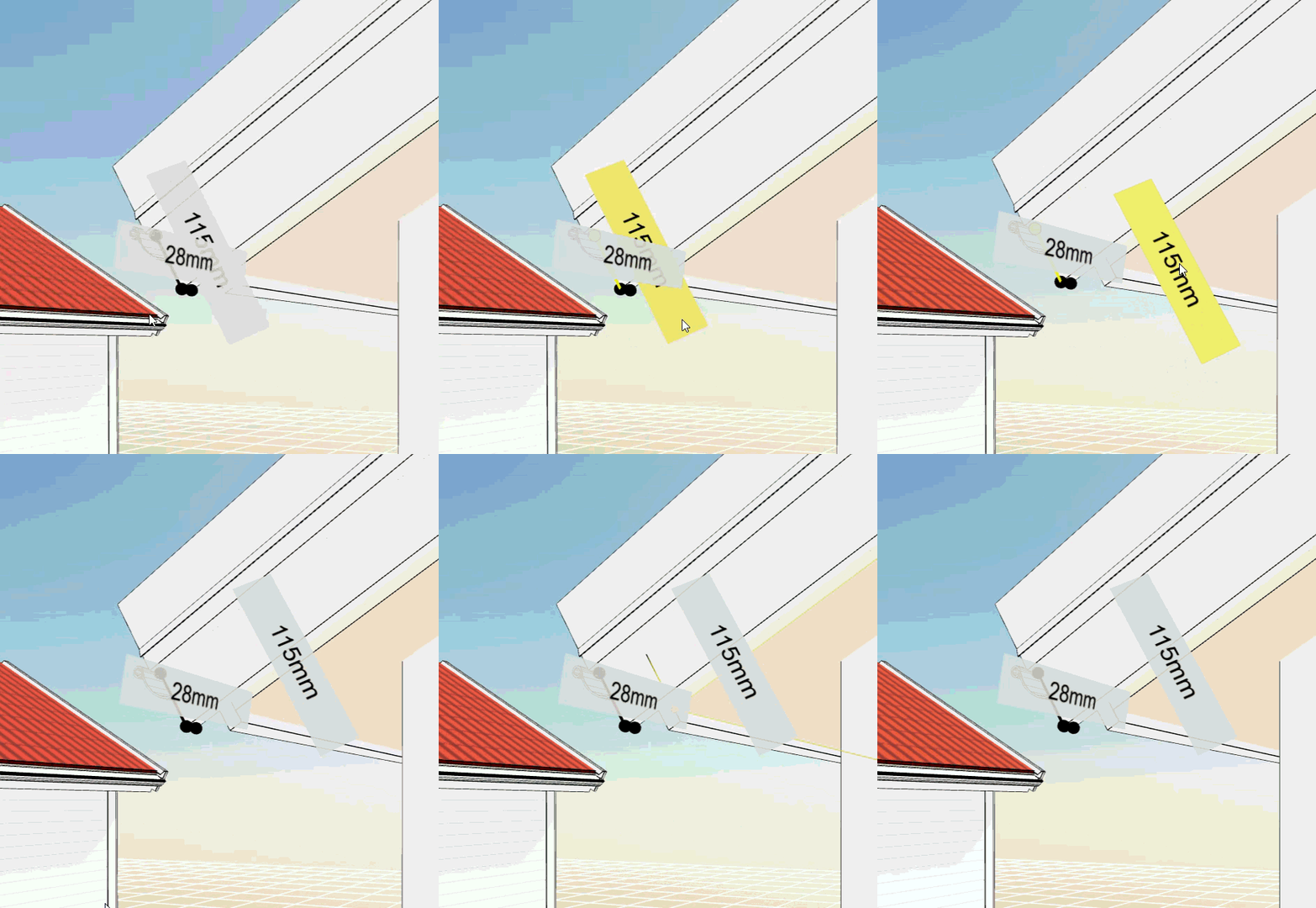
Measure line dimension values can be moved for better readability. You no longer have to struggle with dimension values overlapping model geometry, other dimensions, or intersecting lines. You can now effortlessly click, drag, and reposition measurement labels anywhere you need them for maximum visibility.
-
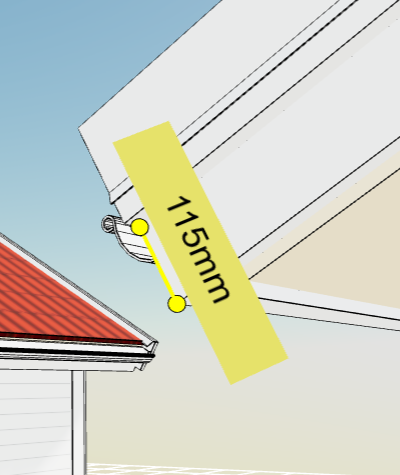
When measuring dimensions in dense drawings, matching a measurement line to its exact numeric value can sometimes be tricky. With this update, we’re introducing smart two-way hover highlighting that makes dimension pairing instantly clear. Hovering highlights the relationship between the measure line and its displayed value.
-
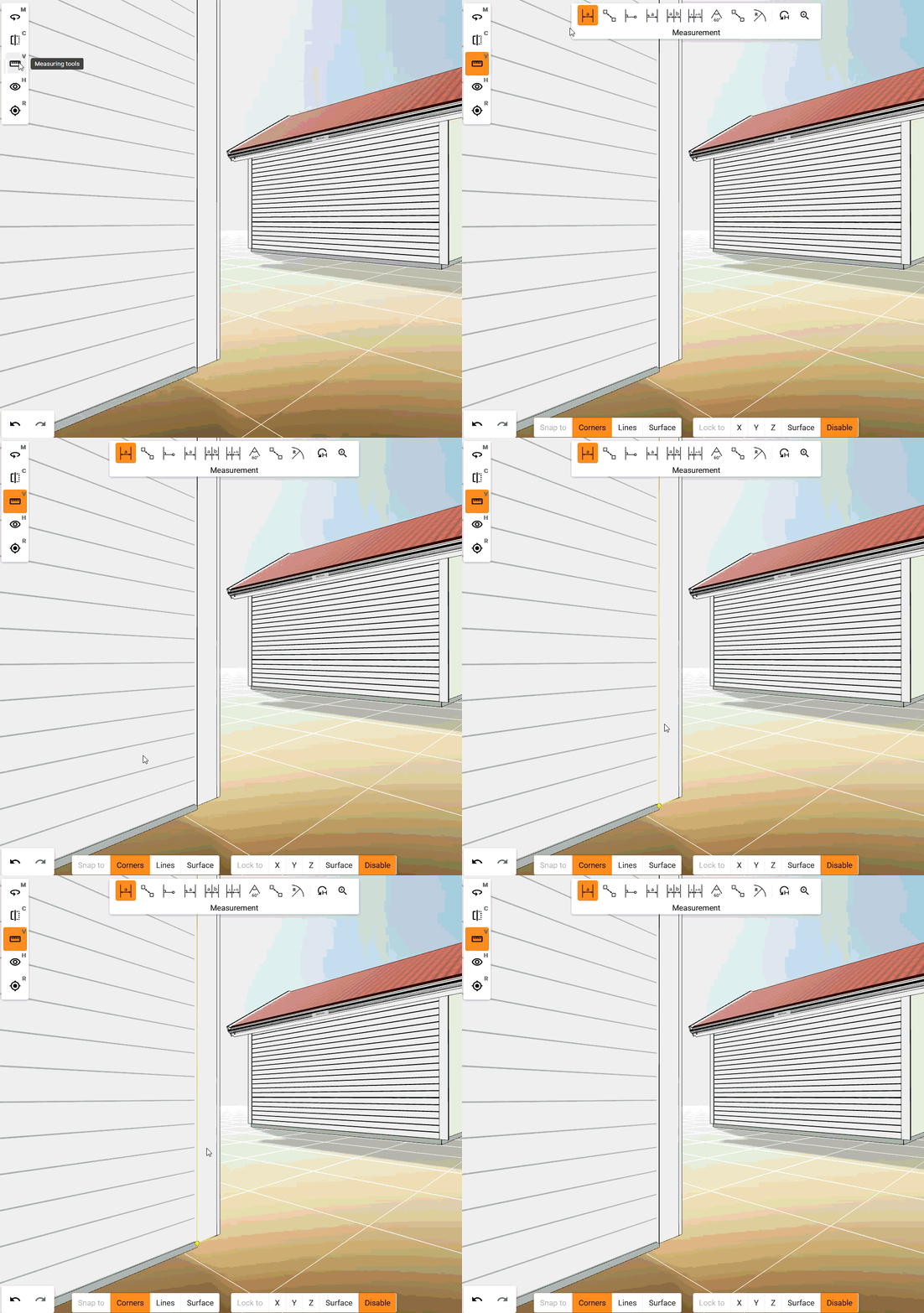
Snap to points finds the closest corner when the user points an edge line. No more manual hunting for the right endpoint — the viewer does the work for you, making accurate dimensioning faster and less frustrating, especially in complex 3D models with dense edge geometry.
-
Clearer snap point indicators make 2D and 3D measuring faster and more accurate, helping you place measurements with confidence.
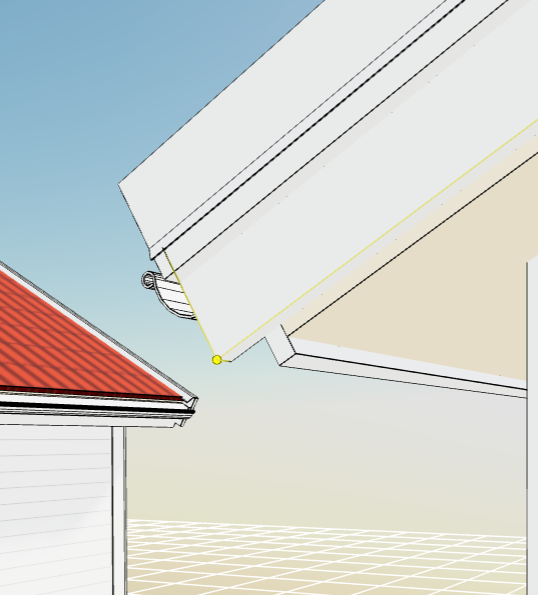
-
A magnifier tool makes it easier to select measurement points precisely. A magnifier tool enlarges the area beneath your cursor so you can pinpoint measurement locations with ease. No more struggling with tight geometry — the viewer pulls the detail into focus for you, making precise dimensioning quicker, especially on 3D models with closely packed features and targets in distance.
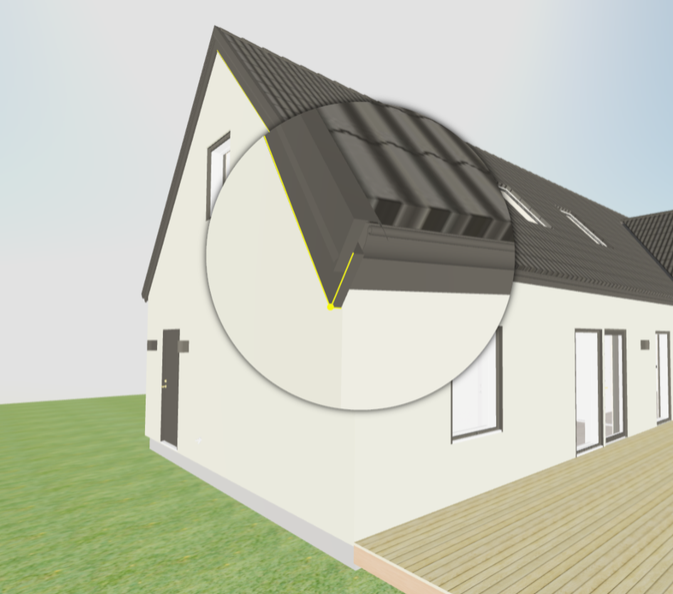
-
Shortest distance measuring finds the closest gap between two components in seconds. No more manual checking from multiple angles — the viewer does the work for you, making clearance checks faster and more reliable in complex 3D models.
-
Pressing ESC now exits measuring more cleanly
Help is easier to find
The help entry point has been moved next to the bell icon to match the MyVertex pattern. This makes help easier to discover and more consistent across products.
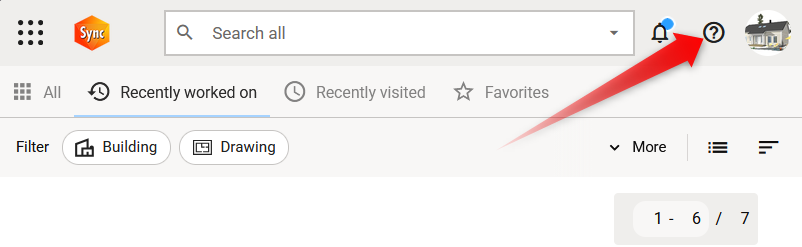
Undo and Redo
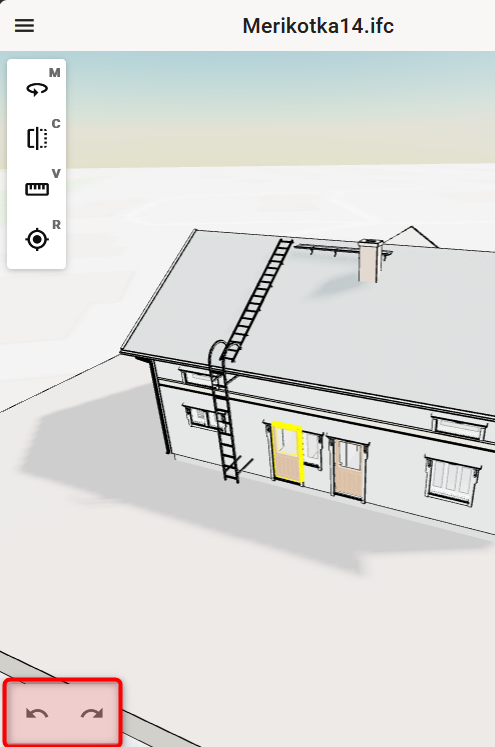
Viewer now has an option to undo. This makes it easier to work with the model: one mistake no longer means starting over—users can step backwards.
-
User can undo and redo actions in 3D and 2D viewers
Reorganized settings menu
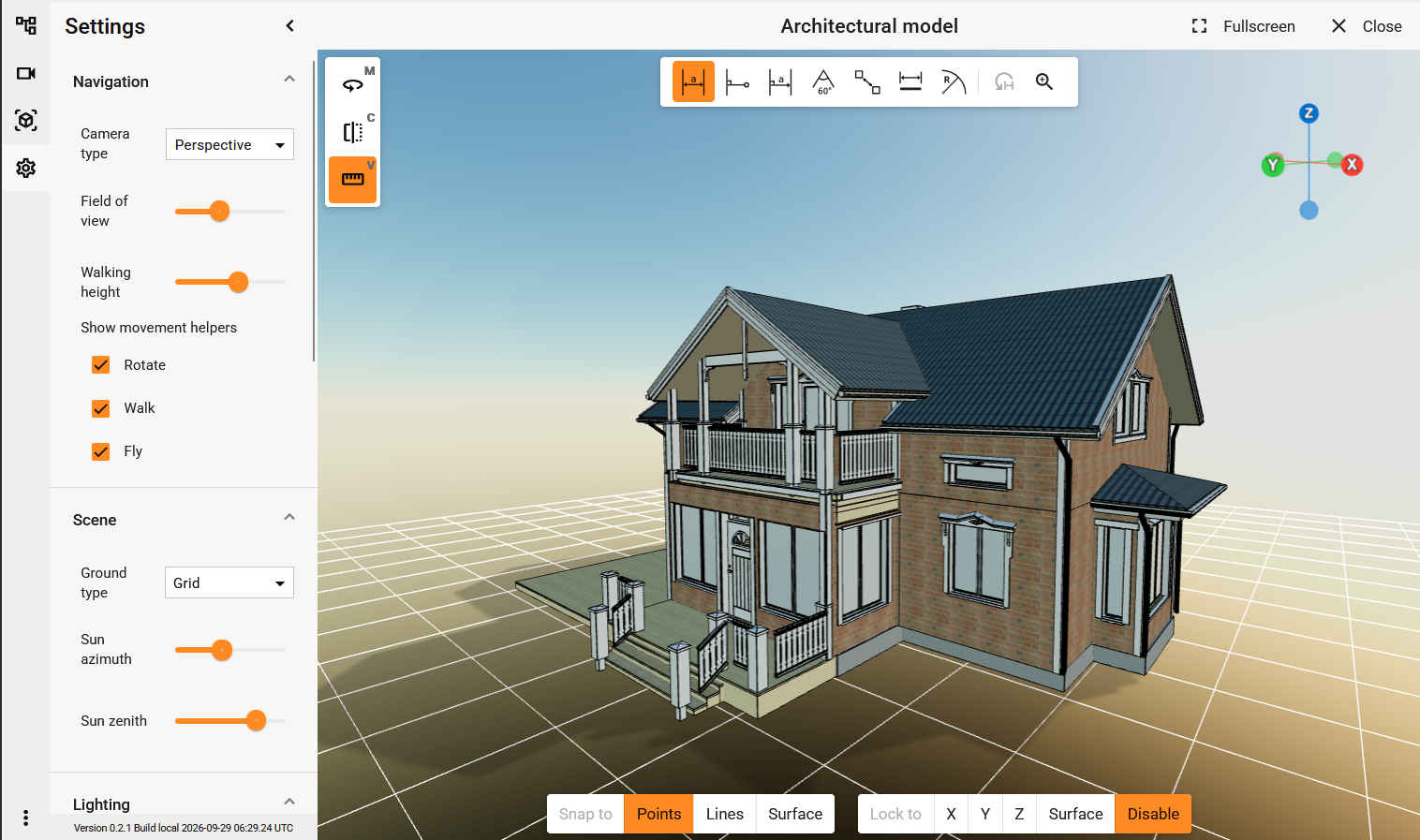
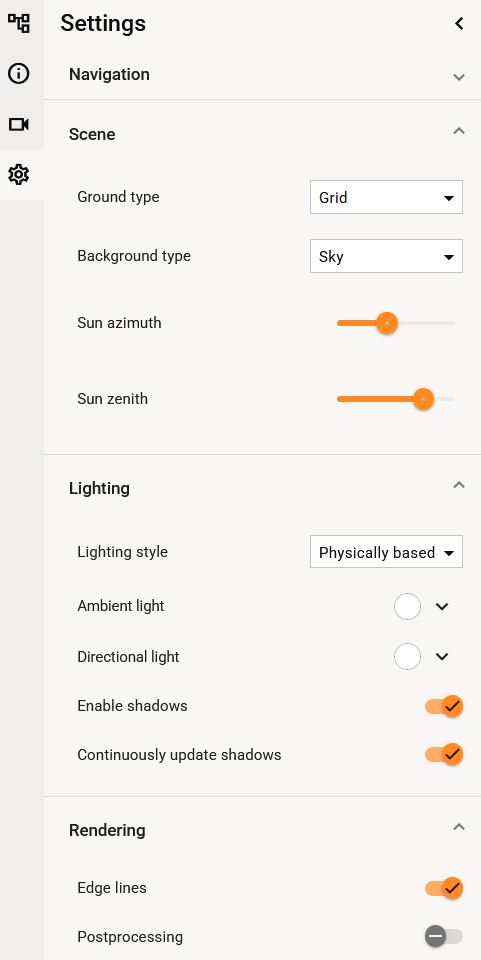
The redesigned settings menu brings a cleaner, more intuitive experience, helping users discover the right options faster and manage configurations with confidence.
-
Find what you need at a glance with settings organised into clear, purpose-driven categories.
-
Navigate complex configuration areas more easily thanks to improved hierarchy, spacing and visual structure.
Rendering, performance, and reliability
-
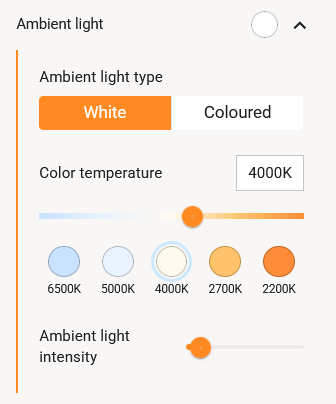
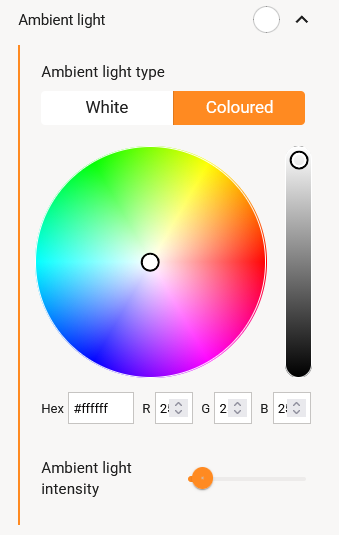
Take control of lighting faster with the new lights management interface. Designed for clarity and ease of use, it helps teams adjust light settings easily and more intuitive.
-
Z-fighting issues with edge lines in the postprocessing pipeline have been resolved
-
Lag caused by edge lines in large 3D models has been fixed
-
Clipping plane fill behavior has been corrected
-
Isolation now behaves correctly with clipping
-
Unhiding isolated elements now preserves the intended visual state
-
Frame allocations and redundant scene work in render loops have been reduced
-
Viewpoint thumbnail generation no longer disrupts the live camera and mobile portrait rendering
Navigation and orientation enhancements
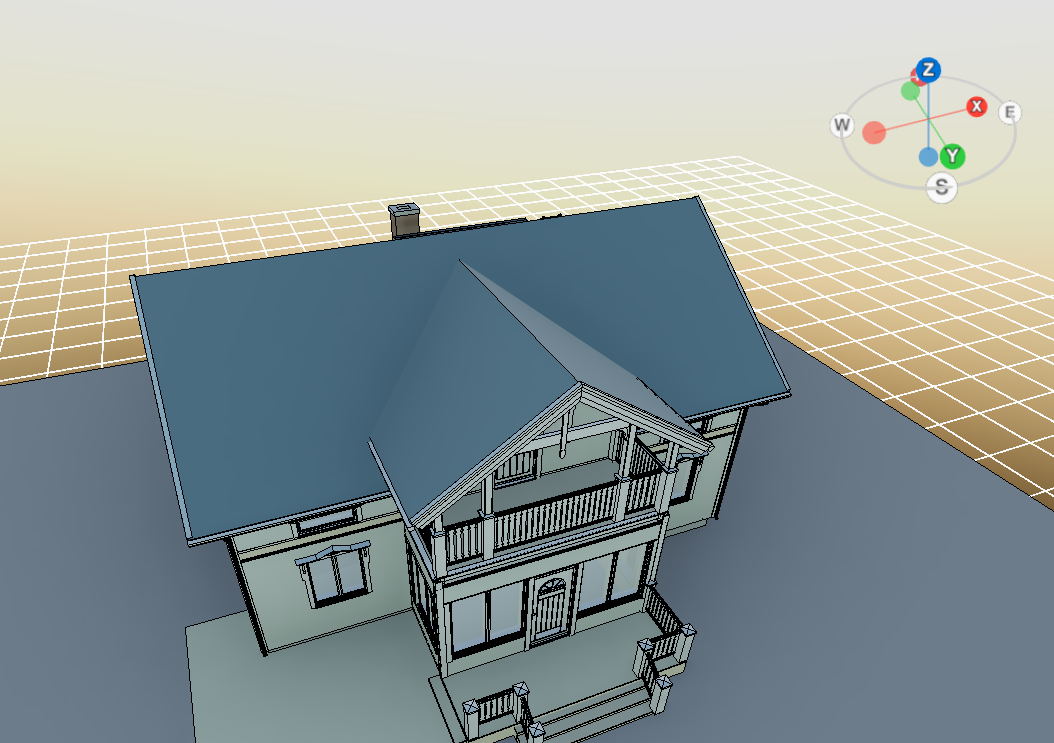
Navigate complex models with confidence
New coordinate tools make it easier to understand exactly where you are in the model. See orientation in degrees and cardinal directions at a glance, so teams can communicate views and locations more clearly.
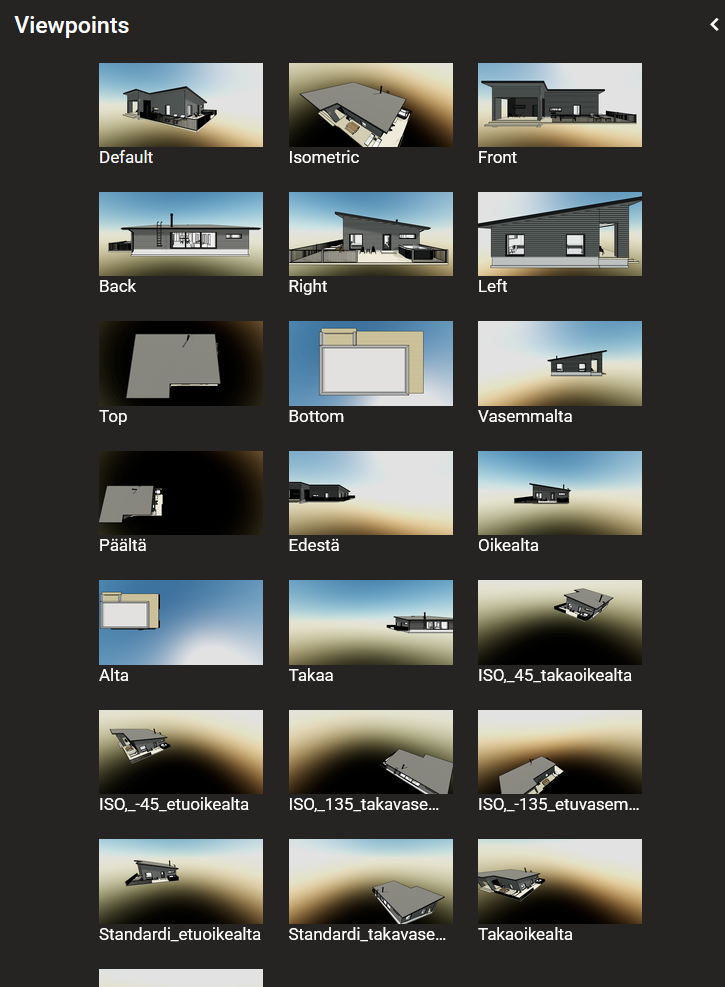
Bring CAD viewpoints into Sync
CAD-created viewpoints now appear directly in the viewpoint selection list, helping users jump to the right perspective faster and keep design reviews moving.
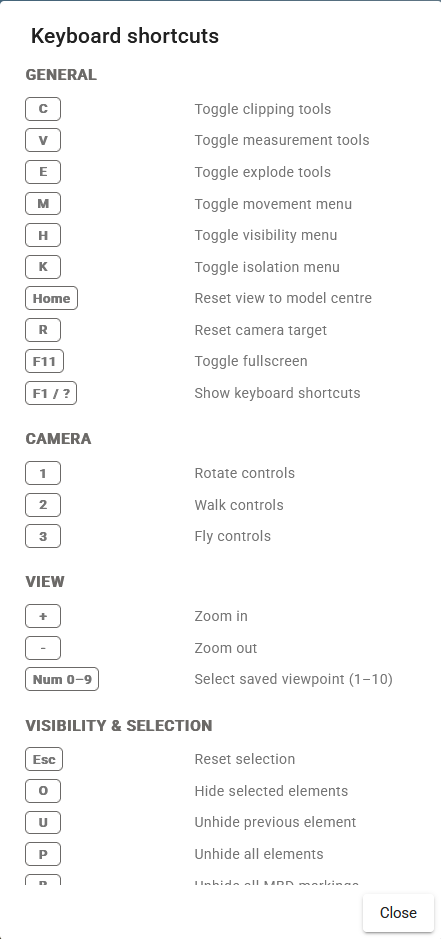
Learn shortcuts when you need them
Press F1 to open a built-in shortcuts help dialog. Users can discover time-saving commands without leaving their workflow.
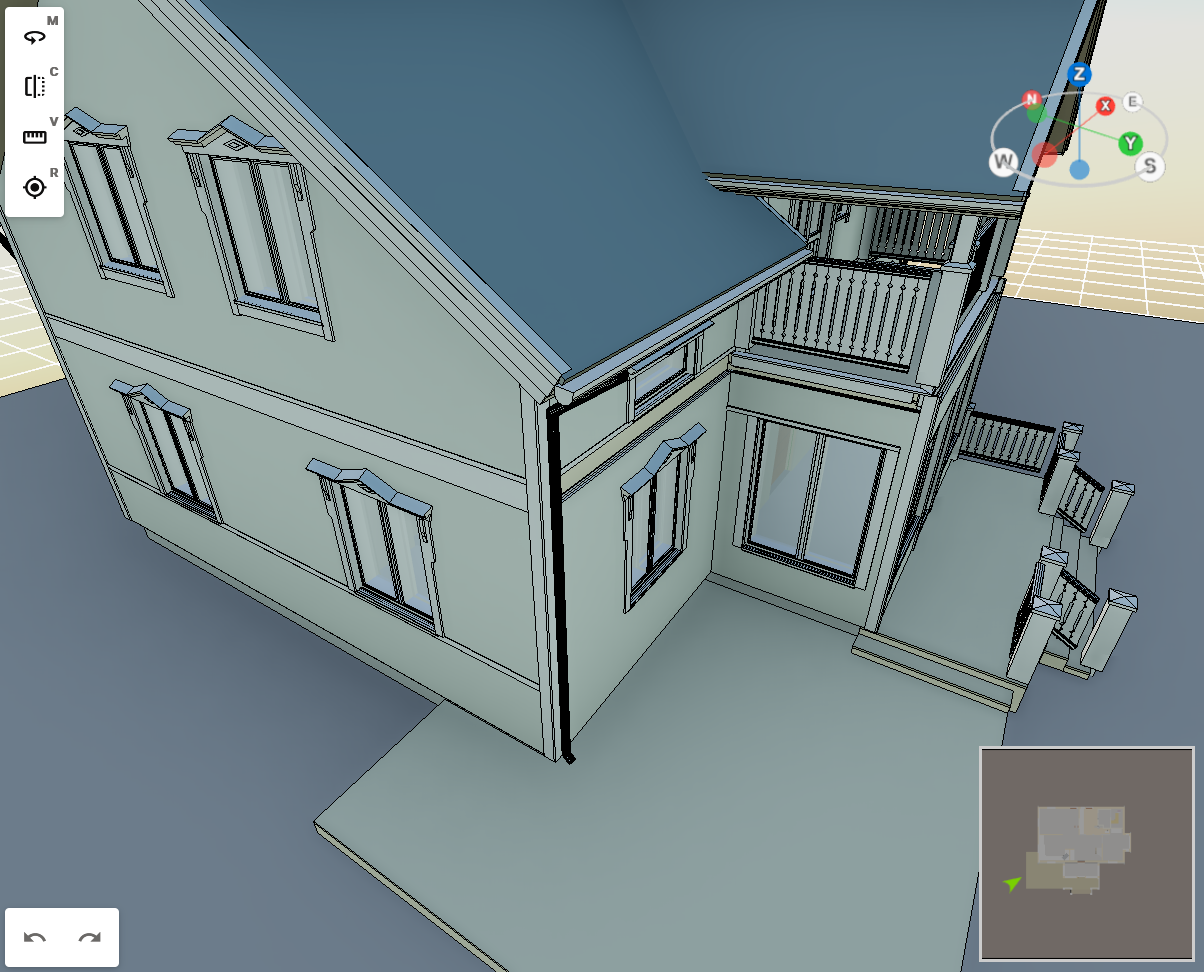
Stay oriented with the mini map
The mini map gives users a clear view of camera position while navigating the model, making large spaces easier to explore and review.
-
Joystick navigation is available for 3D viewing on mobile devices
-
3D viewer can be used on iPad without requesting a forced mobile version
-
Dimensioning on mobile devices has been fixed
-
The mobile context menu display issue remains a known limitation on some screen sizes
More flexible viewer workspace
The viewer workspace is now more adaptable, giving investigation and review teams the freedom to shape the interface around the way they work.
-
Put the tree view where it works best. Dock it to either the left or right side to keep navigation close at hand without disrupting the review flow.
-
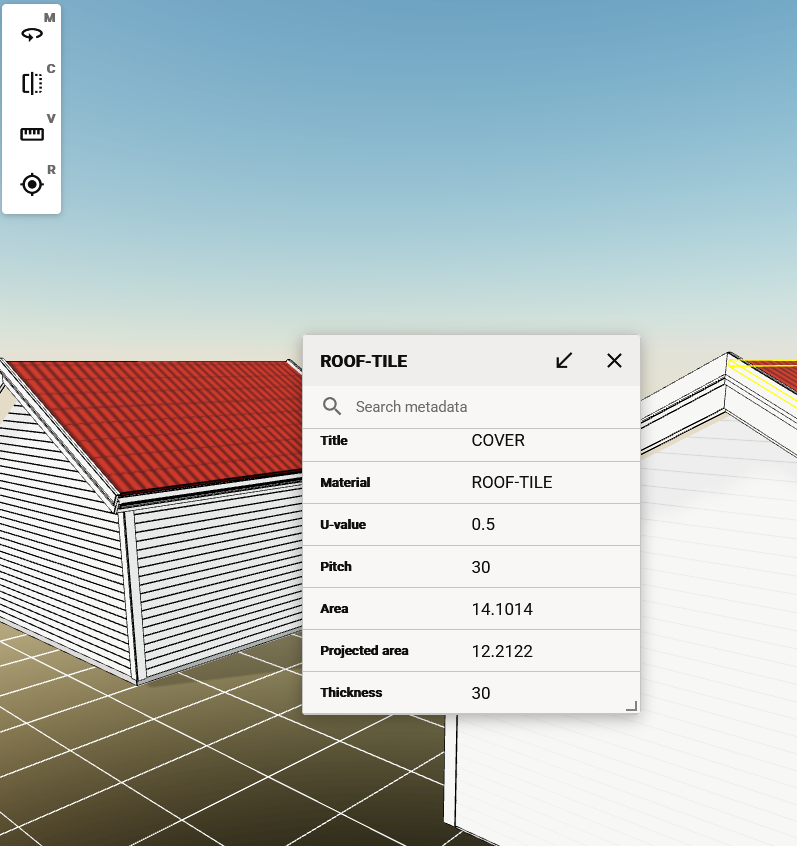
Keep component details in view, your way. Open component information as a floating panel to maximise screen space when you need a lighter workspace.
-
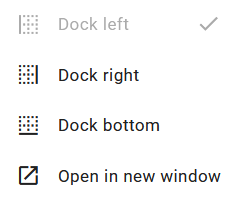
Dock details exactly where you need them. Pin the component information panel to the left, right, or bottom of the screen for a layout that matches each task.
-
Expand beyond a single screen. Detach component information and the tree view into a separate browser window to create a smooth multi-monitor setup.
Clearer component information and tree navigation
Discover faster, clearer model exploration with improvements that make component details easier to scan, search, and understand.
-
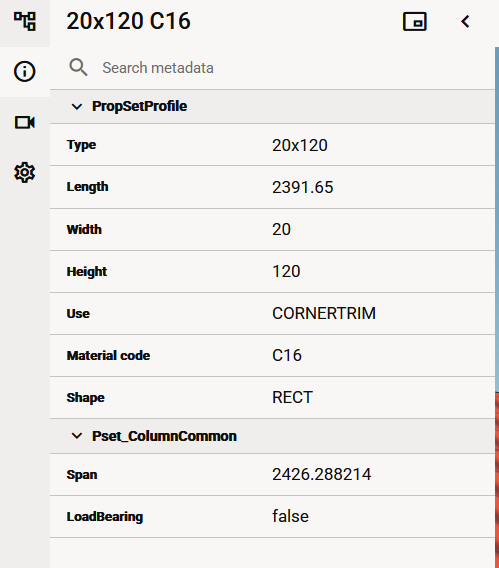
Organised component details: Collapsible property sections keep complex metadata tidy, helping users focus on the information they need without visual clutter.
-
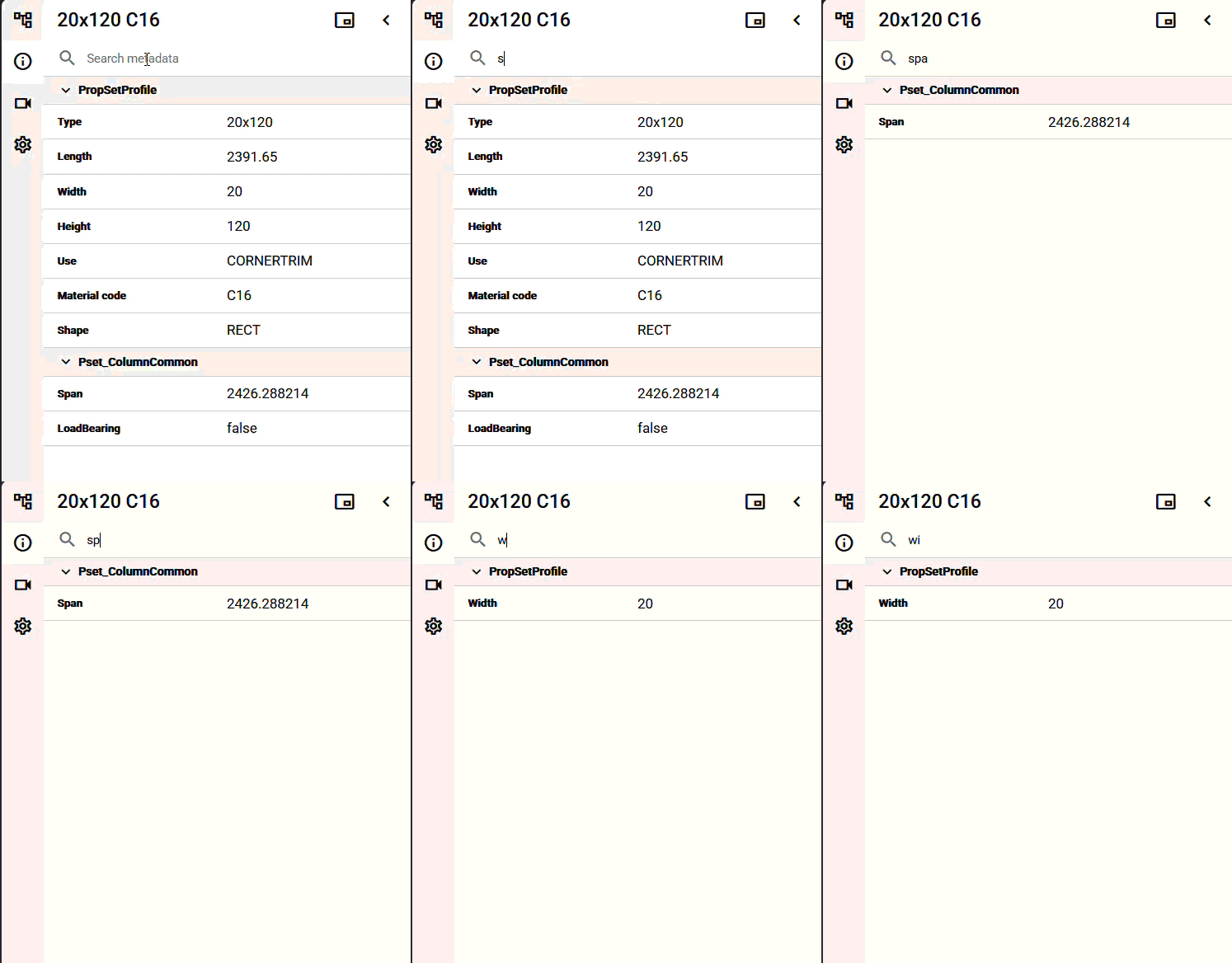
Instant property search: Built-in search lets users pinpoint the right component parameters in seconds, reducing manual scrolling and speeding up analysis.
-
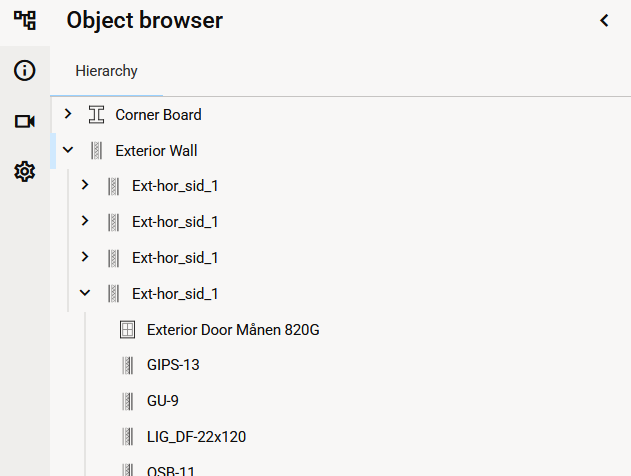
Clearer metadata and tree view: Refined presentation makes structures easier to navigate at a glance, giving teams a more confident view of model relationships.
All updates for this release
Release notes - Sync - 1.9.0
Bug
VXSYNC-1751 In super user mode entity tree should search for client system files
VXSYNC-2044 Entity move and link dialog sends a lot of requests when scrolling fast
VXSYNC-2309 Clicking skip twice in UI tour causes 500
VXSYNC-2936 Revision menu flash when opening revision menu
VXSYNC-3020 Entity pages data layout is wrong on narrow screen
VXSYNC-3191 Edge lines cause massive lag in large 3D models
VXSYNC-3218 Dimensioning doesn't work on mobile
VXSYNC-3257 Clip plane fills doesn't work correctly
VXSYNC-3412 Pressing 'esc' during measuring exists the tool but ui stays
VXSYNC-3502 Notification service can not always resolve tenant ID
VXSYNC-3616 Updating existing relations changes "relationId" - it should not
VXSYNC-3655 Sometimes large GLB files cannot be opened in viewer
VXSYNC-3840 Isolation doesn't not work correctly with clipping
VXSYNC-3853 PUT tenant settings sometimes throws 500
VXSYNC-3901 Dialogs have some inconsistency appearance in the user interface
VXSYNC-3936 Unhiding an element while isolated reverts it to opaque instead of its isolation state
VXSYNC-3937 Viewpoint thumbnail generation moves the live camera and renders portrait on mobile
VXSYNC-3942 When opening the shared link, the user is not informed if the link is no longer valid.
VXSYNC-3986 Maintenanceservice has Spring Cloud Kubernetes discovery but does not use it for anything
VXSYNC-4002 Upload files using the iPad doesn't work
VXSYNC-4003 File upload gets stuck
VXSYNC-4017 2D viewer flashes and behaves weirdly while opening when opening vxp
VXSYNC-4027 Entity service can throw null pointer exception from metadata map
VXSYNC-4035 User interface allows user to make new links between object already connected together with a composition link
VXSYNC-4048 Show error in UI if file is not found of model or drawing
VXSYNC-4050 View errors in pcy and ply formats
VXSYNC-4051 Mandatory field indicator \* missing from the user interface
VXSYNC-4055 Treeview acts weirdly after component data dialog closes due to user's new component selection
VXSYNC-4144 The context menu isn’t displayed in full
VXSYNC-4149 V2DR viewer freezes on "Initializing Drawing Engine" after a WebGL context loss \(V2dr.js cannot be evaluated twice\)
VXSYNC-4152 Camera jumps to the previous position after setting the position first in the mimimap
VXSYNC-4153 Shortest dimension button twice in measurement tool row
VXSYNC-4156 3D view clips too early when zooming in
VXSYNC-4157 glb model doesn't open but fails on parse error
VXSYNC-4166 Measuring line option snap to 'Surface' should be removed
Story
VXSYNC-105 User can see the model orientation from Blender style coordinate tools
VXSYNC-524 User can identify objects even there are several different revisions of the same object in the users Recently worked, Recently viewed, Favourites lists and in Recycle Bin .
VXSYNC-1229 User can select all filtered objects easy for download
VXSYNC-2155 User can use 3D viewer in iPad without requesting mobile version
VXSYNC-2294 User can see the total number of files being added so that they can ensure all necessary files are added
VXSYNC-2353 As an user I want my Favorites page is up to date without need to reload the page
VXSYNC-2741 User can find help easily when needed in Sync
VXSYNC-2747 User can navigate in the 3D with joystick in mobile devices
VXSYNC-2966 When user uses the snap to point option in 3D or 2D viewer measuring tools the user gets clear indication about the snap point
VXSYNC-2969 User gets a clear view to set a measuring point with a magnifier tool
VXSYNC-3197 Admin can create an autolabel rule based on entity type
VXSYNC-3382 Implement more robust functionality for scroll-to behavior in 3D viewer model tree
VXSYNC-3744 User can open Sync objects, pages and view into a new browser tab using middle mouse click
VXSYNC-3875 Sync admin can manage support access requests
VXSYNC-3876 Customer receives Sync notifications from access requests
VXSYNC-3967 User can undo and redo actions in 3D and 2D viewers
VXSYNC-3988 New improved list view for more advanced features with sorting and filtering
VXSYNC-3992 Common viewer metadata and tree improvements for clearer view for
VXSYNC-4058 Add support to add custom viewpoints
VXSYNC-4059 Geo location map & satellite support
VXSYNC-4064 Group component properties into collapsible sections
VXSYNC-4065 Search within component properties
VXSYNC-4066 Display component information as a floating panel
VXSYNC-4067 Dock component information panel to the left, right or bottom of the screen
VXSYNC-4068 Dock component treeview left or right
VXSYNC-4069 User can detach component information and/or treeview to a separate browser window for easier model investigation
VXSYNC-4078 Users can move measure line dimension value for better visibility
VXSYNC-4079 Highlight dimension value when hovering over measure line for clear pairing the line and value
VXSYNC-4080 User can see CAD-created viewpoints in the viewpoint selection list
VXSYNC-4104 User has an option to display degrees instead of cardinal directions
VXSYNC-4115 Users can easily find settings in the reorganised settings menu, where individual settings have been grouped into related categories
VXSYNC-4121 User can adjust ambient and directional lights with easy use user interface
VXSYNC-4135 User can add new orthogonal measurelines to surface
VXSYNC-4176 Users can move measure lines in 2D and 3D for better visibility