
Speed and performance improvements
Opening panel assembly drawing
Why: Performance improvements
The opening of the panel assembly drawing has been accelerated. The progress window for creating/updating panel drawings tells the user how long the generation will take.
VXBD-4165
Compression of model and drawing files when saving
Why: Performance improvements, same in all Vertex Products
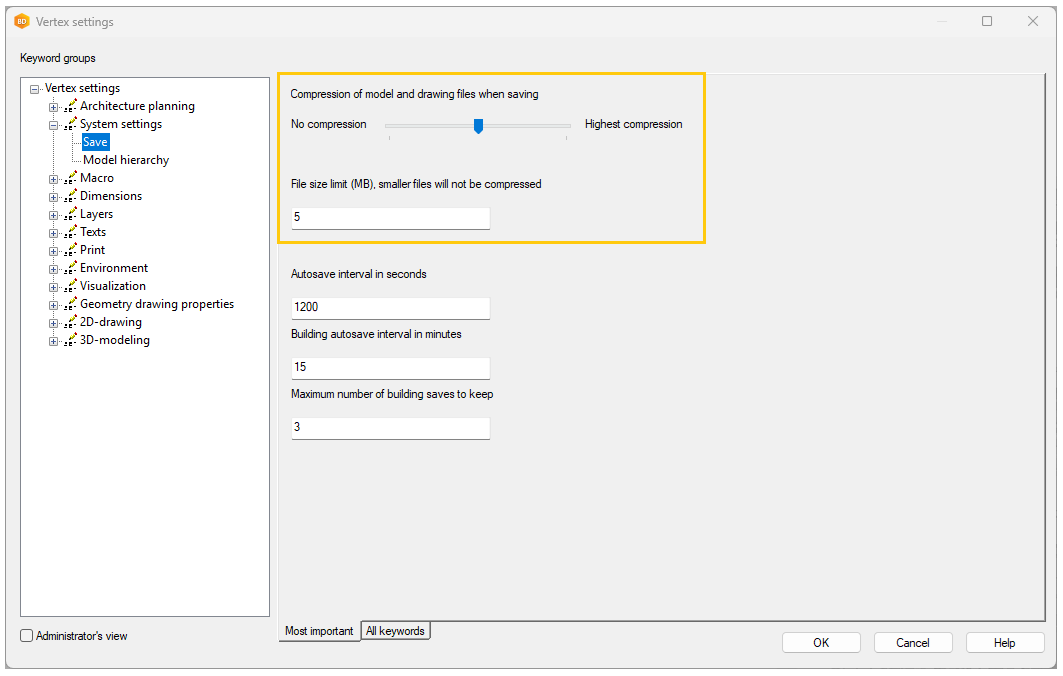
Default settings are optimized and recommended to use
VXBD-2979
System administration
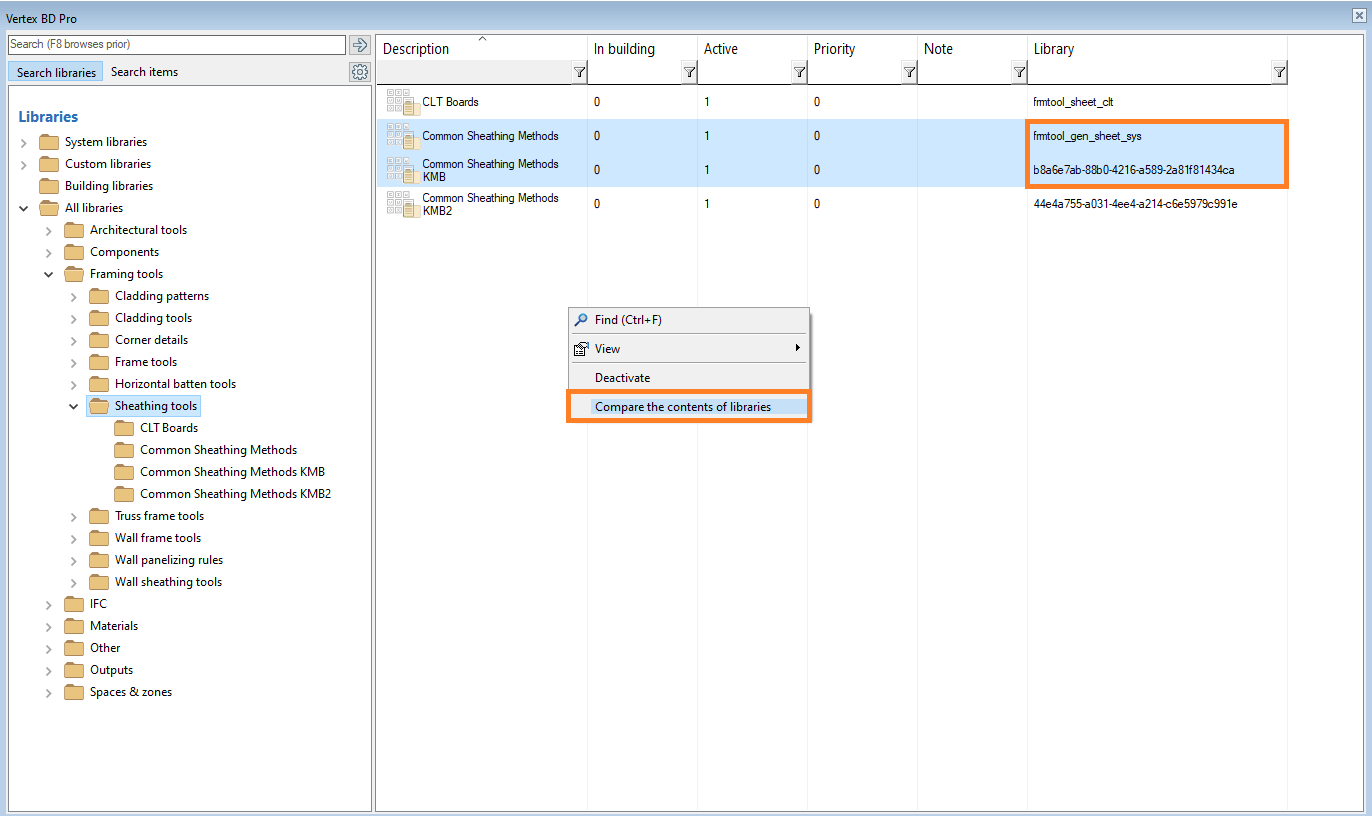
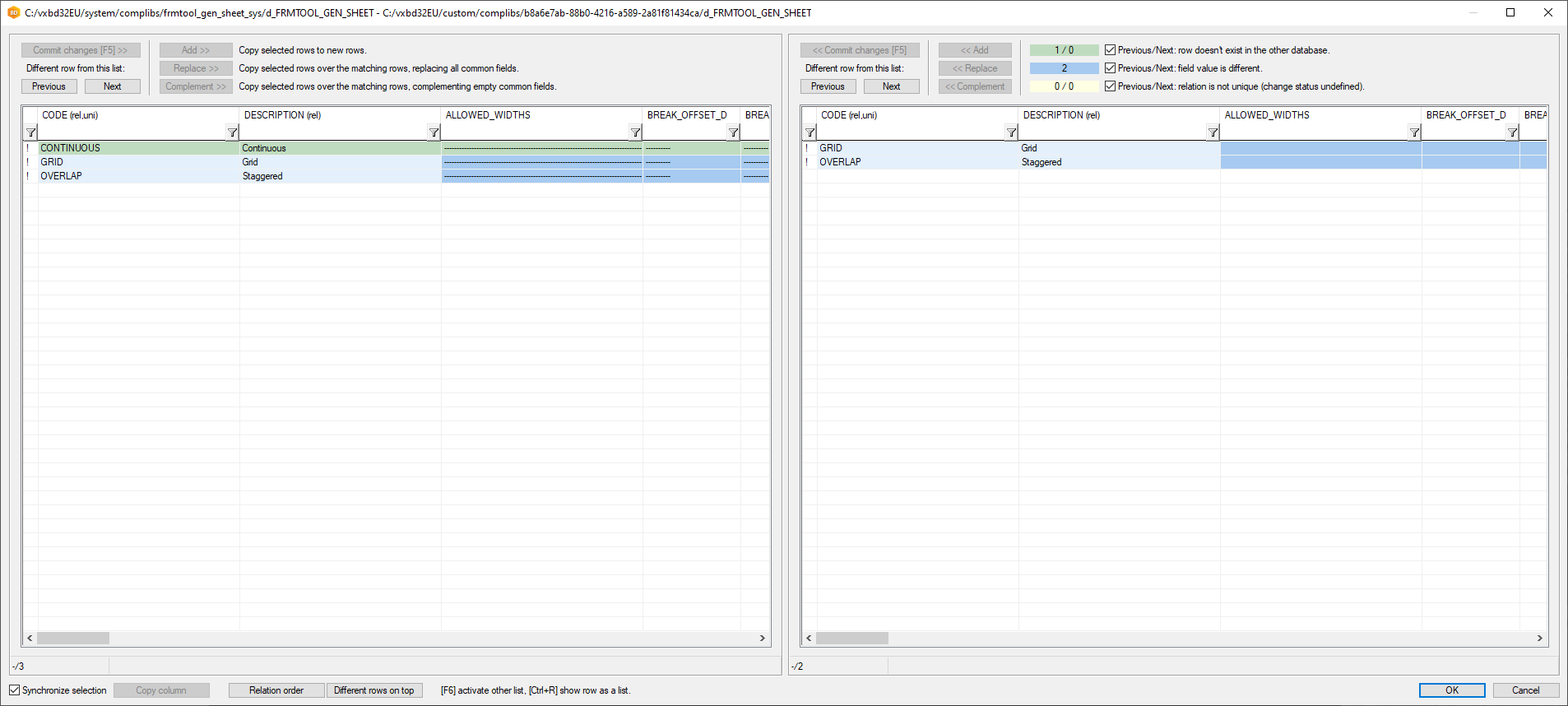
Use new database compare and merge dialog for comparing complibs
Why: Integrated also to BD
New features and improvements for video tool
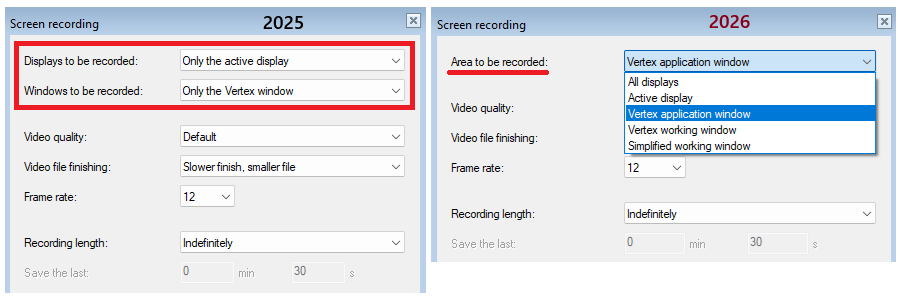
Recording area selection redesigned
We have made the selection of the recording area simpler and easier to use. The user can now choose the desired screen capture mode from a single menu. The default recording area is the Vertex application window, but any user‑defined selection is remembered for future recordings. In earlier versions, the recording area had to be defined with two separate choices. This sometimes caused confusion, because the user could select combinations that the recorder could not execute. (Vertex ID: VXCORE-1129)
Screen recording without UI and cursor
Users can now record the screen without interface menus, buttons, or the cursor. We added a new option Simplified working window to the recording area selections, available when working with models. This new mode enables creating videos for marketing and review purposes easily. (Vertex ID: VXCORE-1149)
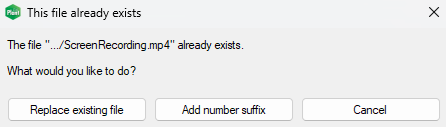
Adding a numeric suffix to avoid overwriting videos
If the software detects that a video with the same name already exists in the recording folder, it asks whether you want to replace the existing file or add a numeric suffix to the new video name. This helps the user avoid overwriting an existing and successfully recorded video. (Vertex ID: VXCORE-1128)
Hide the status and control bar of the recording tool when needed
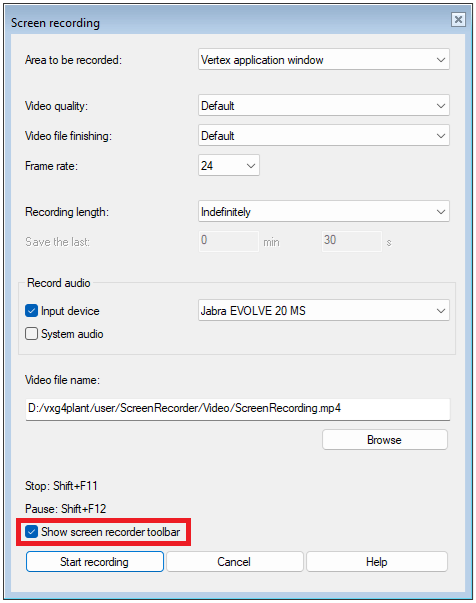
The user can choose whether the status and control bar of the recording tool is visible during recording and in the final video.

We added an easy‑to‑use check-box to the Screen recording dialog that lets you control the visibility of the bar. In some situations, showing the bar is useful, while in others it is better if the bar is hidden. (Vertex ID: VXCORE-1164)
Screen recording works even when the Vertex application window changes size or position
Previously, when recording in the Vertex application window mode, the recorder captured the area based on the window’s original position on the screen. If the user moved the Vertex application or resized the window, the recording did not follow these changes. Starting from version 2026, changing the size or position of the application no longer causes issues. The recording tool now automatically follows the application window, and the video is always created according to the current window boundaries. (Vertex ID: VXCORE-1156)
Pausing screen recording using a shortcut command
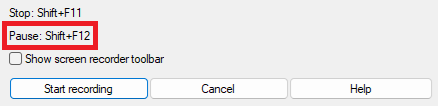
Screen recording could already be paused using the toolbar in version 2025. In the 2026 version, we added the option to pause the recording with the keyboard shortcut Shift + F12. This helps users who prefer not to show the recording toolbar in the application window. We also added the shortcut information to the Screen recording window so that users do not need to remember it by heart. (Vertex ID: VXCORE-1165)
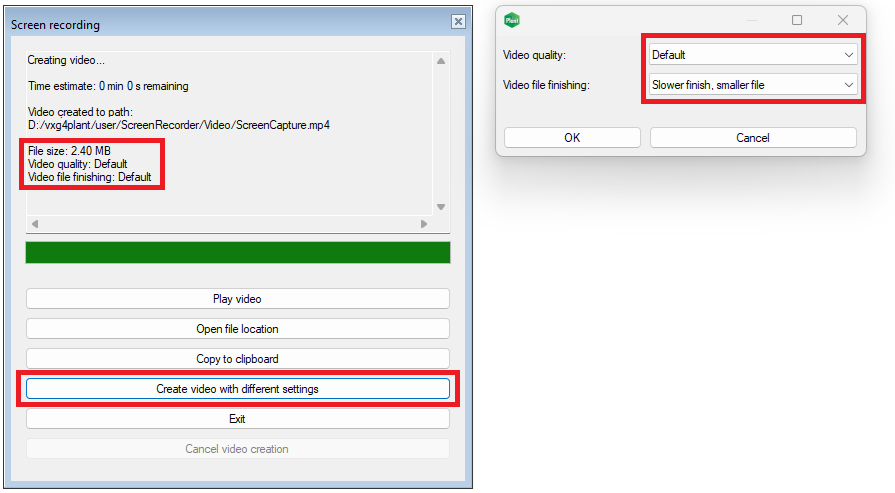
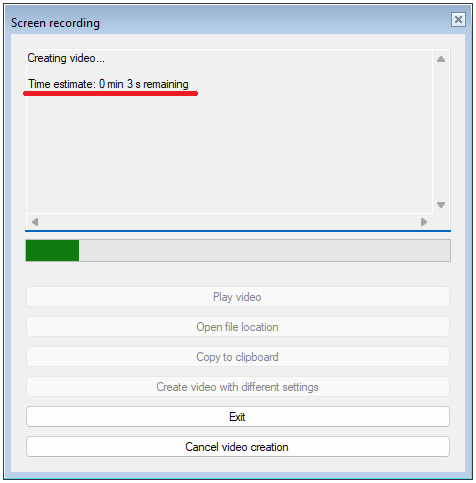
Screen recording window shows an estimated time for video creation
The Screen recording window now displays an estimate of how long it will take to convert the screen recording into a video. This reduces uncertainty about processing time and gives the user a clear indication of how long the wait will be. (Vertex ID: VXCORE-1104)
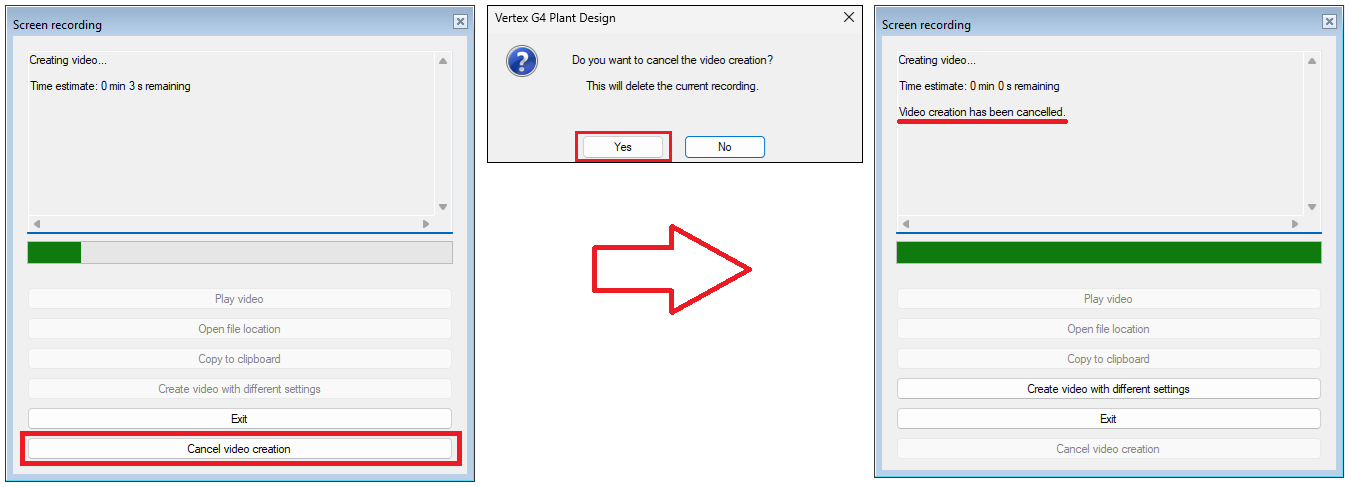
User can cancel video creation
Users can now cancel the video creation process when the software starts converting the screen recording into a video. A recording may not always succeed as intended, or it may have been left running for a long time. In these cases, canceling the video creation is the most sensible option. (Vertex ID: VXCORE-1090)
Recreate a video with different settings
You can now recreate a video with different settings after the first version has been generated. This means you no longer need to re‑record your screen if the video turns out too large or the quality is too low. The screen recording dialog shows the file size, the quality used, and the processing details once the video is ready. This helps you quickly decide whether the video should be recreated with different settings. Video quality has the greatest impact on the file size. (Vertex ID: VXCORE-1218)