

IFC 2026
IFC Tab
The new IFC tab was introduced to collect all IFC-related functions in one place, making it easier for users to access and manage IFC options efficiently. By centralizing these tools and settings, the IFC tab streamlines workflows, reduces the time spent searching for features, and improves the overall user experience when working with IFC files in Vertex BD.

Rectangular hole support for ducts and pipes
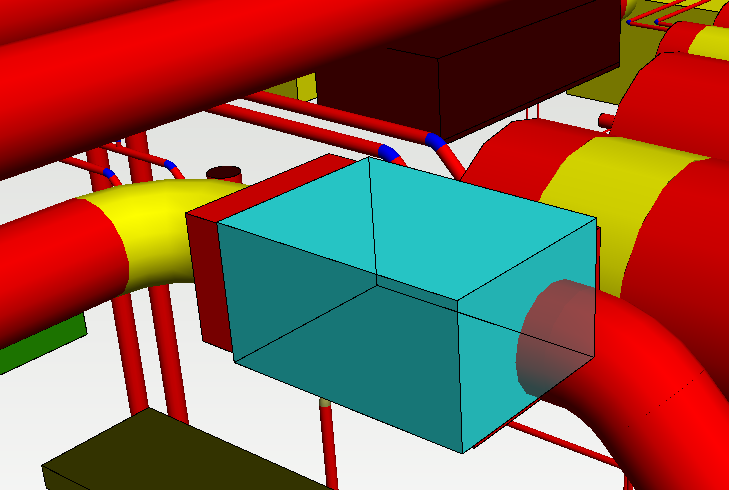
This update adds support for rectangular holes when importing IFC pipes into Vertex BD. Now, the software can recognize rectangular ducts and pipes, automatically read their width and height, and display these dimensions for editing during the “Add punch to structure” command.
Why was this done?
Previously, only circular holes were supported, limiting accurate modeling of rectangular ducts and pipes.
Benefits for end users:
-
More accurate import and modeling of rectangular ducts/pipes from IFC files.
-
Easier editing and coordination of rectangular holes, improving workflow and reducing errors.
VXBD-87
Improve utilizing IFC punches
Support has been expanded to process penetrations (punches) for multiple IFC types. This enhancement enables users to efficiently handle a broader range of IFC files, such as those containing pipe insulation models. As a result, users benefit from more accurate and streamlined processing of penetrations in both large projects and detached house models, saving time and reducing manual work.
Supported in BD 2026:
-
IfcFlowSegment
-
IfcBuildingElementProxy which has IFC property set “Pset_ProvisionForVoid”, see CV-2x3-157
-
IfcBuildingElementProxy which has PredefinedType-attribute “PROVISIONFORVOID“ (IFC4 only)
-
IfcVirtualElement which has PredefinedType-attribute “PROVISIONFORVOID“ (IFC4x3 only)
-
IfcCovering which has PredefinedType-attribute “INSULATION“
VXBD-920
Support for IfcPropertyReferenceValue in IFC import
IfcPropertyReferenceValue is a property type defined in the IFC (Industry Foundation Classes) standard, which is widely used for exchanging building and construction data. This property type allows an object in an IFC model to reference another IFC object as a property value, rather than just storing simple data like text or numbers. For example, a building element can reference a classification, document, or another object, enabling richer and more connected data structures.
Why is support for importing IfcPropertyReferenceValue useful in Vertex BD?
Supporting the import of IfcPropertyReferenceValue in Vertex BD allows users to retain and utilize these advanced references when bringing IFC models into the software. This means that important relationships—such as links to classifications, documents, or other objects—are preserved, leading to more accurate, informative, and interoperable models. It enhances data integrity and enables users to take full advantage of the connected information embedded in modern BIM workflows.
VXBD-3782
IFC Validator UI
Why was this feature implemented and how do users benefit?
The IFC validator UI was introduced to make validating IFC files easier and more accessible for users. Instead of using command-line tools or external applications, users can now validate IFC files directly within Vertex BD through a simple interface. The validation results are saved in a log file, which is stored in the same folder as the original IFC file. This allows users to easily review validation results, helping quickly identify and resolve issues, and ensuring smoother imports and exports as well as higher quality BIM data.

For more information about possible errors and their explanations, please visit the official IFC documentation: https://standards.buildingsmart.org/IFC/RELEASE/ .
VXBD-3083
Switch on/off objects to export to IFC
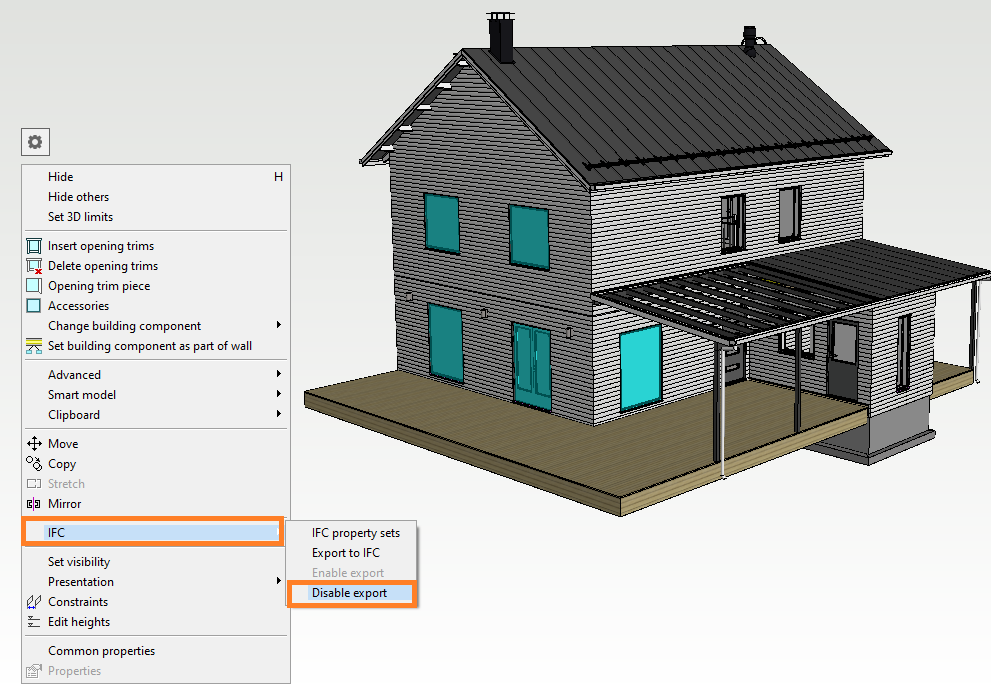
This feature allows users to enable or disable the export of individual objects to IFC. When an object is disabled, it will not be included in the IFC export, while its parts can still be exported if needed.
Benefits for end users:
-
Greater control over which objects are included in IFC exports.
-
Ability to exclude unnecessary or temporary objects, resulting in cleaner and more relevant IFC files.
-
Improved workflow efficiency by reducing manual editing of exported models.
VXBD-3123
Marking parts which are not exported to IFC
The marking tool can now highlights parts that have been disabled from IFC export. This enables users to easily identify and mark the components they have chosen to exclude, making it simpler to review and manage export settings for each project.
Note! Showing only those which you have disabled with function above
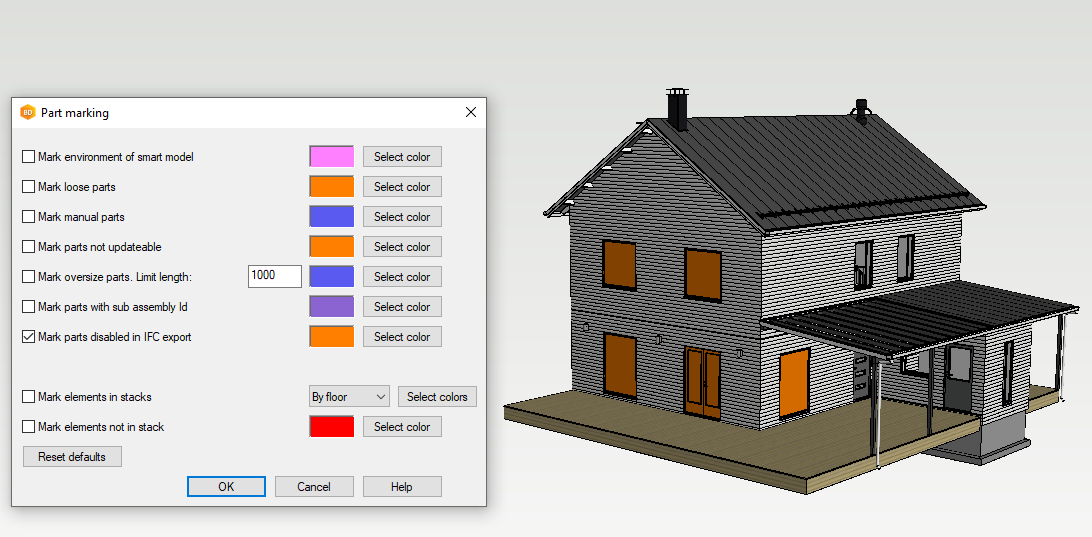
Marked parts which are not exported to IFC.
VXBD-3217
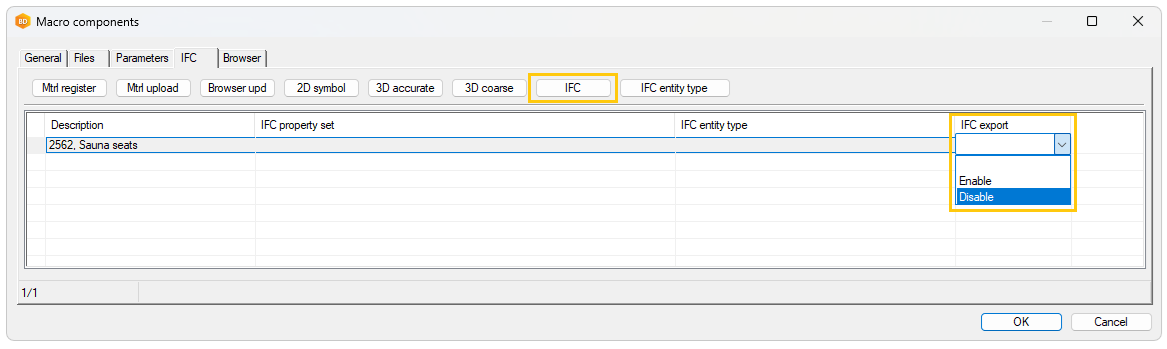
Enable/disable macro components (defaults) in libraries to export to IFC
This feature was introduced to give users precise control over which components in the library are included in IFC exports. In many projects, certain components are never intended to be exported to IFC—for example, internal details, placeholders, or specific components used only for internal modeling purposes. By allowing users to enable or disable IFC export for each component directly in the library, unnecessary or irrelevant components can be excluded from exported IFC files.
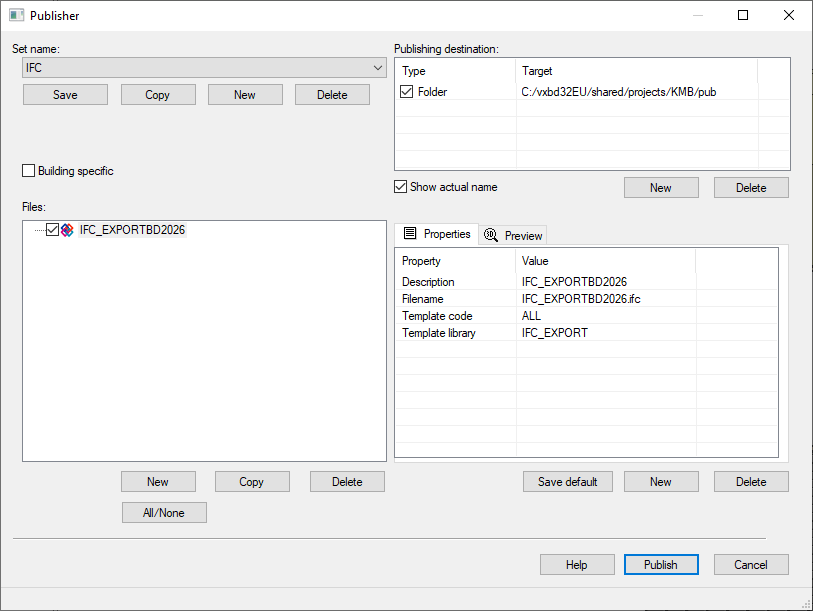
IFC file support in publisher
IFC files can now be created using Publisher. This enables automation of the conversion process or, for example, making IFC files available in Vertex Sync.
VXBD-1617
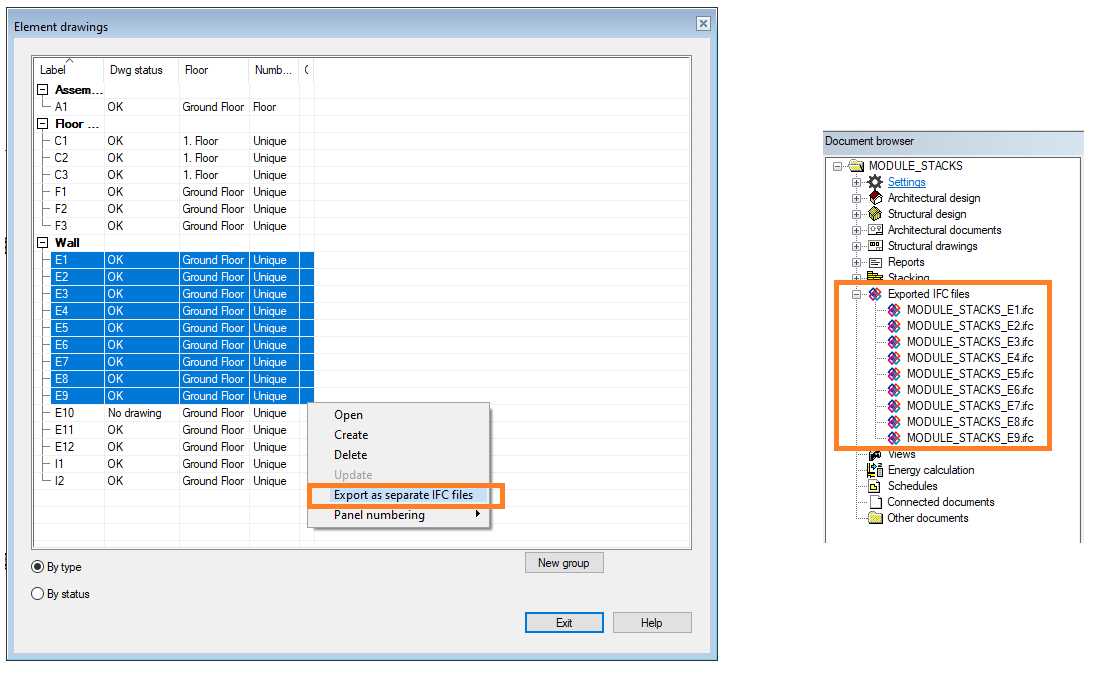
Batch export all panels to individual IFC files
It is now possible to export each panel as a separate IFC file in Vertex BD. This feature automates what was previously a manual process.
Benefits:
-
Enables efficient export of individual panel IFC files.
-
Greatly simplifies and speeds up the export process.
-
Reduces manual work and risk of errors.
VXBD-3267
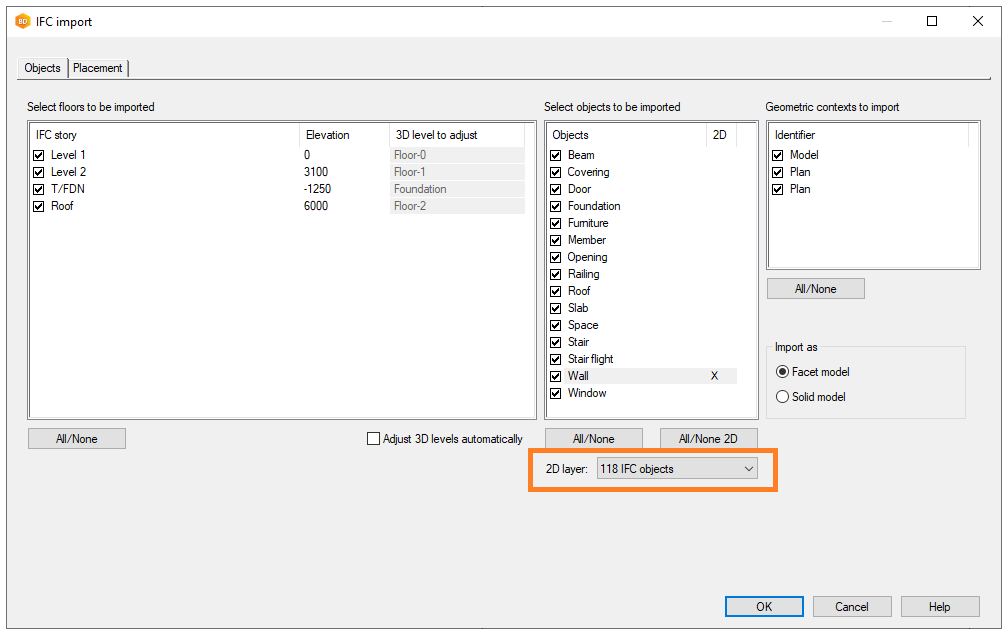
Support for choosing 2D layer when importing or updating an IFC file
Sometimes users want to have a 2D presentation of imported objects and be able to select the layer for the geometry.
VXBD-3769
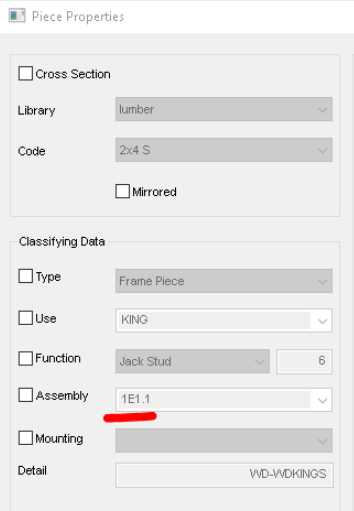
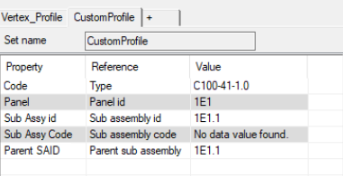
Exporting sub assembly related properties to IFC for profiles and sheets
Sub assembly property data of profiles and sheathing boards can now be utilized in IFC property sets.
VXBD-4135
Export roofs as IfcRoof instead of IfcSlab
Roofs are now exported as IfcRoof instead of IfcSlab in IFC exports. The entire roof, including all connected slopes, is represented as a single IfcRoof entity. Roof layers continue to be exported as IfcSlabs under the IfcRoof. Automated tests have been updated accordingly.
Why this has been done:
This change improves the accuracy and compliance of IFC exports by using the correct IFC entity for roofs. It ensures that exported models better reflect the intended building structure and align with industry standards, making them more compatible with other BIM tools and validators.
VXBD-3865
New Vertex property sets for object types
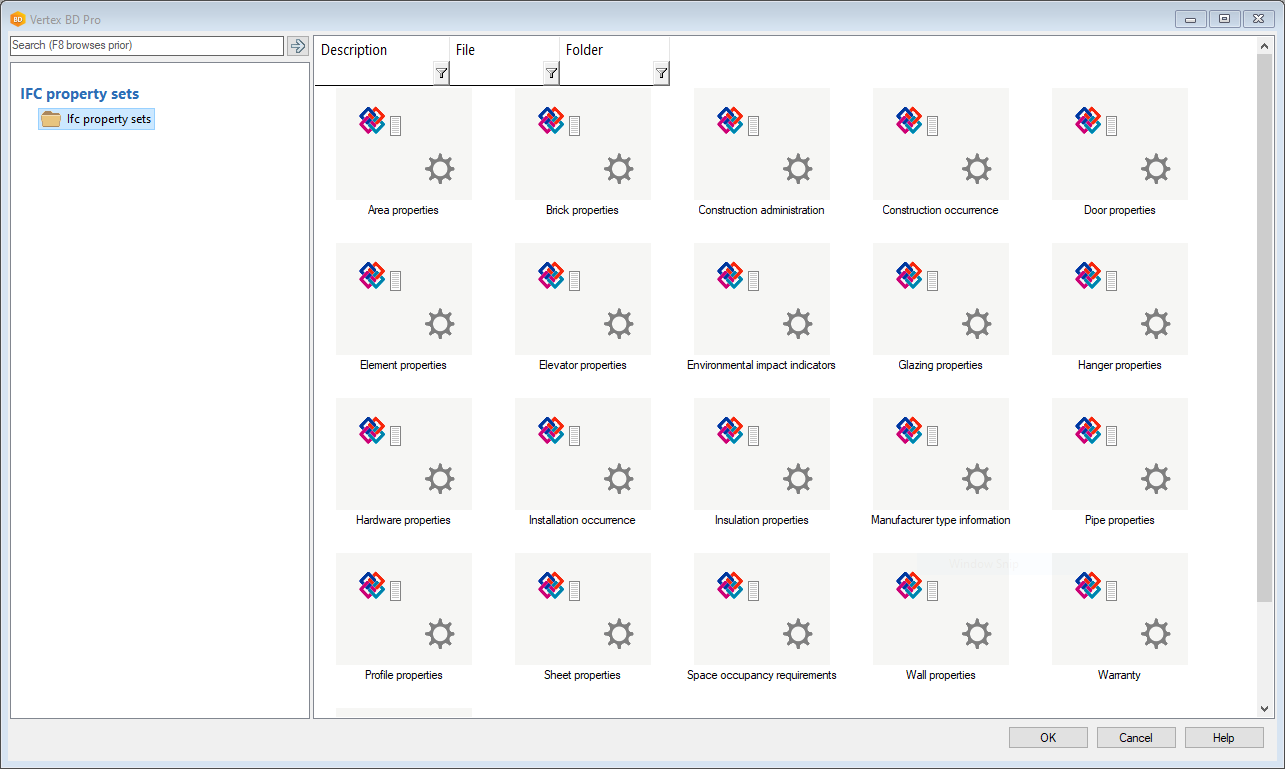
The system library of the program contains new property sets for different object types.
Renaming Vertex property sets
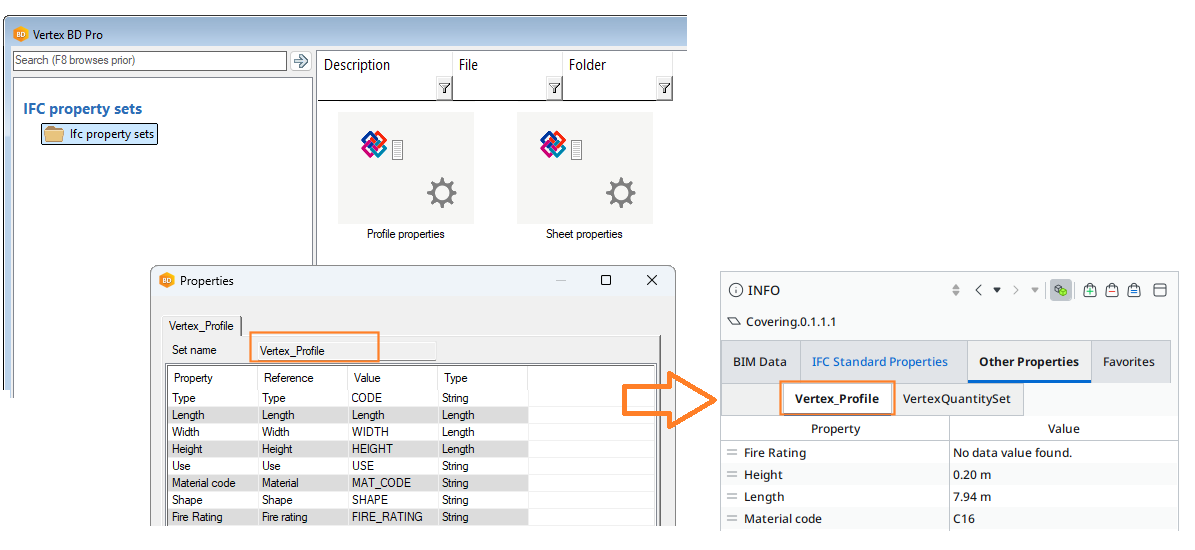
The IFC property sets included in the system library of the program have been renamed. Previously, the property set names used the prefix "Pset_". The property set names now have the prefix "Vertex_".
The "Pset_ prefix" is also no longer added to customer-specific or user-defined IFC property sets.
Please note
Renaming the Vertex property sets may affect third-party applications that read IFC files exported from Vertex BD.
Define entities
Why: Pending feature
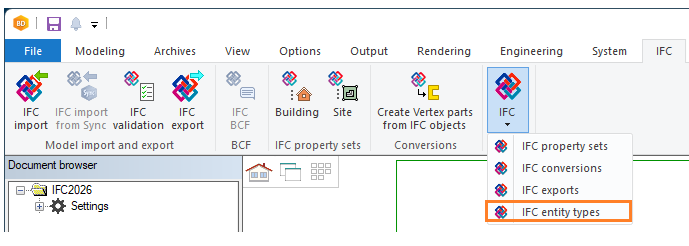
Library for mapping IFC entity and predefined type
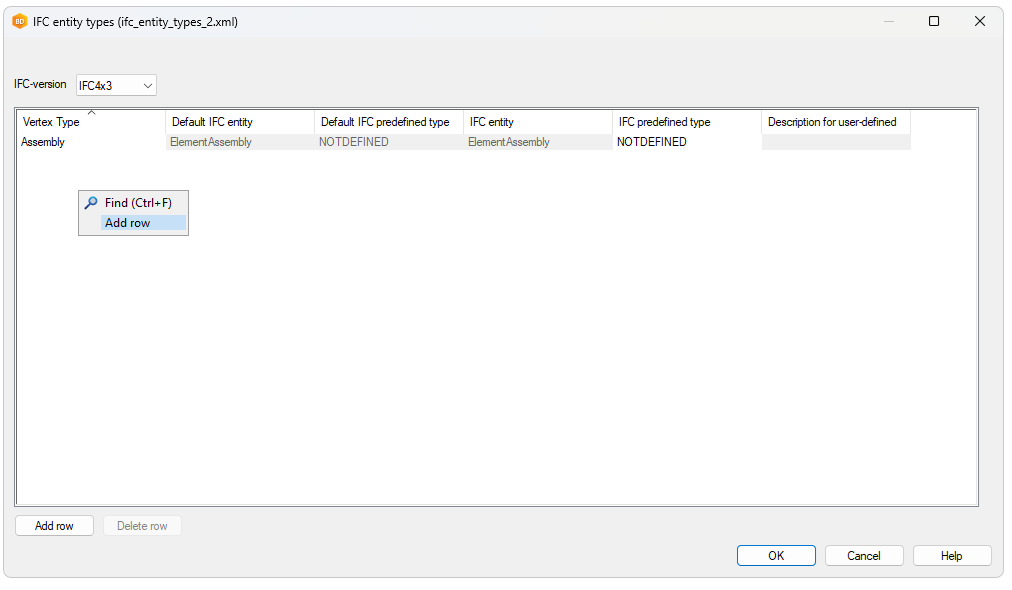
VXBD-3865
Object specific IFC entity type
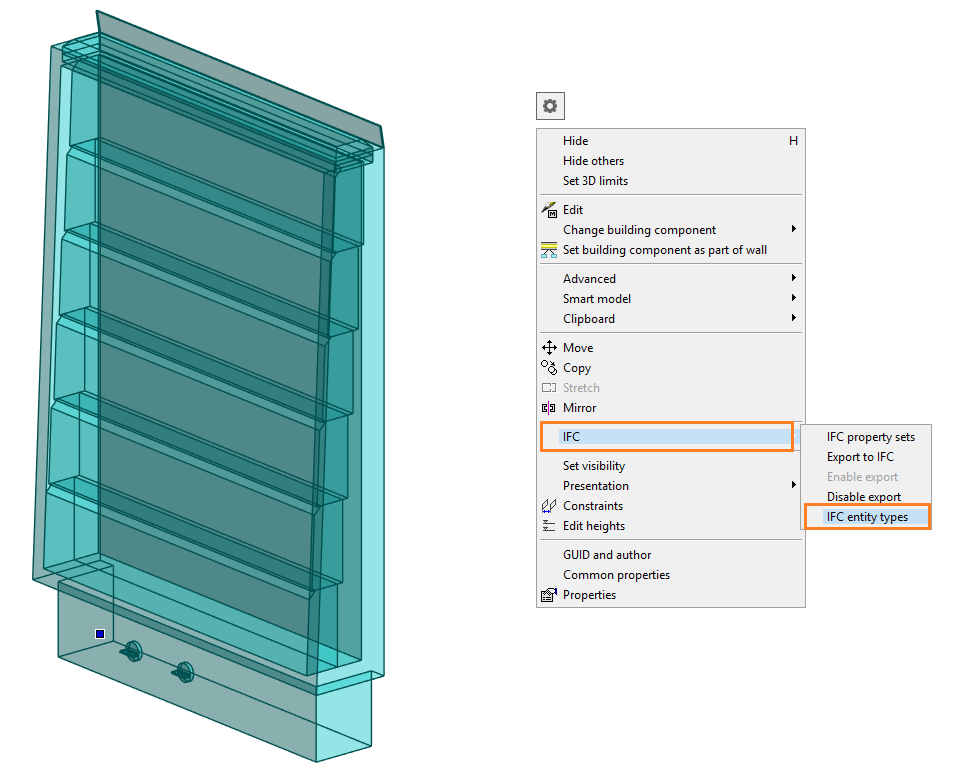
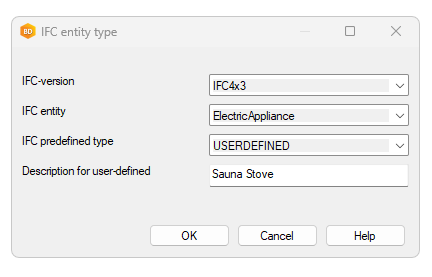
Define IFC entity type in macro component library
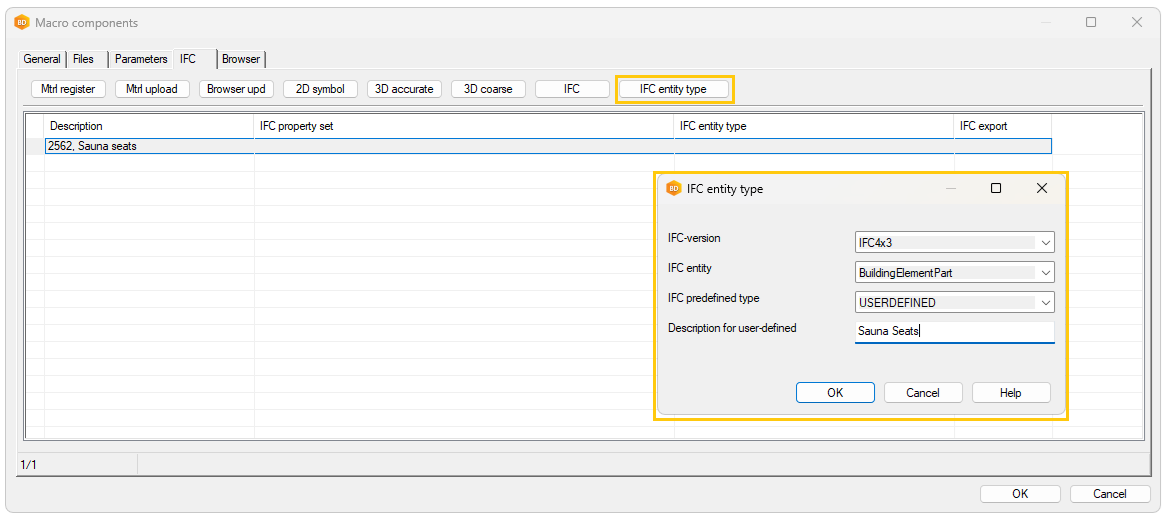
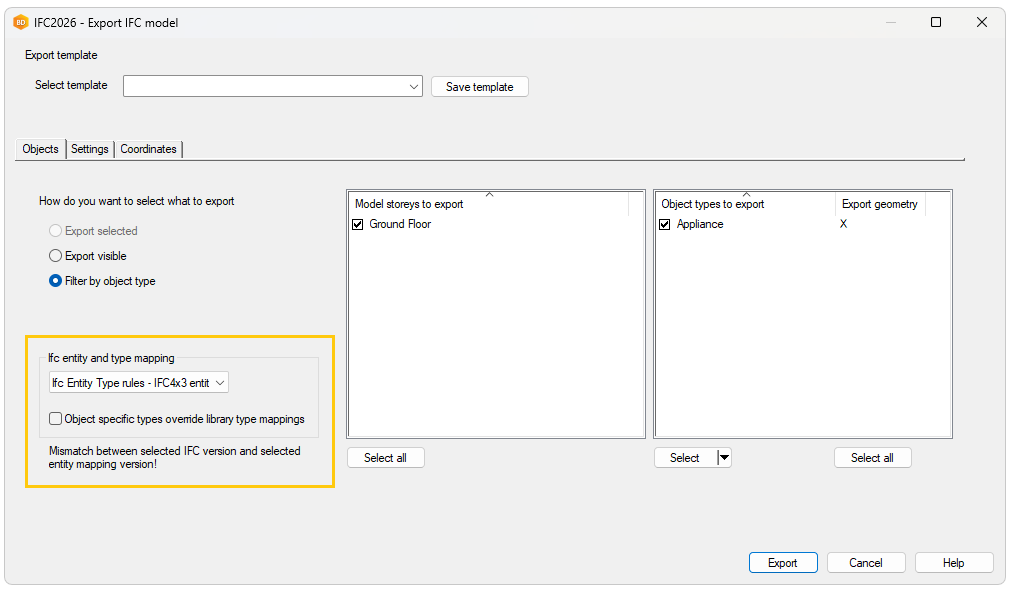
IFC export dialog
IFC 2026 conversion tool
The old conversion tool was based only on selection, making it difficult to manage complex conversion needs. With the new IFC 2026 Conversion Tool, users can now create both a selection filter and a conversion rule within the same dialog. These rules can be either building-specific or generic:
-
Generic rules are ideal when working with the same partner across multiple projects, especially if you have agreed on specific attributes and modeling styles.
-
Building-specific rules are useful for large buildings with many different wall types or unique requirements.
This approach makes the conversion process more flexible, efficient, and easier to manage for different project scenarios. The old conversion tool was based only on selection, making it difficult to manage complex conversion needs
What Are the Benefits?
-
Simplicity and Clarity:
The new interface makes it much easier to understand and manage conversion rules, reducing the learning curve for new users. -
Powerful Filtering:
Advanced selection rules allow you to precisely target which IFC objects to convert, saving time and reducing errors. -
Customization:
You can create and manage your own conversion rules, adapting the tool to different projects, partners, or modeling styles. -
Batch Processing:
The tool is especially effective for large projects, enabling batch conversion and filtering of many objects at once. -
Time Savings:
By automating and streamlining the conversion process, designers spend less time on manual work and more on value-added tasks. -
Consistency:
Saving rules in customer-specific or project-specific libraries ensures consistent conversions across similar projects.
New conversion dialog for windows, doors and spaces
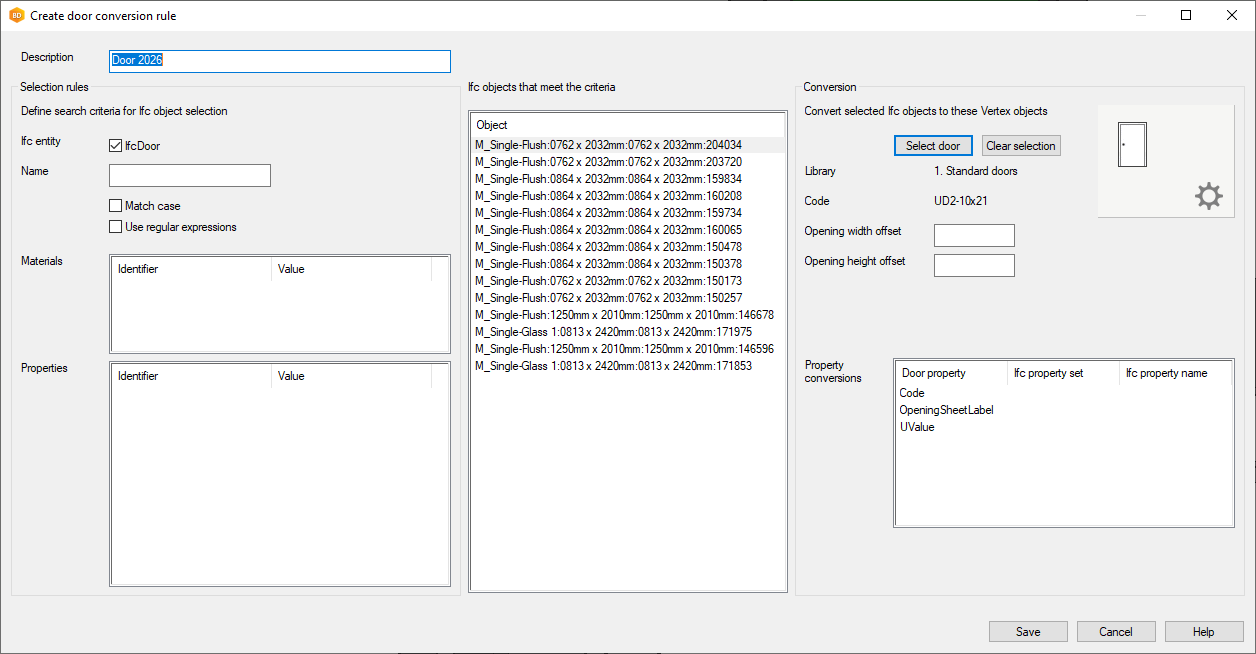
A new conversion rule has been added for windows, doors, and spaces, in addition to the existing ones. The old conversion rules still exist with slight modifications. Openings have been taken out of the wall conversion rule and are now handled as a separate tool.
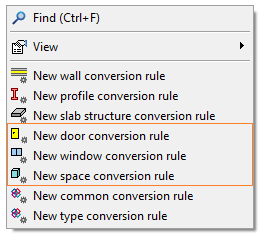
New selection and conversion rules for object conversion
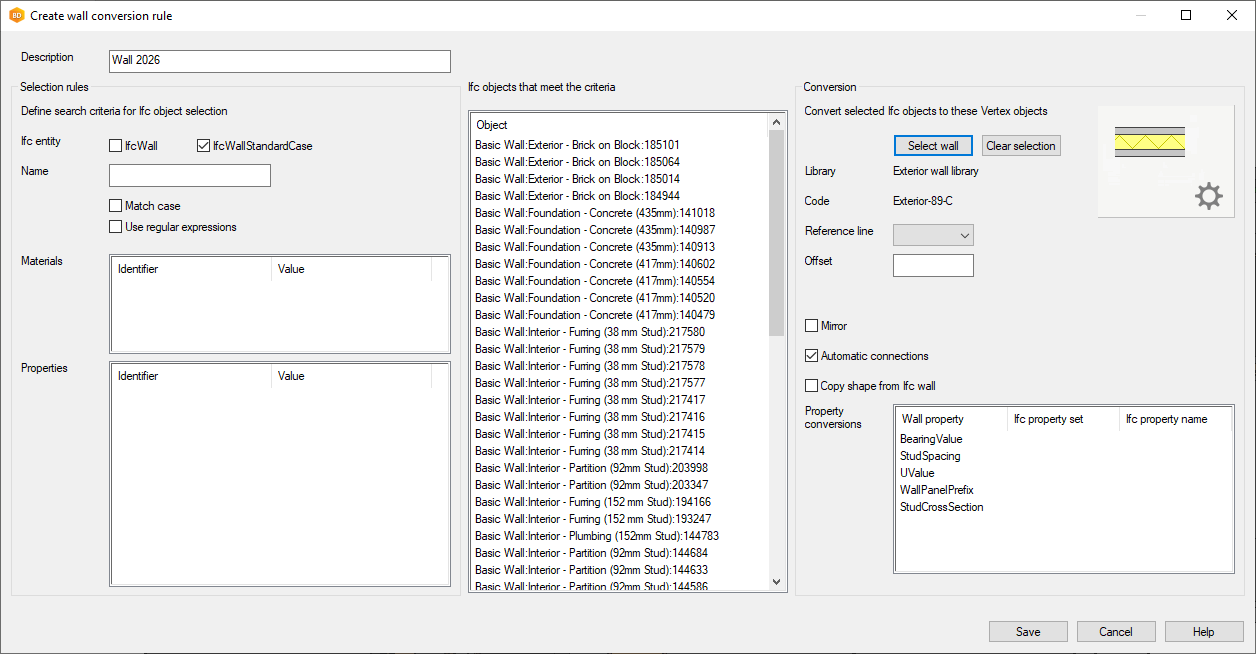
With the renewed conversion rule dialogs, you can now both select which objects to convert and define the conversion rule within the same dialog. Selection rules are on the left side of the dialog, allowing you to filter with more parameters. IFC objects that meet the search criteria are listed in the middle. Conversion rules are on the right side, where you define how the selected objects will be converted. This unified approach makes the process more efficient and flexible.
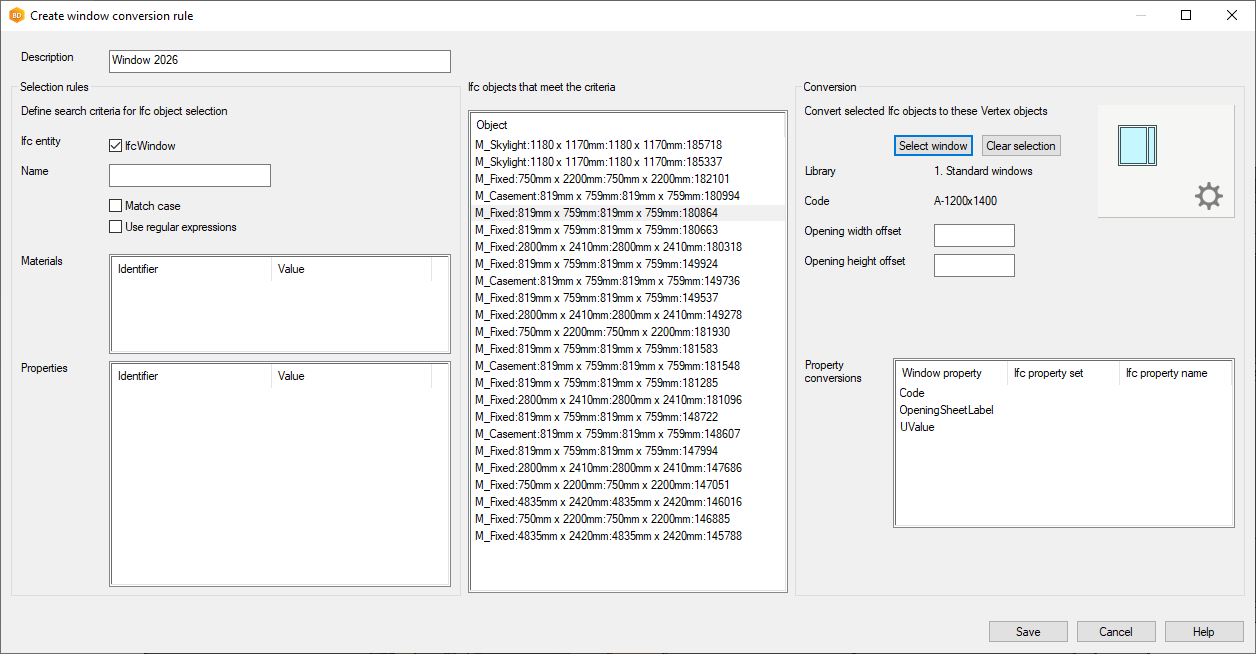
Selection filters
Selection filtering allows you to precisely target which IFC objects to convert. You can filter objects by:
-
Name: Filter by IFC object name, with options to match case or use regular expressions for advanced searches.
-
Materials: Filter by IFC material. You can also select materials directly from the model for accurate filtering.
-
Properties: Filter by IFC property set name and value. Properties can also be selected directly from an IFC
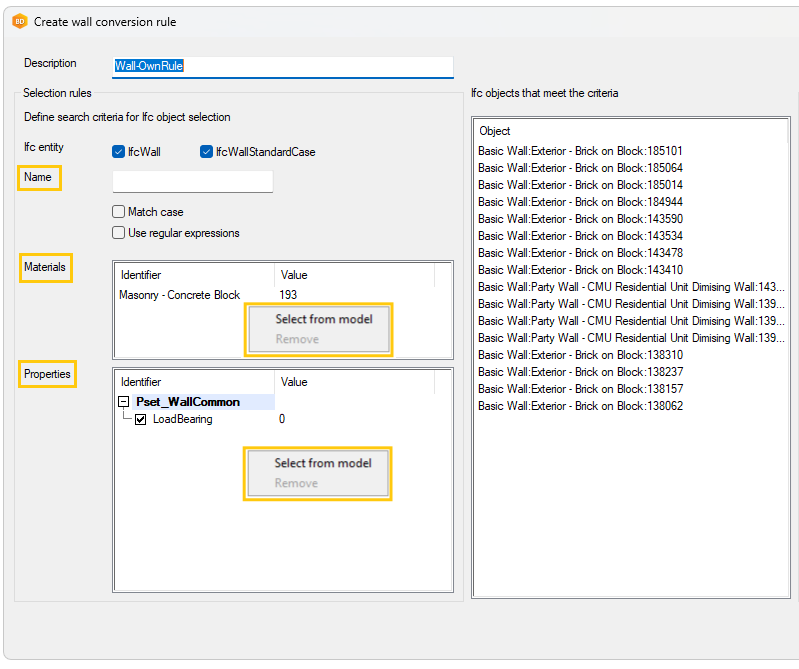
Conversion rules
Conversion rules define how the selected IFC objects are transformed into Vertex objects. In the dialog, you can—for example, when converting walls:
-
Use the Select wall button to choose a wall type from the wall library.
-
Set the Reference line to either the interior or exterior face of the wall.
-
Specify an Offset from the reference line for precise placement.
-
Use the Mirror checkbox to mirror the converted Vertex wall if needed.
-
Enable Automatic connections to create corner or T-connections automatically between converted walls.
-
Use Copy shape from Ifc wall to transfer the 3D shape from the IFC wall to the Vertex wall.
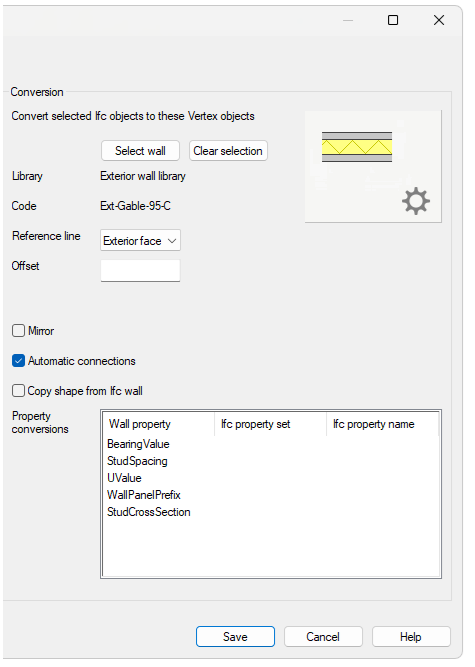
-
Map IFC properties to Vertex properties, such as copying the load-bearing property from the IFC property set (e.g., Pset_WallCommon.LoadBearing) to the Vertex wall.
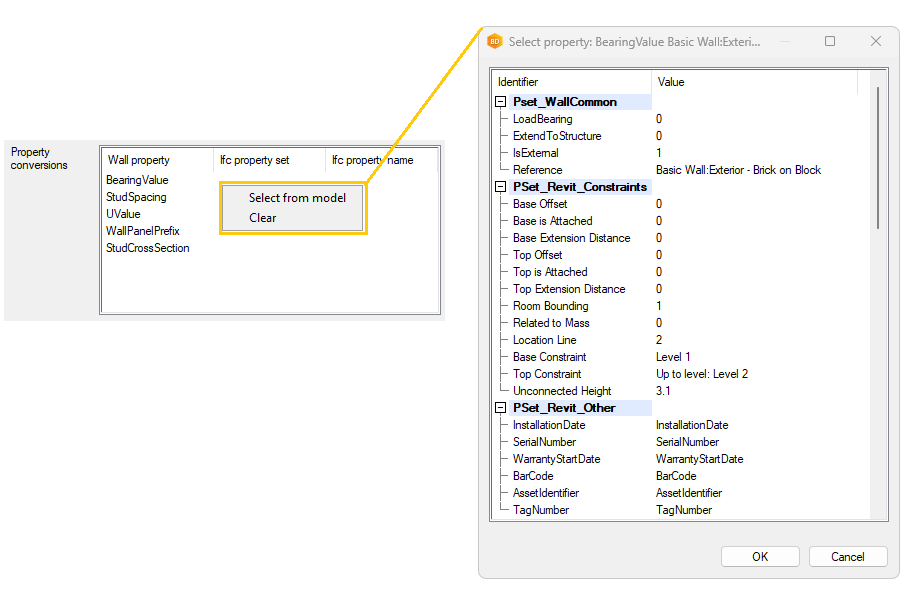
When Ifc is converted to Vertex wall, the bearing property will be copied from given Ifc property (in this example from Ifc property set Pset_WallCommon and property LoadBearing)
Here, wall is used as an example. Similar conversion rule options are available for other object types. These features allow you to control exactly how each IFC object is converted, ensuring the resulting Vertex model matches your project’s requirements.
Create Vertex parts from Ifc objects
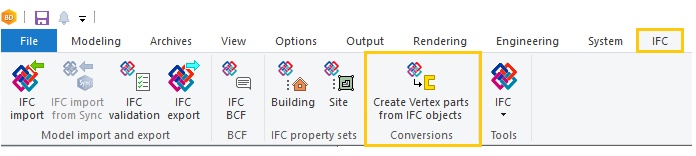
This tool is used to select predefined conversion rules to convert IFC objects into native Vertex BD objects. You can apply different rules to different object types at the same time, making the conversion process flexible and efficient.
All available conversion rules—system, custom, and building-specific—are listed in the dialog:
-
System rules can be viewed but not edited.
-
Building-specific and custom rules can be created, edited, renamed, or deleted as needed.
-
New rules can be added to either the customer library or a building-specific library directly from the same dialog.
If the setting set.system.menu=1 is enabled, the same management options are also available for custom rules. This comprehensive rule management ensures you can tailor the conversion process to your project’s requirements, supporting both standardized workflows and project-specific needs.
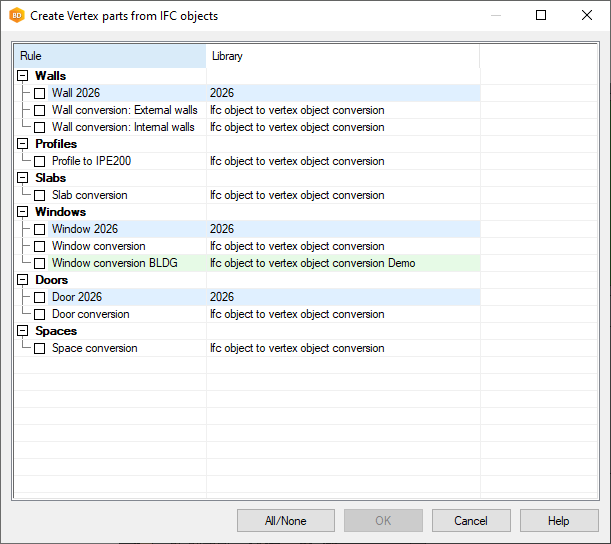
White= System rule
Blue= Custom rule
Green= Building rule