
In addition to 154 bug fixes, the following updates have been made to Flow:
Items: Create new item types
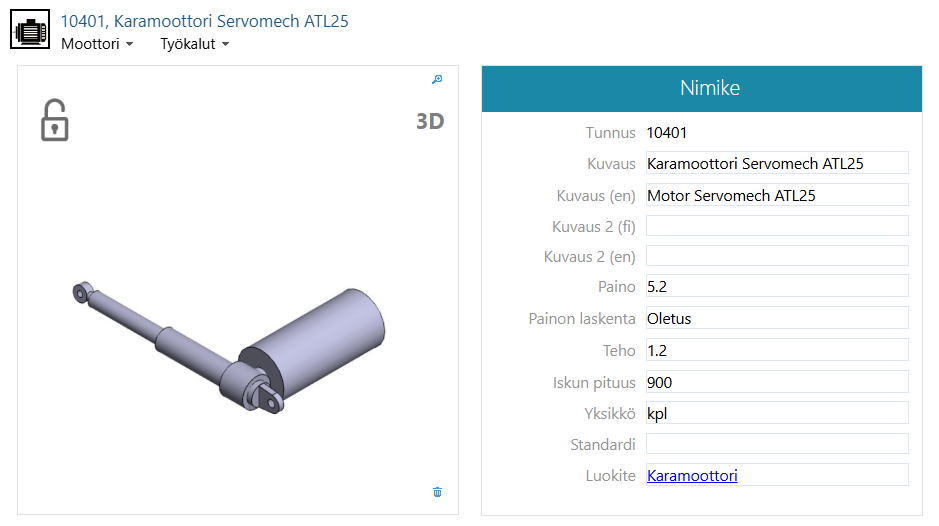
Companies often have different processes and data needs for various item types. Previously, all items followed the same workflow and used identical metadata fields, resulting in complex item cards filled with unnecessary information. With item types, workflows and fields can be customized as needed, making processes more flexible and the interface clearer.
See the presentation on the main page.
Documents: New Viewer
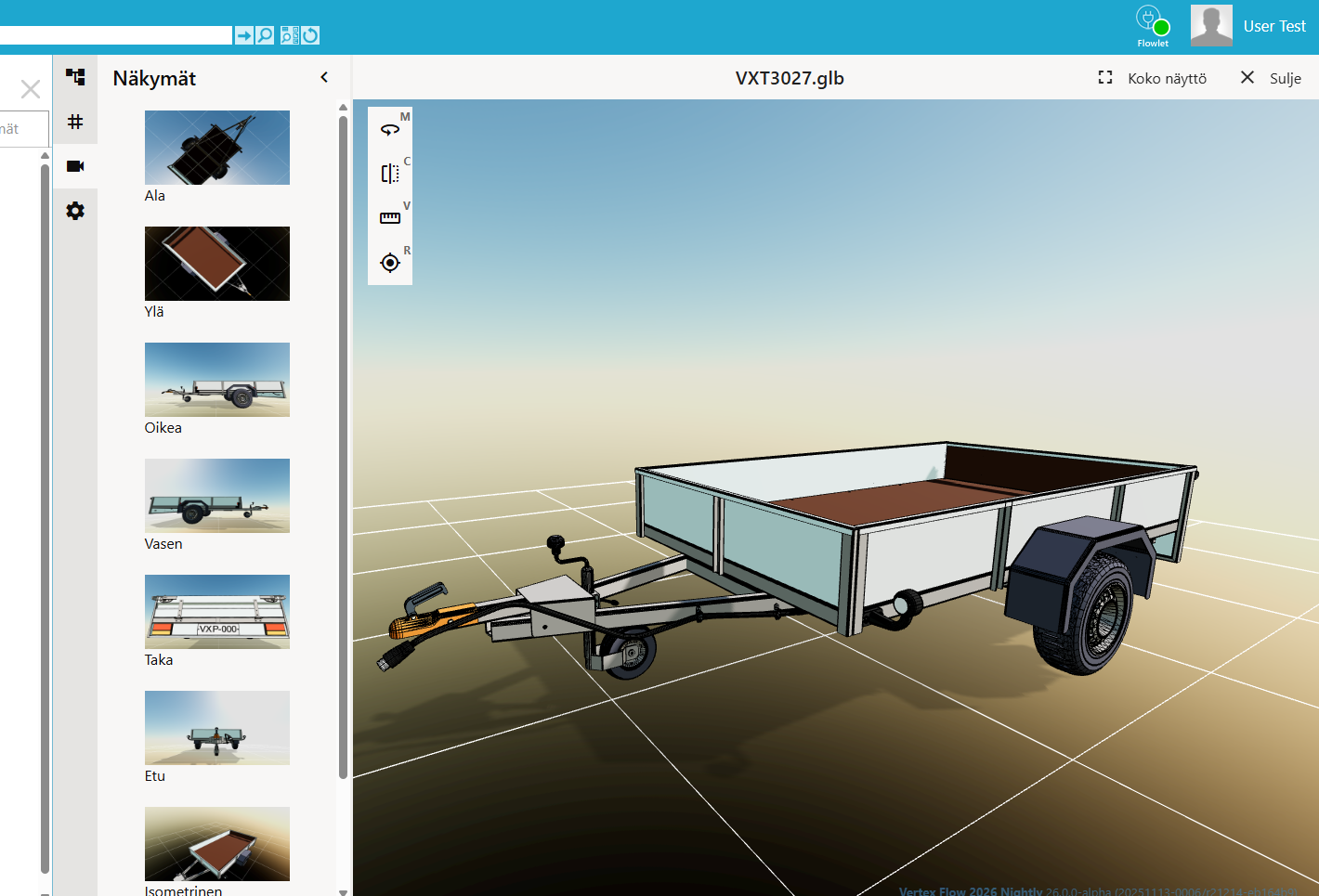
In the previous Flow version, the 3D viewer only allowed rotating and zooming the model. The updated viewer now includes measurements, rotations, hiding elements, section cuts, MBD annotations, model structure tree, and more. You can view 3D model files in GLB format and 2D drawings in DWG format. Paid license option.
Check out the presentation on the main page and see detailed information in the instructions: Open the document in 2D/3D view.
Reports: Power BI reports in the Flow user interface
.png?cb=9350bdb5887bf7622c9decad520090f4)
Track design progress in real time with powerful Power BI reports directly in Vertex Flow.
Check out the presentation on the main page and see detailed information in Power BI reports embedded in Flow.
Flow for SolidWorks: Improvements and new features (1.0.14 and 1.0.15)
-
Notification about the new Flow for SolidWorks update on the login page. VXSWADDIN-107
-
Support for multiple item types. VXSWADDIN-111, VXSWADDIN-112, VXSWADDIN-116, VXSWADDIN-129
-
Support for multi-sheet drawings. VXSWADDIN-50
-
An error message is shown if the file name does not match the drawing or model identifier. VXSWADDIN-108
-
Responsible person selection on check-in. VXSWADDIN-46
-
Include GLB file format on check-in (SolidWorks version must be at least 2024). VXSWADDIN-11
Read more Release Notes of Flow for SolidWorks.
Flow OpenAPI: Additions to the api
-
Handling of Product Automation backend server states and task statuses. VXFLOW-1600
-
Support for multiple item types. VXFLOW-1495, VXFLOW-1452
-
Retrieval of project item structure. VXFLOW-1397
-
Added retrieval of project-specific groups (roles). VXFLOW-1771
-
User data retrieval now includes the user’s title field. VXFLOW-1763
Read more Vertex Flow OpenAPI Descriptions.
Workflow: Enhanced clarity with status color coding
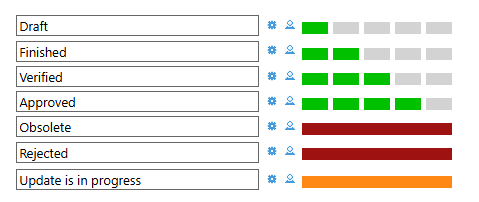
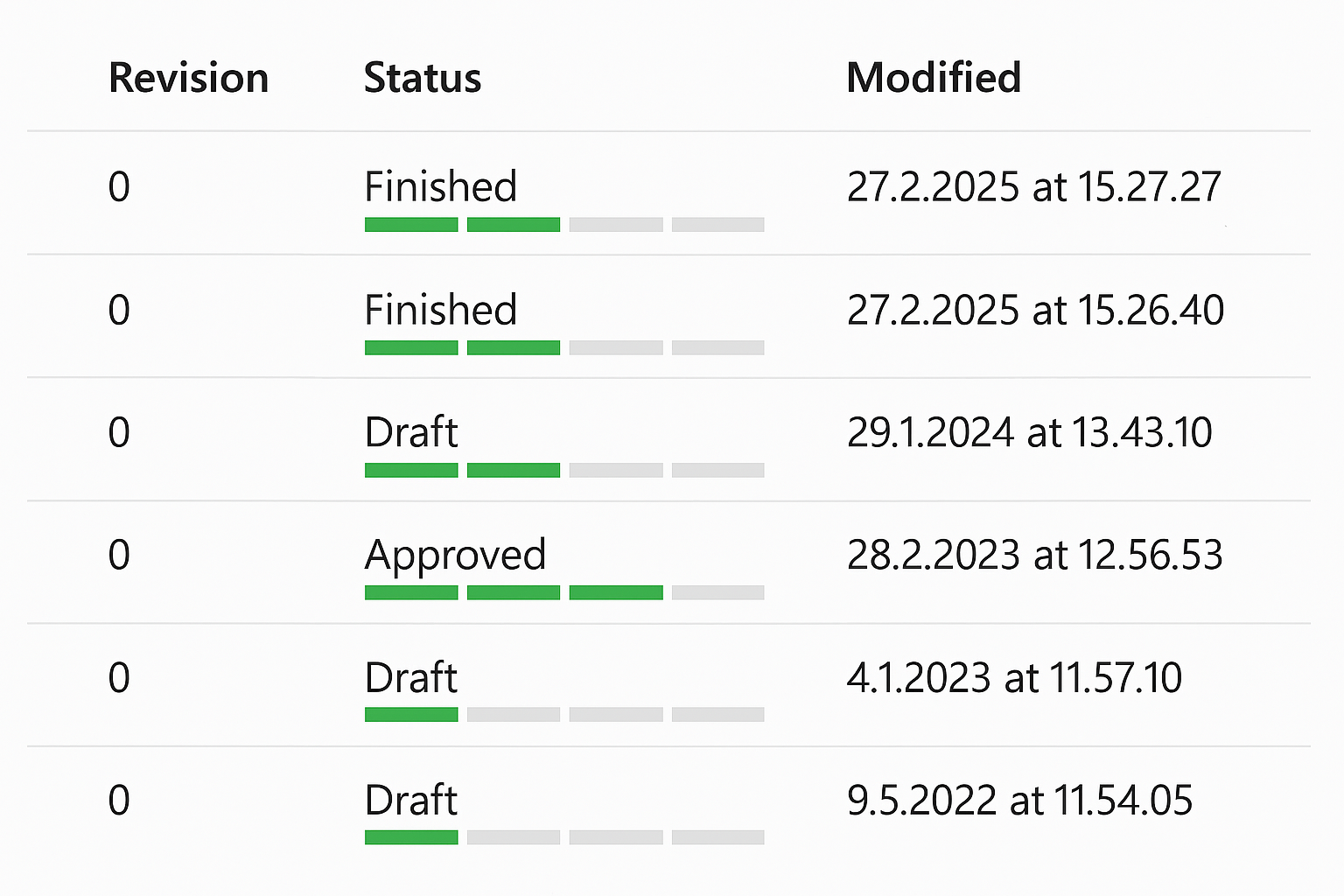
The administrator can assign a descriptive color code to each status in the workflow model. Users can easily and quickly see the status of objects visually on Flow cards and in search results. Especially in item structure approval, it is crucial that the statuses of components stand out clearly. This improves both the accuracy and speed of the approval process.
Read more from the guide.
Workflow: Type-specific status transitions
Depending on the company’s operating model, not all object types necessarily follow the same workflow path. For example, office documents can be approved directly from Draft status without intermediate steps. Or different item types may have different workflow paths. These differences can be implemented with type-specific status transitions. The status model, however, remains the same across all types.
Workflow: Approval details displayed on the item card
The item’s verifier and approver information has not been visible on the item card, even though similar details are shown on drawing and model cards. Previously, users had to check these approval details on the item’s State History page. Now, they are displayed directly on the item card.
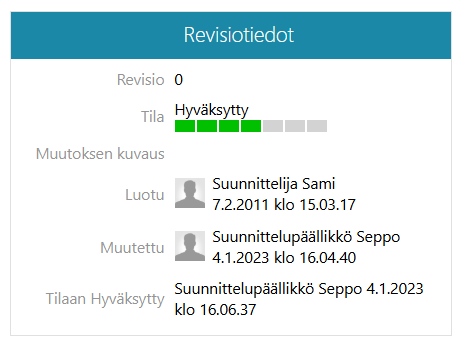
VXFLOW-1288, 25.0.2
Workflow: The approval details of the related item are updated to the drawing’s title block
To make the design process smoother and reduce bureaucracy, a company may decide that drawings and models do not need to go through the full approval workflow. Instead, approvals are done directly on the related items, since this also allows checking the status of their components. This has led to a challenge: the drawing’s title block shows incorrect reviewer and approver timestamps—or none at all—because the actual review and approval happen on the item, often at different times and by different people.
The new feature resolves this inconsistency. Now, the title block and text macros (F5) update function can be configured to fetch approval details for the drawing directly from the related item. This ensures the title block reflects the company’s practices and supports item-centric design.
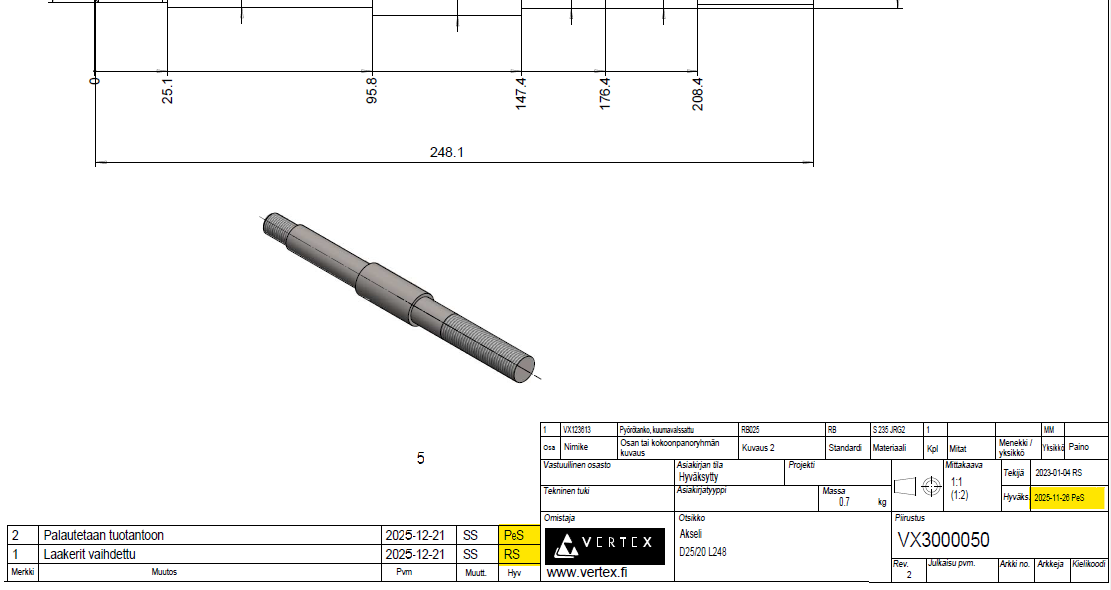
Read more In the drawing title block, show the item's approval information instead of the drawing's own data.
VXFLOW-1195, 25.0.6
Documents: Check out a document without opening it
In previous Flow versions, the browser interface offered only one way to check out a document for editing: the “Check Out and Open” function, which always opened the file—even when opening it wasn’t necessary. For example, if a user wanted to replace the document file with another, the old file would open unnecessarily, wasting time and consuming system and network resources.
In the new Flow version, the Document menu includes a separate Check out function that reserves the file without opening it. Users can now choose which action they prefer.
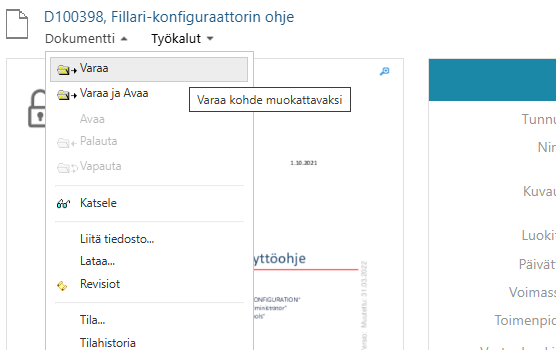
VXFLOW-1162, 25.0.1
Trolley and Import: Clearing a text field as a mass operation
Sometimes it’s necessary to clear the value of a text field for a large number of objects, for example, due to an incorrect import operation. This mass clearing can be done either during import or using the trolley. When you enter the special character combination "" (two quotation marks) as the field value, the field will be emptied.
For more details, see the instructions Import Documents ja Import Items.
Trolley and Device Cards: Display the Position Field in the Trolley List
The position field is one of the most important fields for device card–type objects. If a trolley contains only device cards, the position field is now always shown as its own column in the trolley’s listing. If you want the position field to appear also in trolleys that contain other types of objects besides device cards, you can make it visible by editing the trolley’s search view and dragging the position field in as a visible component.
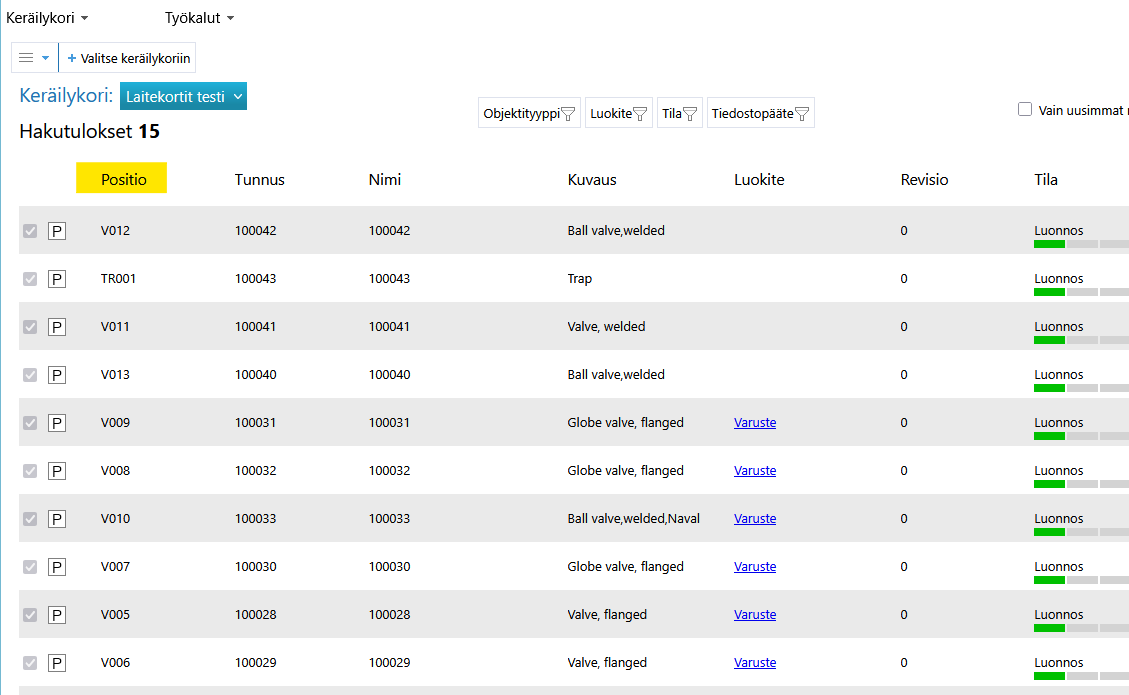
Trolley and Quick Search: The columns in the search results list are primarily determined by the object types
The columns shown in the collection basket and quick search results have not always served their purpose: some necessary fields have been missing. The software has been improved so that when the collection basket or quick search results contain only one type of object—for example, only projects or only Vertex models—the user is shown just the essential fields for that specific type.
Trolley and Assignee: Changing the Assignee as a mass operation
You can change the assignee person for multiple objects at once by using the trolley. Because of the way state models are implemented, the function is available only if the trolley contains objects of the same type.
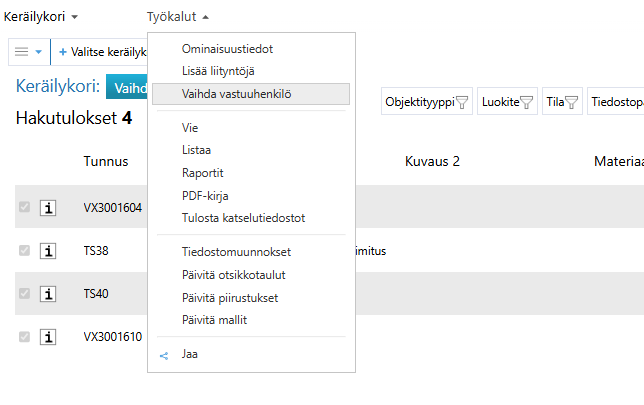
For more details, see the instructions Set assignee on the trolley.
Trolley: Renaming a Trolley
Previously, changing the trolley’s name caused any links pointing to it to break. Now the link continues to work even after the name has been changed. You can change the name via Trolley > Settings.
Export: Connection Data
Previously, Flow wrote only a limited number of link data to export files by default. Using the system settings keyword pdm.export.alllinks, Flow would write all links, but this required administrator actions and the keyword affected export operations for all users. Now you can get the same functionality with the export page checkbox Export all links.
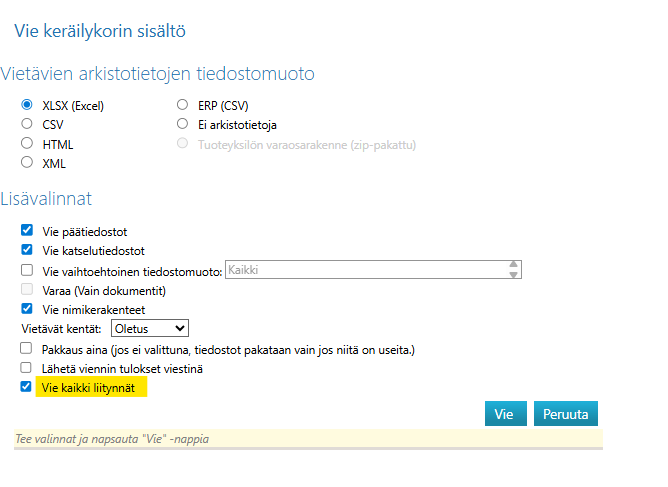
For more details, see the instructions Export Data from Flow
Search: Find objects where the text field is empty
Users can now search for objects that have no value in a text field. To do this, the user can enter the special character sequence "" (two quotation marks) in the field: the search will find objects where the field is empty. This feature is useful, for example, when a text field is about to be made mandatory.
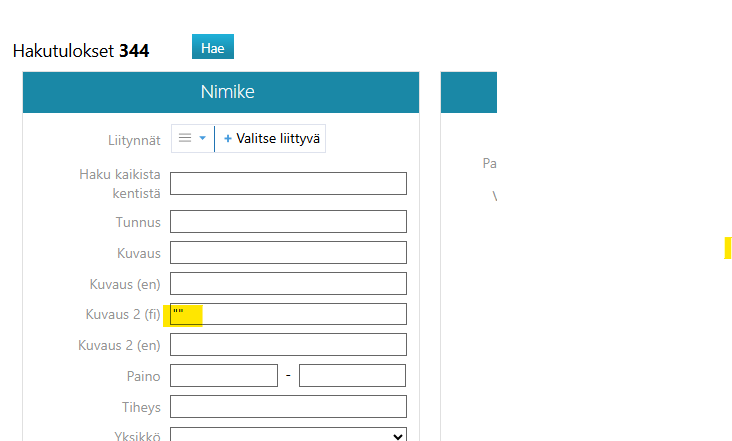
For more details, see the instructions Advanced Search.
Binder Tool: Export the desired document file formats into a ZIP package
Installation, operating, and maintenance instructions are increasingly required as a compilation tailored to the delivered device’s characteristics. With the new feature, Flow creates a package from the documents of a product or project, writing the document files in the required formats (.VXP, .VXM, .DWG, .SAT, .STEP, .PDF, etc.).

For more details, see the instructions How to use keyword EXPORT_FILE_FORMAT and Use Binder Tool.
PDF Booklet: Add Preview Pictures
You can make PDF books more illustrative by adding preview images of items or documents to them.
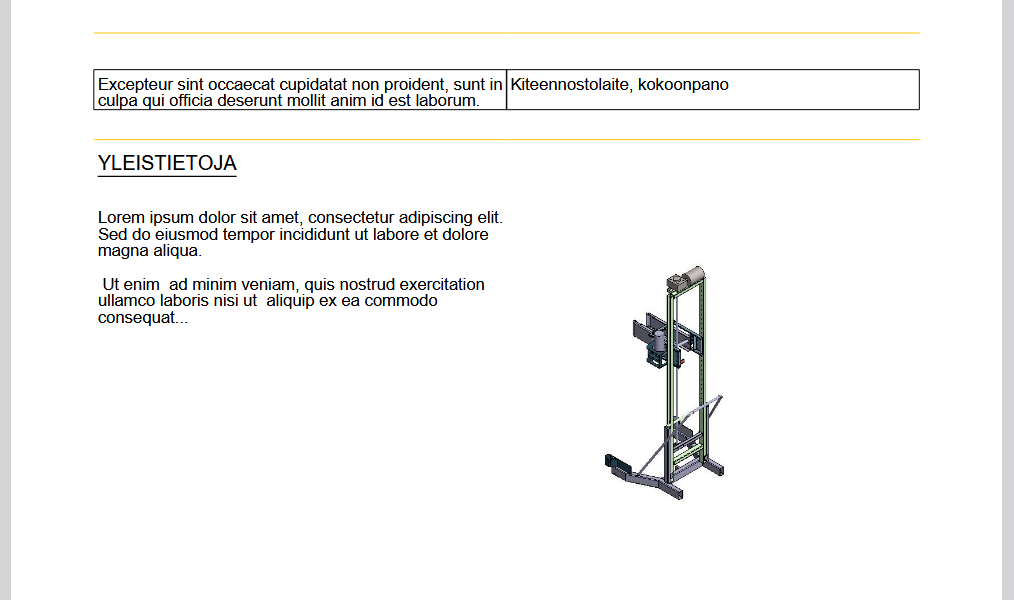
See the example file of the picture above 10280-datasheet.pdf and read the instructions PDF Reports
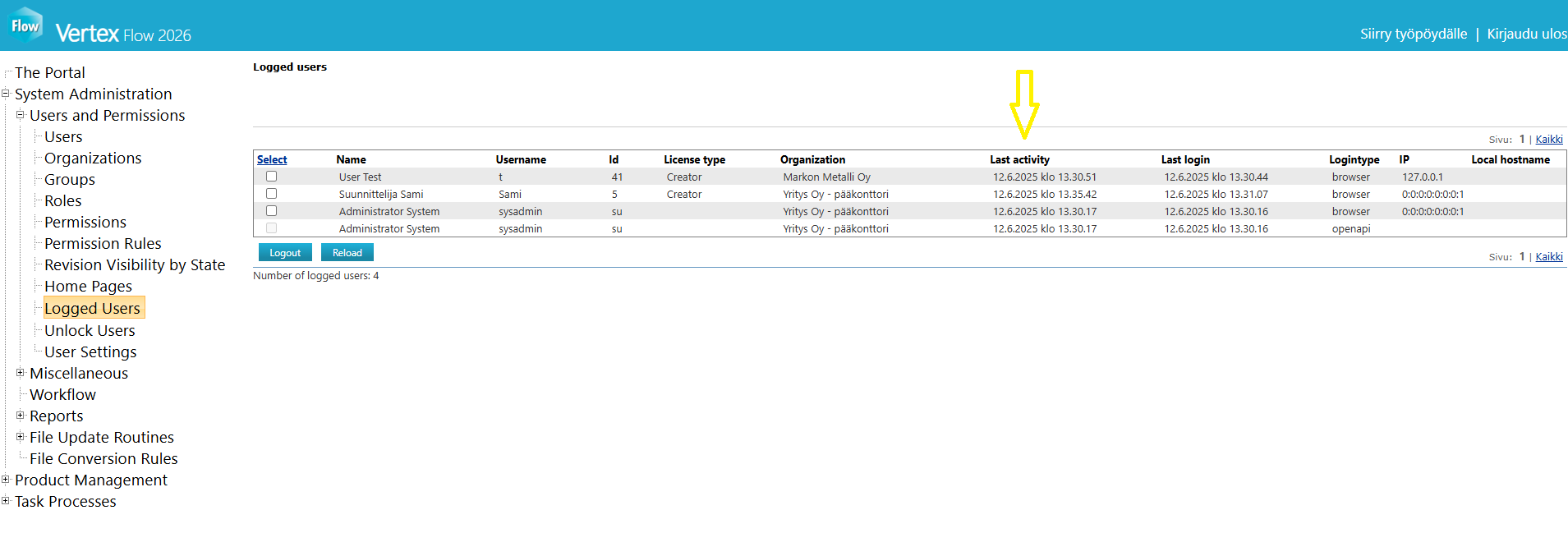
System Administrator’s functions: Last Activity column
Sometimes an administrator needs to log users out in order to free so-called floating licenses. Although licenses do get released automatically when a session times out, depending on the settings this could take hours. Users who have forgotten to log out of Flow can now be found easily using the Last Activity column. The value in the column shows the timestamp of the user’s last action — that is, the moment when the user last performed an operation that leaves a record in Flow’s database."
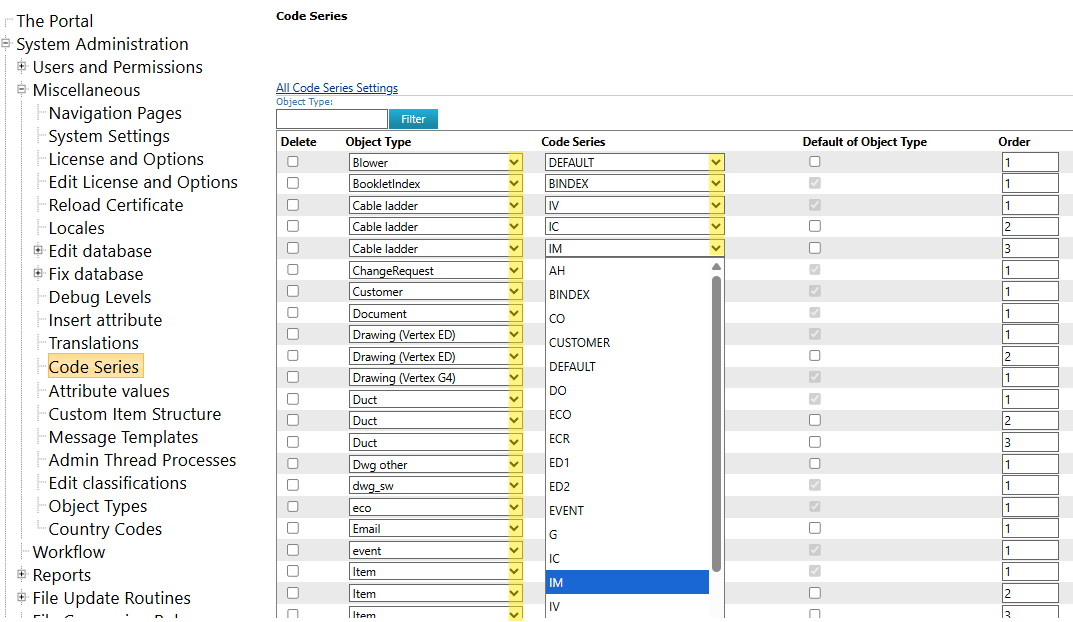
System Administrator’s functions: Code series easy to assign to different object types
When an administrator configures code series for different item types, for example, the types and series can now be selected from menus. Previously, the same configuration work had to be done by typing the type names and serie names into text fields.
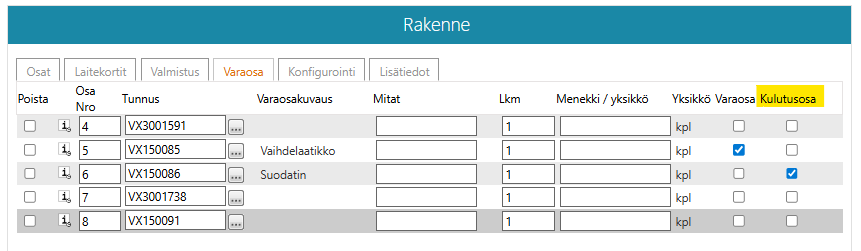
Spare Part Structure: Wear Parts
You can extend the contents of the Spare Part Structure function to include the definition of wear parts by enabling the extension with the keyword pdm.itemstructure.initwearparts.
For more details, see the instructions Producing spare parts catalogs
Signing in: You can also sign in with your email address
The system now includes the option to sign in through Keycloak using an email address instead of a username.
Plant Design: New device card type Delivery Limit
A new device card type, Delivery Limit, has been added to the system for plant design purposes.

New features in earlier Vertex Flow versions
Here are the lists of new features in previous Vertex Flow versions.