
Support Access for Vertex Sync enables authorized Vertex support personnel to access your organization’s Vertex Sync environment when investigating issues or helping resolve configuration and workflow problems. Organization administrators control each request, including its scope, permissions, duration, and termination.
Before you grant support access
Confirm the following information with the requester:
-
The support case or business reason like project to design environment upkeep for the access.
-
The specific projects, buildings, documents, or other data that must be accessed.
-
The actions required to investigate or resolve the issue.
-
The requested start and end time.
-
Whether the support user needs Read, Edit, or Revise permission.
Vertex support staff request what they consider the appropriate level of access required and the amount of time necessary to resolve the issue. Keep this in mind if you modify the request give more limited access.
Vertex Sync uses these permission levels:
|
Permission |
What the support user can do |
Recommended use |
|---|---|---|
|
Read |
View an item and its contents. |
Used for troubleshooting, reviewing configuration, and reproducing an issue without changing data. |
|
Edit |
Create, edit, and delete items. |
Use when support must make or test changes in the authorized scope. |
|
Revise |
Create new revisions. |
Use when the support task requires revision management. |
|
Admin |
Everything |
Use when the support task requires full admin rights to your organization (f.e. managing users). |
For more information about roles and permissions, see User Management.
Grant support access
-
Open the administration portal in Vertex Sync.
-
Open the Support Access view from the top bar.

-
Review the pending support request, including the requester, reason, requested data, permissions, and expiration time.
-
Verify that the request matches the support case and does not include unnecessary access.
-
Verify the access scope and permission level to the minimum required for support. Vertex support staff request only the access and time needed to resolve the issue.
-
Verify an expiration time using the shortest period that still allows Vertex support to resolve the issue.
-
Select Grant access to approve the request.
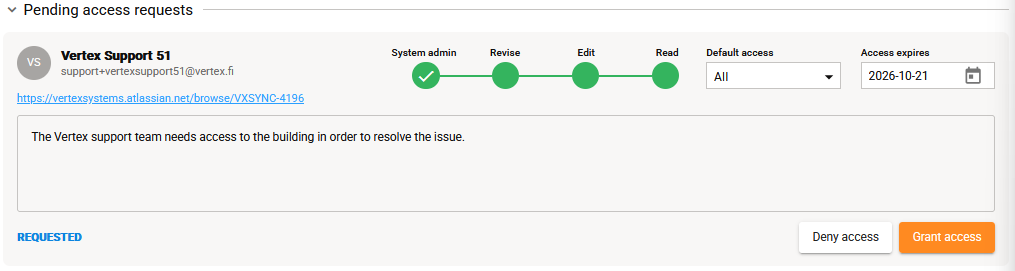
Granting Edit, Revise, or Admin access allows changes to be made within the approved scope. Read only allows read-only access. Confirm that the access you allow is enough to resolve the issue, but not something you don’t want to give Vertex support.
Review active support access
Use the Support Access view to review active sessions.
-
Support user and associated case.
-
Approved projects or data.
-
Assigned permission level.
-
Access start time and expiration time.
-
Current status of the support activity.
If the investigation is complete, or the approved scope is no longer appropriate, you can end the access immediately rather than waiting for the expiration time.
Cancel support access
-
Open the Support Access view.
-
Select the active support session.
-
Review the session details.
-
Select Cancel.
-
Confirm the action.
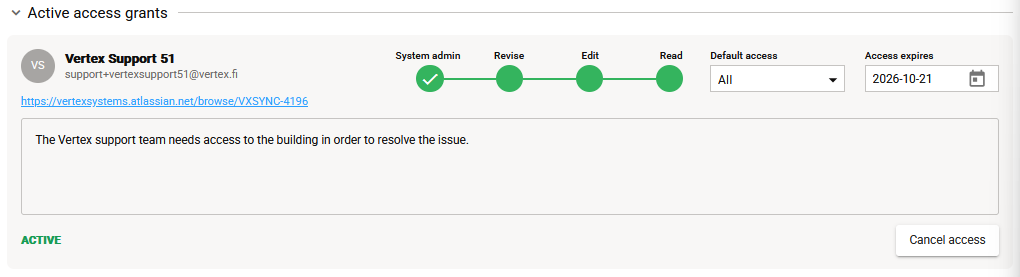
Cancelling the access prevents further support activity under that approval. It does not remove project data or erase the activity history associated with the session. The cancelled access can be reacticated clicking the Grant access button.
Access history and auditing
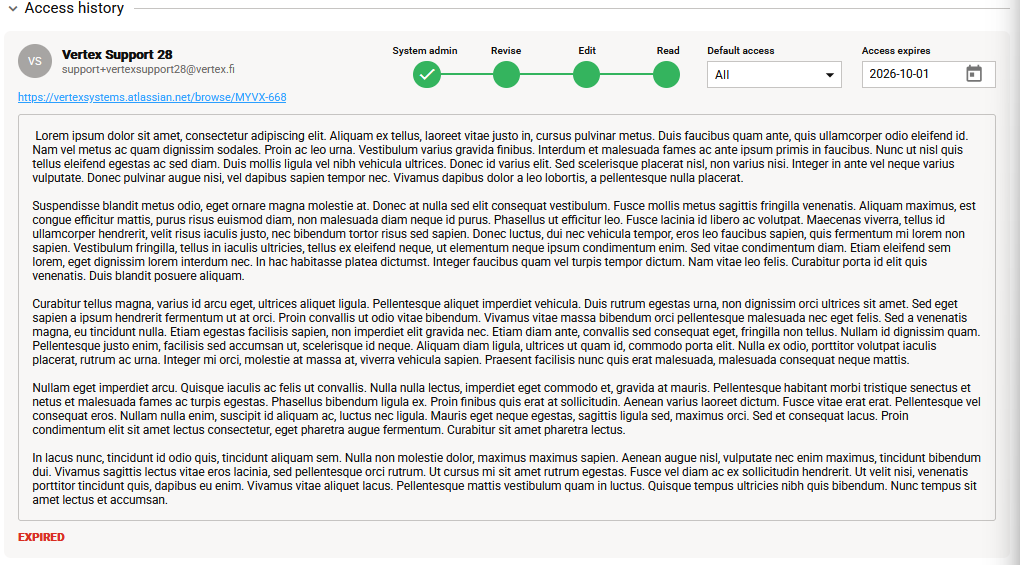
Support access should be treated as temporary, controlled access to your organization’s data. Access activity and changes made during the session may be recorded in Vertex Sync history.
Recommended practices
-
Use the requested access level by default.
-
Limit access to the specific project, building, document, or data as needed.
-
Review active and completed sessions periodically.
-
Revoke access when you know it is no longer needed.
-
Do not share user credentials with support personnel. Ask them to send a support access request instead.