.png?cb=be471d0a9dc29cc51378620a42ff0ee9)
With Vertex Sync’s seamless integration to Microsoft 365, you can seamlessly view and edit Microsoft 365 documents including Word, Excel, and PowerPoint directly in your workspace. Whether you are collaborating on a report or reviewing a presentation, Sync makes it easy to stay productive without switching between apps.
-
View documents instantly without a Microsoft 365 subscription.
-
Edit documents when you have an active Microsoft 365 commercial license.
-
Enjoy a secure and smooth experience, with data processed directly between your device and Microsoft services.
Getting Started with Microsoft 365 in Vertex Sync
-
-
An admin must enable Microsoft 365 integration for your organization.
-
-
-
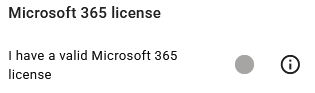
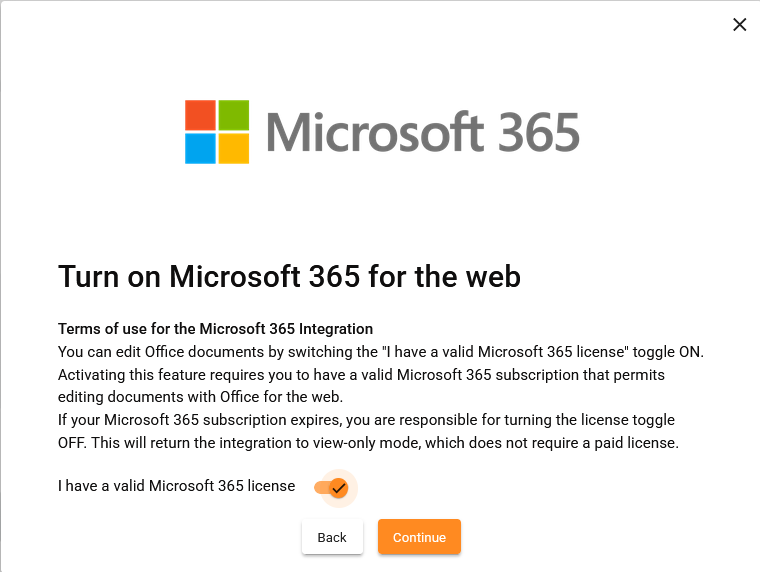
During the Welcome Flow or in My Account, toggle ON I have a valid Microsoft 365 license if you have an active subscription.
-
-
-
Use the New Document option to create Word, Excel, or PowerPoint files.
-
Or upload existing Microsoft 365 files into Vertex Sync.
-
-
-
View-only mode applies if:
-
You do not have a valid Microsoft 365 license.
-
The document is reserved or locked.
-
-
Editing mode requires an active Microsoft 365 commercial subscription.
-
-
Check terms of use
-
Integration follows Microsoft’s license terms.
-
Data is processed directly between your device and Microsoft services.
-
-
Manage license status
-
If your subscription expires, toggle OFF the license setting to return to view-only mode.
-
Upload or Create a New Microsoft 365 Document
Upload an Existing Document
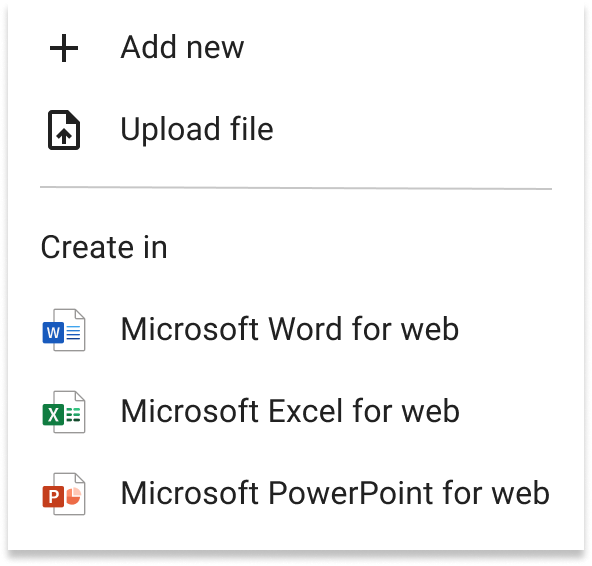
Click the + button at the bottom-right corner of your workspace.

-
Choose Upload File
-
The uploaded file will appear in your Sync workspace.
Create a New M365 Document
Click the + button at the bottom-right corner of your workspace.
Select the correct application from the ‘Create in’ section, based on the type of document you wish to create.
Add a New Document for an Existing Object
Add a new new document for an existing Sync object:
-
Go to Object View and click Add a new object.
-
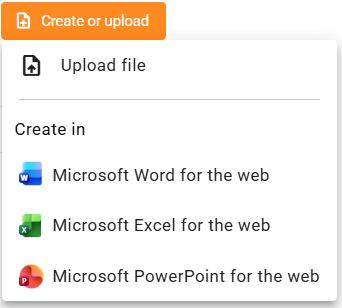
Open the object and select Create or upload.
-
Choose the Microsoft 365 application you want (Word, Excel, or PowerPoint).
-
Sync will automatically create a new document in the selected format.
To create new documents, you need an active Microsoft 365 commercial license.
View or Edit Microsoft 365 Document
You can open and edit Microsoft 365 documents (Word, Excel, PowerPoint) directly in Vertex Sync depending on your license status.
Viewing Documents
-
Always available: You can view Microsoft 365 documents without a paid subscription.
-
View-only mode applies when:
-
You do not have an active Microsoft 365 license.
-
The document is reserved or locked by another user.
-
-
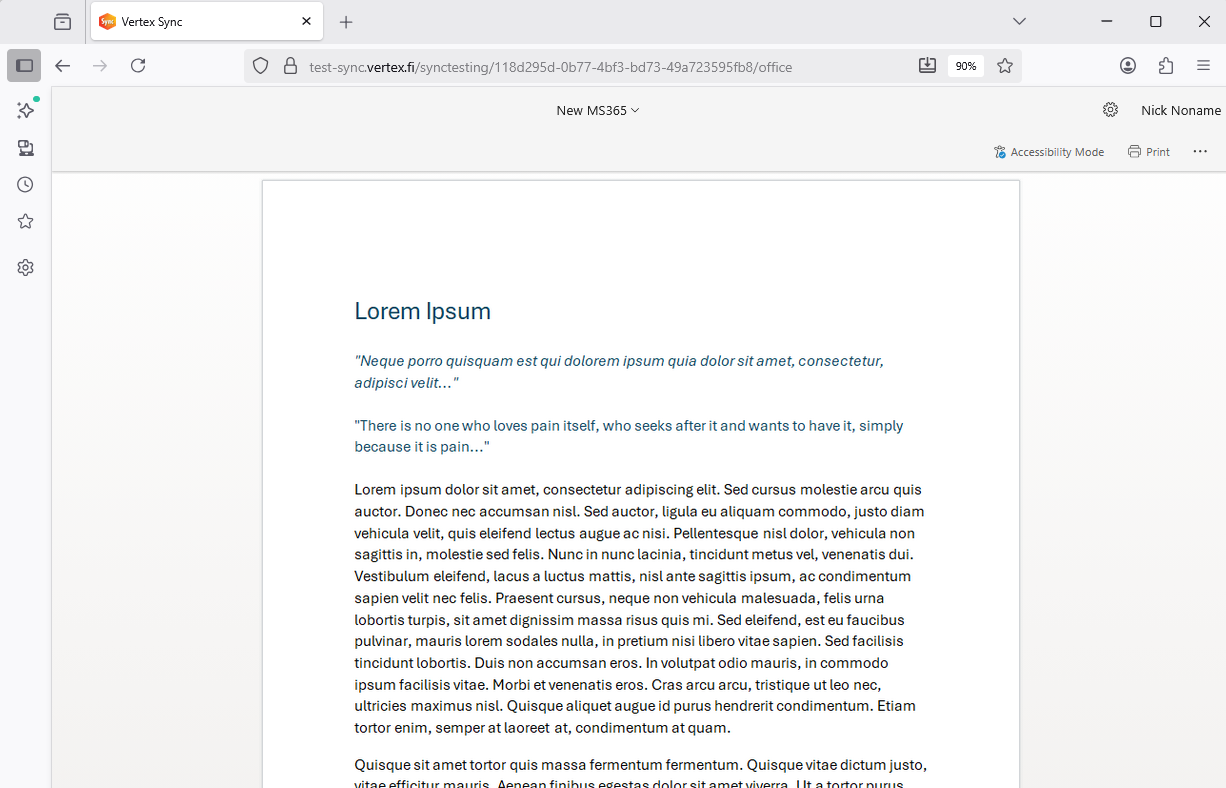
In view-only mode:
-
The Microsoft 365 interface hides all editing tools.
-
You can navigate and read the document but cannot make changes.
-
Editing Documents
-
Requires an active Microsoft 365 commercial subscription.
-
To enable editing:
-
Confirm your license during the Welcome Flow or in My Account by toggling “I have a valid Microsoft 365 license” ON.
-
-
When editing:
-
Changes are saved automatically.
-
Co-authoring is supported—multiple users can edit simultaneously.
-
Note: Sync’s reservation and lock rules may limit co-authoring in some cases.
-
-
-
To stop editing:
-
Simply close the document; all changes are saved.
-
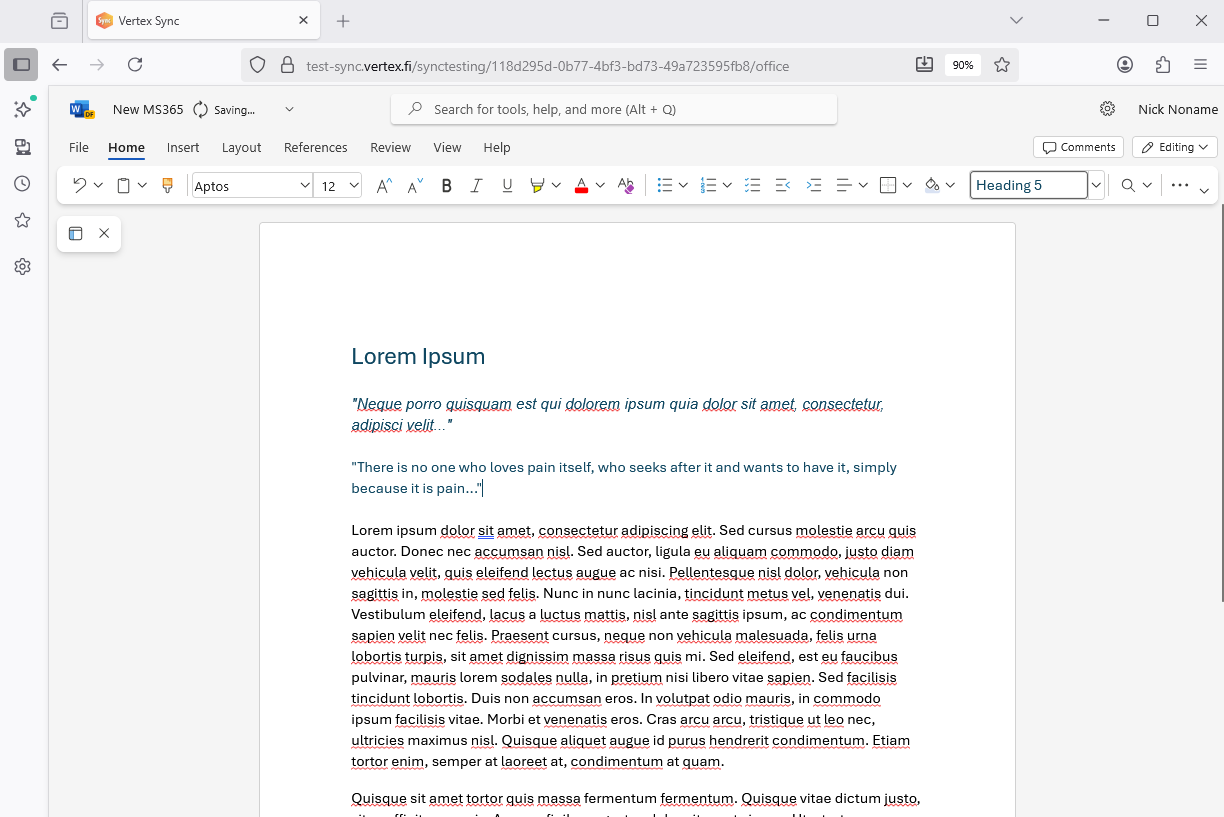
How to Open Documents
Click Open in Word for the web, Open in Excel for the web, or Open in PowerPoint for the web. The document opens in the corresponding Microsoft 365 web app.
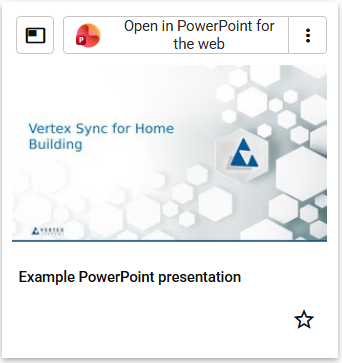
Stop Editing
All your changes are automatically saved to the document. You can exit the Microsoft 365 with the browser Back button or by using Microsoft 365’s bread crumps in Location section.
Rename your file giveing a new name in File Name edit box.
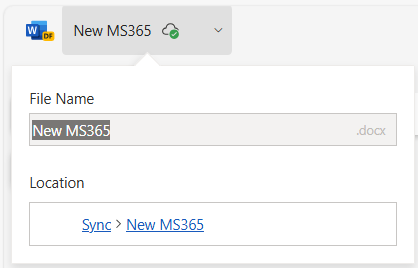
Enable Microsoft 365 Integration for Organization
The administrator of the organisation has to enable Microsoft 365 integration. Until the organisation admin has enabled the integration, Microsoft 365 functionalities are not available for the organisation users. The integration can be enabled either on the Welcome flow during the first sign in or in the Admin portal of Sync.
Enabling in Welcome Flow
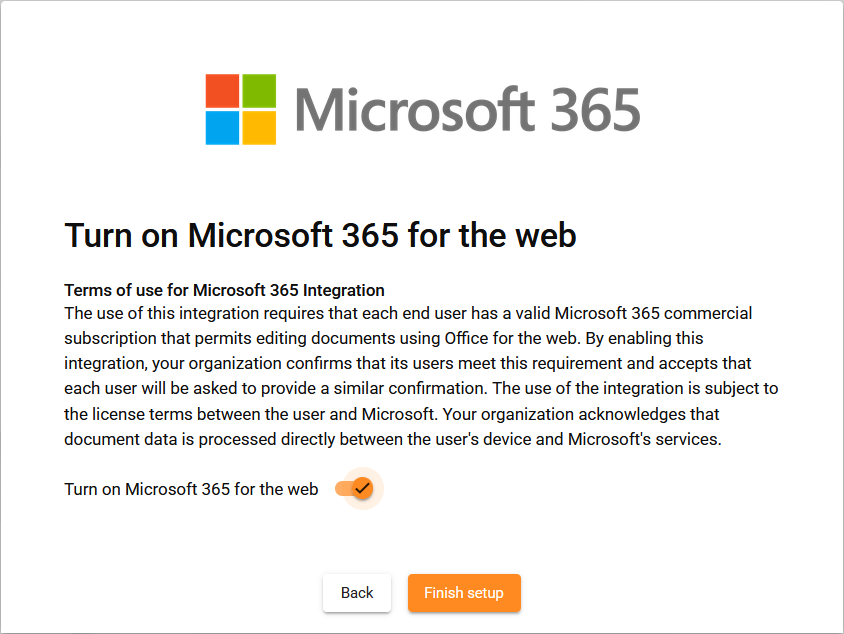
Enabling in Admin Portal
Enter the Admin portal system settings page to enable integration.

Terms of Use for the Microsoft 365 Integration The use of this integration requires that each end user has a valid Microsoft 365 commercial subscription that permits editing documents using Office for the web. By enabling this integration, your organization confirms that its users meet this requirement and accepts that each user will be asked to provide a similar confirmation. The use of the integration is subject to the license terms between the user and Microsoft. Your organization acknowledges that document data is processed directly between the user's device and Microsoft's services.
Enable Editing in Microsoft 365 Integration (User)
You can edit Office documents if you have a valid Microsoft 365 subscription that allows editing documents with Office for the web. Viewing documents does not require a paid Microsoft 365 subscription.
To enable edit, you have to ensure you have a valid Microsoft 365 subscription. You can do it on Welcome Flow when you start using the Sync or afterwards in your Sync account settings.
Enabling in Welcome Flow
If you have a valid Microsoft 365 subscription, you can activate Microsoft 365 integration’s edit mode when signing in for the first time. At the first sign in, the system opens a small Welcome Flow. Activating the Microsoft 365 integration is part of the flow.
Enabling in My Account
You can edit your account settings by clicking the pen icon at the top right corner.

Toggle ON I have a valid Microsoft 365 license.

Click Save to save the changes.
You can edit Office documents by toggling ON I have a valid Microsoft 365 license. Activating this feature requires a valid Microsoft 365 subscription that allows editing documents with Office for the web. If your subscription expires, you are responsible for toggling OFF this setting. This will return the integration to view-only mode, which does not require a paid license.
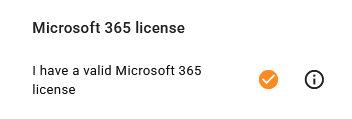
After you have toggled on I have a valid Microsoft 365 license either in Welcome flow or in My Account you can see active Microsoft 365 status on My Account page.
If you have no license: