With the print function, you usually want to print a single drawing to a printer or to a PDF file. Sometimes you may need to print several separate pages from the same drawing file. This is possible when the drawing to be printed is a drawing sheet to which you add sheet borders for the pages to be printed using the Add drawing sheet and title block function.
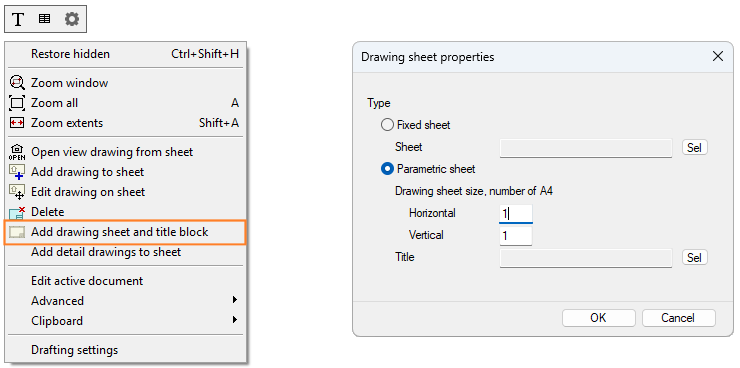
Open the drawing sheet, and select Add drawing sheet and title block from the right-click menu. Select either sheet type in the dialog box that opens. In this example, a parametric A4 sheet without a title block is added.
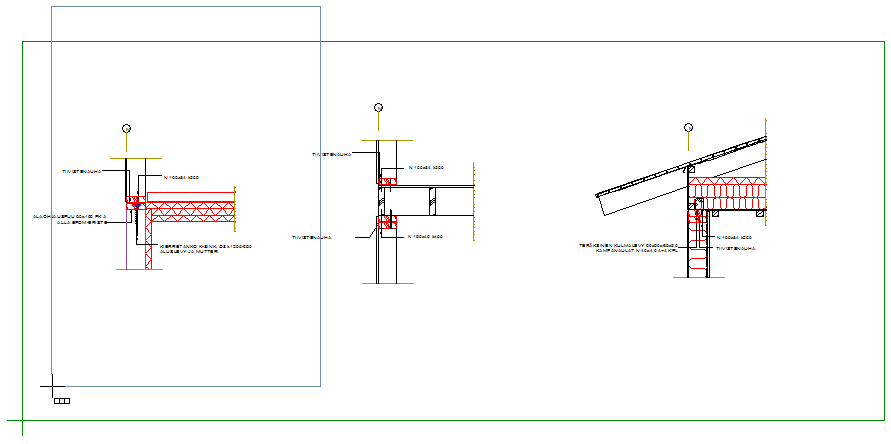
Click the location of the sheet in the drawing so that it contains the geometry that you want to print on the page.
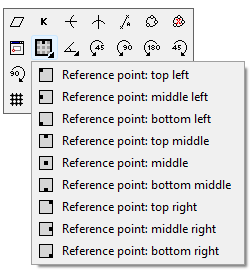
If necessary, change the reference point using the auxiliary menu function before clicking the location. The auxiliary menu opens by clicking the right mouse button.
Add a sheet for each page to be printed. Note that the pages are printed in the order in which you add the sheets to the drawing.
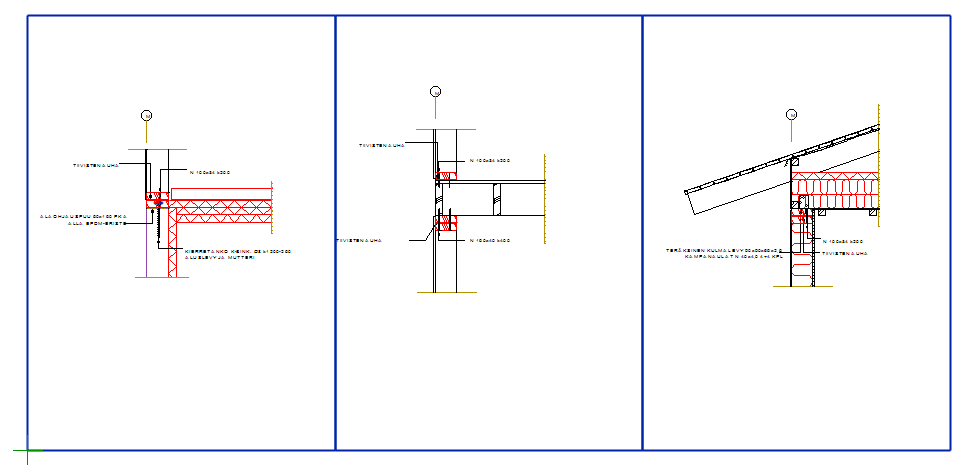
Save the drawing sheet.
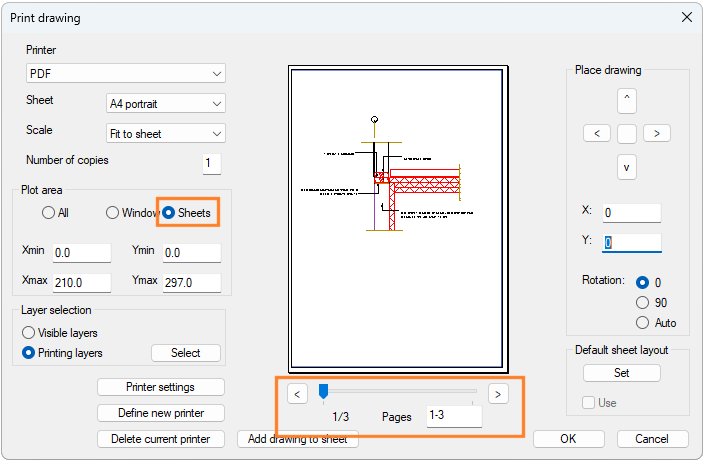
Select the function File > Print. The dialog box offers more options than normal printing. Under Plot area, Sheets is selected, allowing you to print separate pages. You can print the pages to a printer, which prints each page on its own paper, or you can select a PDF printer:
-
PDF - All pages are printed to the same PDF file.
-
PDF_SEPARATE - Each page is printed to its own PDF file.
You can scroll through the drawings using the scroll bar below the preview image. By default, all pages are printed. In the text box, you can specify the page range to print. Separate the range numbers with a hyphen. Separate individual pages or ranges with a comma (for example 5, 11–21, 23).