
General
For an individual object, you can add connections from its object card. If you want to add connections for multiple objects, do so using the trolley.
-
Creating a connection requires the user to have read access to the object. This rule can be tightened with the system keyword permission.read.includes.conn.
Add connection
(1) Select the action Tools > Connections > Add.
-
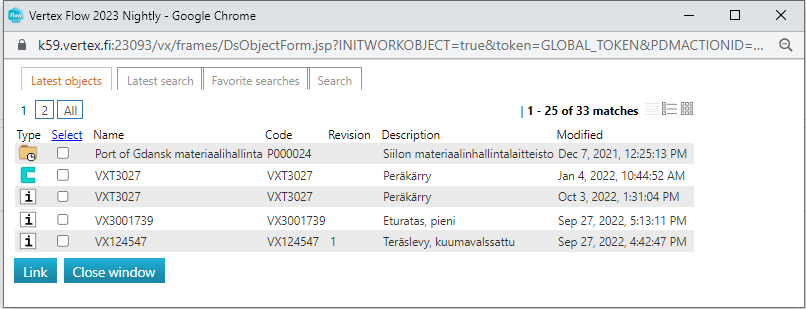
The program opens a dialogue box with four tabs. The Recent Objects tab is active.
From the Recent Objects list:
(2) If the object to be linked is listed, select it or them.
(3) Select Link.
-
Flow adds the object to the Connections block and reloads the object's information.
The last search from the list
(1) Choose the action Tools > Connections > Add.
(2) Select the tab Recent Searches.
(3) If the object to be linked is listed, select it or them.
(4) Choose Link.
Use the favorite search
(1) Select the action Tools > Connections > Add.
(2) Choose the tab Favorite Searches.
(3) Select the necessary favorite search by clicking on the pre-selection button.
(4) If the object to be linked is listed, select it or them.
(5) Choose Link.
Look at: Search by Favorites (OLD)
Use the general search
(1) Choose the action Tools > Connections > Add.
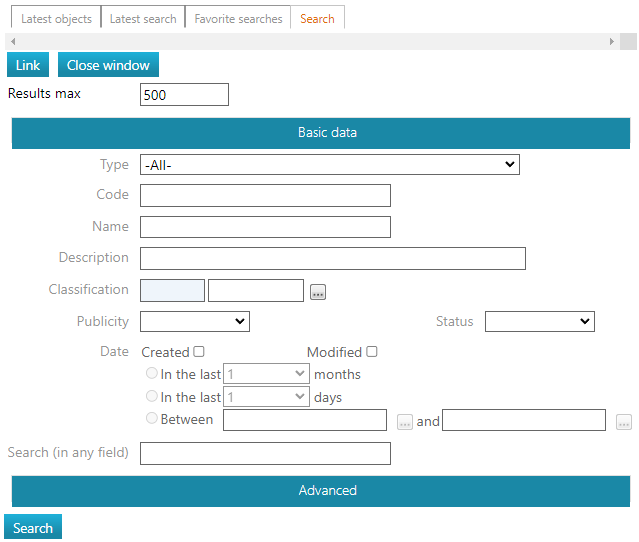
(2) Select the Search tab.
-
Flow opens a general search window.
(3) Enter the necessary search criteria and select Search.
(4) If the object to be linked is listed, select it or them.
(5) Choose Link.
Other ways to handle connections