
Problem
I want to edit the default layer scheme. When I select File > Preferences > Default layers, I receive the following message:
Duplicate group names detected: '[layer group]' '[layer group]' !
Group names must be unique.
When searching for a group by name, the system will always use the first match it finds (for example in printing or publishing).
Starting from version 32, group names are case-insensitive.
However, the search will still prefer an exact case match if multiple similar names exist.

Solution
Layer groups with the same name do not prevent the program from being used, but they should be removed to avoid confusion.
Click Continue checking, and the program will display the next layer group that has a duplicate. Finally, the “Edit default layers” dialog box will open. If there are many layer groups with the same name, you can also choose one of the following:
-
Don't show again this session - The “Edit default layers” dialog box will open. The message box will no longer be displayed when you open the default layers for editing. If you want to continue checking for layer groups with the same name, restart the program, and select File > Preferences > Default layers.
-
Ok - The “Edit default layers” dialog box will open. If layer groups with the same name are still found, the message box will open again the next time you open the default layers for editing.
When the “Edit default layers” dialog box opens, click Layer groups. The “Edit layer groups” dialog box will open.
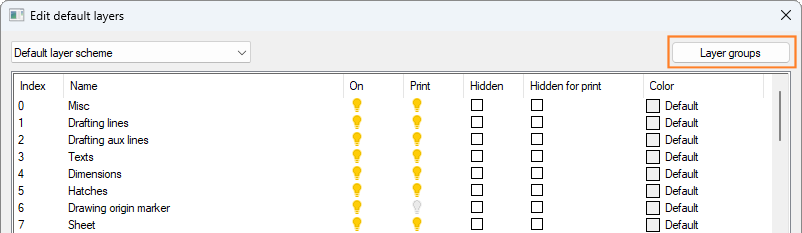
Browse the layer group list and compare layer groups with the same name. When you select a layer group in the list, the layers belonging to it are displayed in the list on the right side of the dialog box. To remove a duplicate, follow these steps:
-
Select the layer group in the list.
-
Select Delete from the right-click menu.
Click Back to close the “Edit layer groups” dialog box, and click OK in the “Edit default layers” dialog box to save your changes.