
General
File conversions can be made for models to suit various needs.
Files may need to be exported to other CAD systems (STEP, SAT, lightweight STEP, and lightweight SAT) or for building authorities (IFC). Files may also need to be sent for viewing in non-CAD applications (GLB, PDF 3D), or simplified for handling in Vertex G4 (Reference Model and Reduced Model).
You can control file conversions in the Flow interface and the Vertex G4 interface.
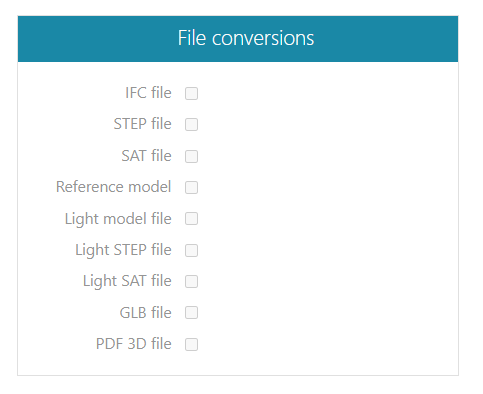
The following file conversions are possible on Flow's object card and when retrieving a model in Vertex G4:
-
IFC file
-
STEP file
-
SAT file
-
Reference Model
-
Reduced Model file
-
Lightweight STEP file (Also enables "Reduced Model file" option.)
-
Lightweight SAT file (Also enables "Reduced Model file" option.)
-
GLB file
-
PDF 3D file
Starting File Conversions on Flow's Model Archive Card
(1) If necessary, select the part for which you want to create file conversions, e.g., a rotatable GLB model in addition to the preview image.
(2) Select the model associated with the part.
(3) Click on File Conversions in the desired file field within the section.
(4) Select the checkbox.
(5) Click OK.
-
The program will report: "File conversions pending. Exported to queue on dd.mm.yyyy at hh:mm:ss (Queue number X - User Name)."
The selection remains active, so whenever the master file (Vertex model) changes, Flow's background converter will receive a command to perform the file conversions.
You can view the converted files in the Files section below, where you can also select them for viewing.
Starting File Conversions in Vertex G4 When Restoring an Object
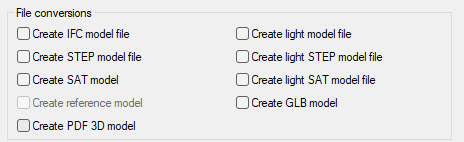
In G4, file conversion file types are selectable if the corresponding translator option is installed in Flow. The translator option is required for creating IFC, SAT, STEP, and PDF3D files.
(1) Select File > Check-In.
-
The program will open a dialog window where you can select a new revision and workflow, as well as the necessary file conversions.
(2) Choose the required file conversions.
(3) Confirm the restoration by selecting OK.
-
Flow adds the selected files to the file conversion queue and translates the files into the desired formats.
For the Administrator
Default Selections for File Conversions
The administrator can modify which file conversions are selected by default in Flow on the model creation archive card and in the G4 dialog window when checking in the model.
(1) Select Portal.
(2) Choose System Administration > Miscellaneous > System Settings.
(3) Select the keyword pdm.autogenerate.model.default.conversions.
Options:
-
default
-
none
-
IFC, STEP, SAT, REFMODEL, LIGHTMODEL, STEPLIGHT, SATLIGHT, GLB, PDF3D
Write the desired file conversions separated by commas, as shown above.
Refer to keywords and their options: Keywords.