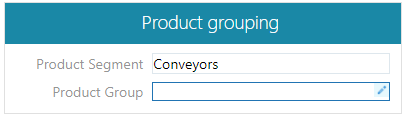
General
In this example, we will look at creating a view that displays projects based on their status.
The view makes it easy to track the progress of different projects. The view is single-level and based on the project status, thus it does not require attributes.
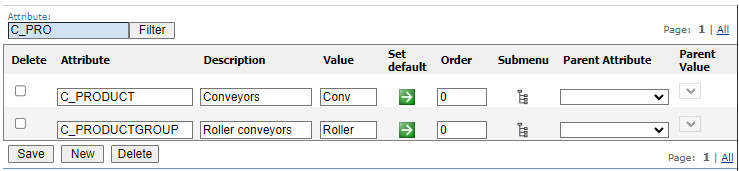
Create one attribute for each level
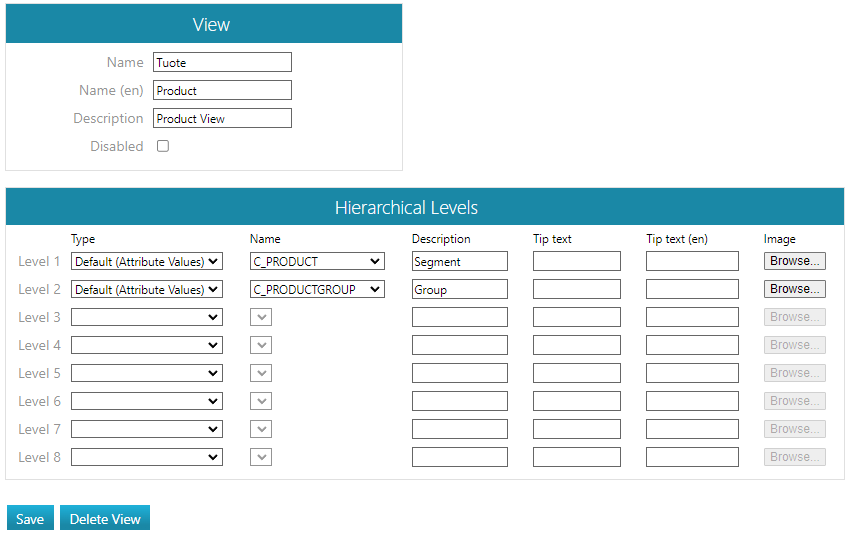
Create a Product View
See view creation: Create views
-
Enter a clear name for the view in Finnish and English.
-
Enter a Description, which appears as a tooltip when you hover over the view.
Create the hierarchy of views
-
Select States of Type as the type.
-
Enter Project in the Name field for the object type.
-
Enter Description and tooltips.
-
If necessary, choose an icon representing the hierarchy level, such as state.gif.
Save the view.
-
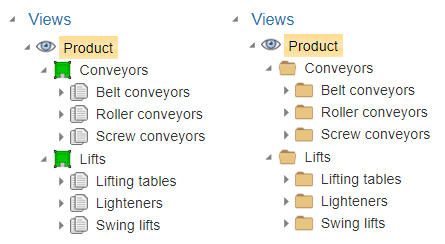
After this, you can view the structure of the view on the View tab.
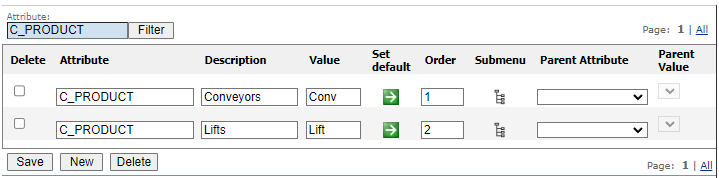
Add the attributes needed by the segments
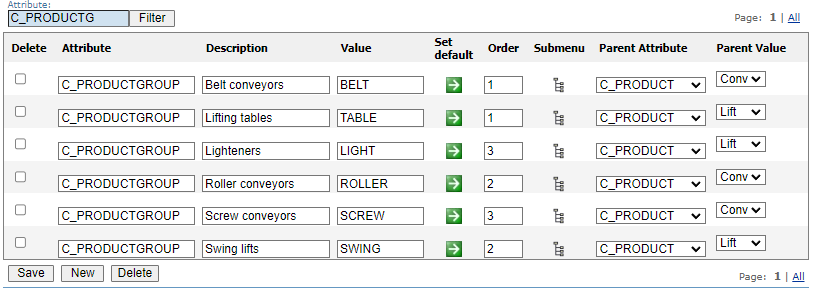
Add the attributes needed by the groups
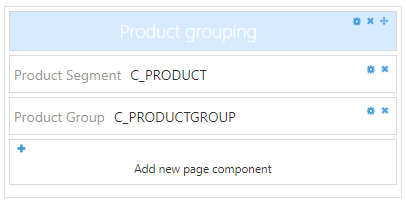
Add the necessary fields to the object card of the document