
General
Adding a single word and its translations is most efficiently done directly in the Flow user interface.
Regarding dictionaries in general: The use of dictionaries
Add words and translations to the dictionary
(1) Select the Archive tab.
(2) Choose Tools > Dictionary.
-
Flow opens the Edit Dictionary dialogue window.
(3) Select the dictionary:
-
Default
-
Spare part
-
Sales
(4) Check if the word to be added is already in the dictionary by entering the word in the Description (fi) field in the opened dialogue window.
-
You can also use the wildcard character * (asterisk) if you suspect that the word may exist in a different form in the dictionary.
-
For example, you can search for synonyms of "side plate" or "back plate" by entering "plate*".
(5) Select the Search action.
-
Flow presents the possibly found words.
-
The string(s) entered as search criteria remain visible, and you can modify the search criteria and search for words again.
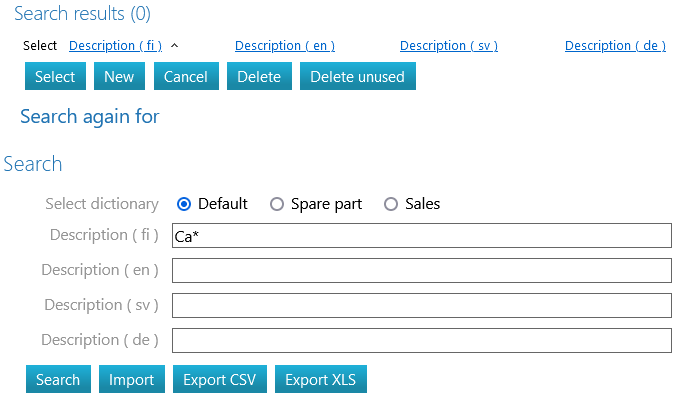
(6) Select the action "New".
-
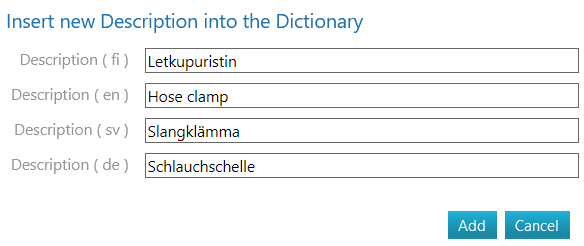
Flow opens the conversation window "Add a new description to the dictionary".
(7) Enter the descriptions in the required languages.
-
Flow asks: "Add to the dictionary?"
(8) Respond with "OK" if you want to add the word with its translations to the dictionary, or
-
Select "Cancel" if you want to cancel adding the word.
-
Flow opens the dictionary, and you can verify that the word has been added.