
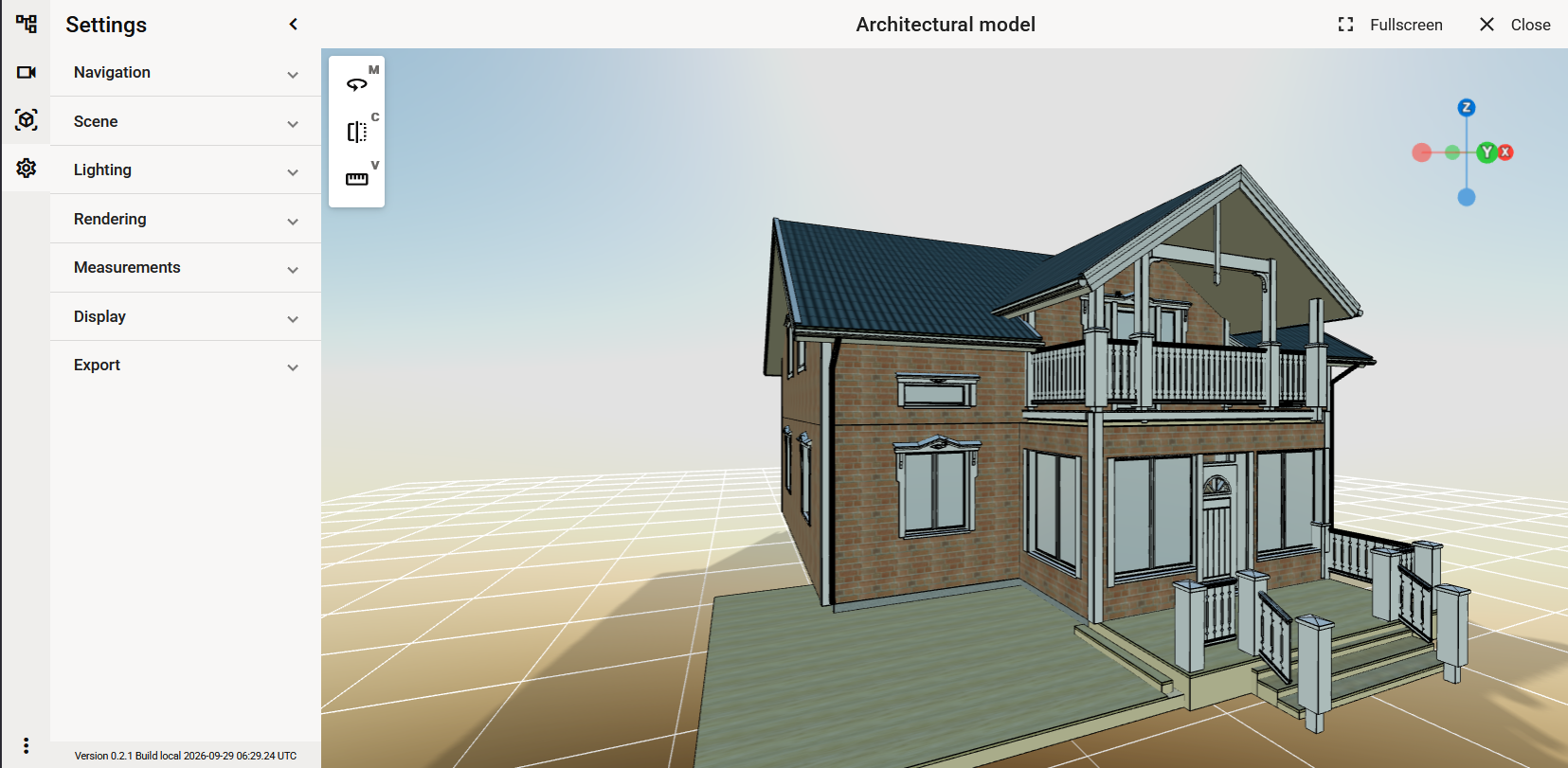
On this page:
Navigation
Camera
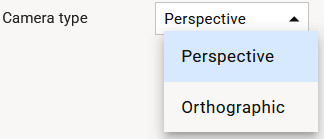
Camera type selects 3D viewer camera between ‘Perspective’ or ‘Orthographic’ camera. Select Orthographic for a clear, undistorted representation ideal for design and technical analysis as Perspective view delivers a more realistic look, perfect for presentations and visual reviews.
Field of view
The Field of view is the extent of the observable model that is seen at any given moment.

Walking height
Walking height is camera's base height at the start.

Movement speed
Movement speed controls how fast you are able to move with Fly and Walk,

Movement helpers
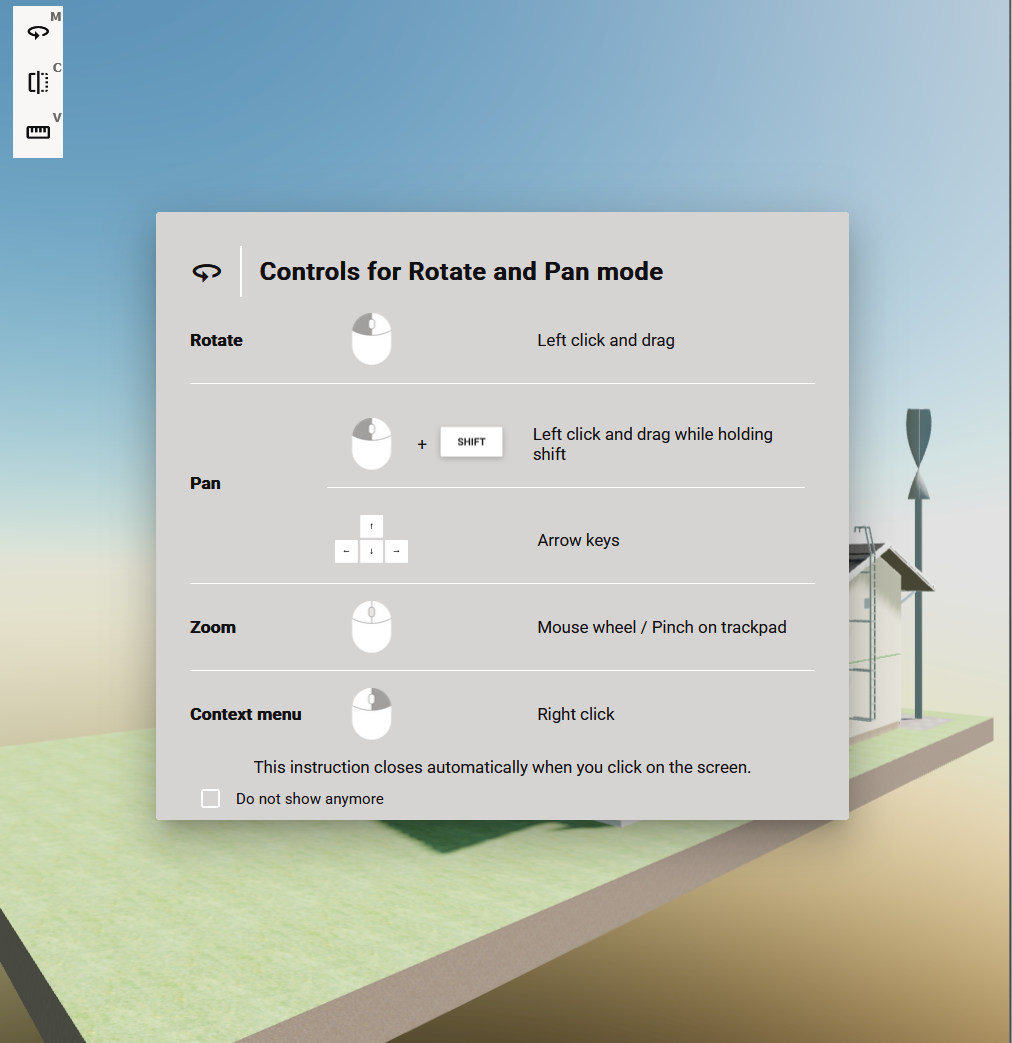
Movement helpers are tips shown top of the model view. Content of the tip depends device you are using and the movement mode you selected. To close the helper click left mouse button on the desktop of touch the screen on mobile.
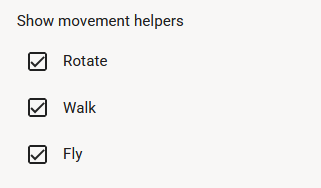
You can adjust which helpers are shown from Show movement helpers section under the Movement settings.
Scene
Ground type
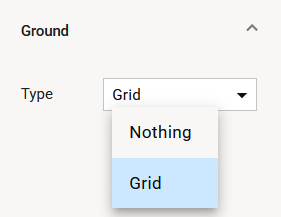
Set different grounds to your model. System has an option to set ground to grid and set ground off.
Background
You have three different options to background of your model sky, plain color, and panorama. Select desired background from the drop down menu.
Sky
Sky imitates realistic sky and sun. Continuous matrix of the arrows shows the current direction of light. Adjusting the Sun zenith controls the solar elevation. With lower elevation value you can imitate lightning conditions on dawn or dusk and with higher value mid-day. With Sun azimuth you can adjust sun compass direction.
You can easily investigate does the eave offer protect enough from mid-day burning sun or does the sun shine on the terrace in the evening as intended.
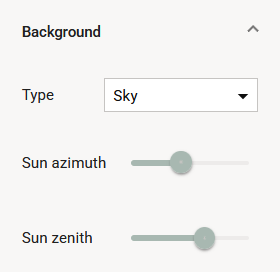
Note: Adjusting Sun zenith and Sun azimuth changes corresponding Zenith and Azimuth values of the directional light.
Plain Color
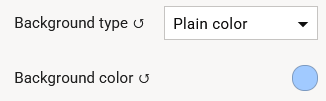
Plain color is a simple background option, when realistic visualization is not on main focus. Change the color clicking Color swatch.
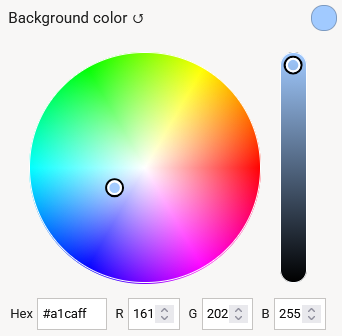
Select a new color using Color wheel and Brightness slider or give the Hexadecimal or RGB value.
-
Color wheel
-
Used to choose the basic color (hue).
-
-
Brightness slider
-
Adjusts how light or dark the selected color is.
-
-
HEX field
-
-
Give the Hexadecimal value of the color like an example
#c24e0c.
-
-
RGB inputs
-
The
R,G, andBfields. Red/Green/Blue channel controls. Values from 0 to 255
-
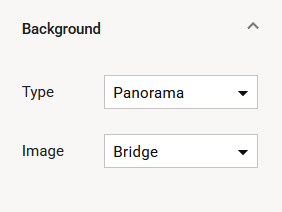
Panorama
Set panorama as background. System has four different pictures from which select for.
Camera
Set camera as background. System uses camera’s view as a background.
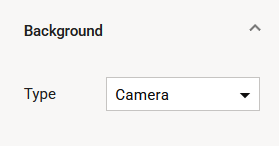
The system may ask permission to use the camera.
Lightning
Lightning style
Visual style controls the lightning mode used in the model. There are two options Physically-based and Basic.
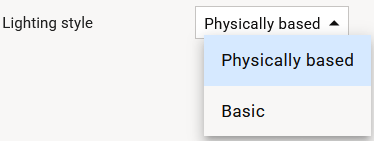
For the best results you may have to adjust Ambient and Directional lights after switching the Visual style.
On Physically-based lightning model lightning is based on Ambient, Directional, Point, and Spot lights. Inside the model there's only as much light as comes inside through the openings and added Point and Spot lights gives. The result is realistic, but sometimes especially with big models, it might be hard to investigate as there may be dark areas with not light enough.
On Basic mode, light comes always behind the current view position. The result is not realistic but more CAD look a like. You don't need to add separate Point and Spot lights to be able to investigate even interiors of the models with out any openings.
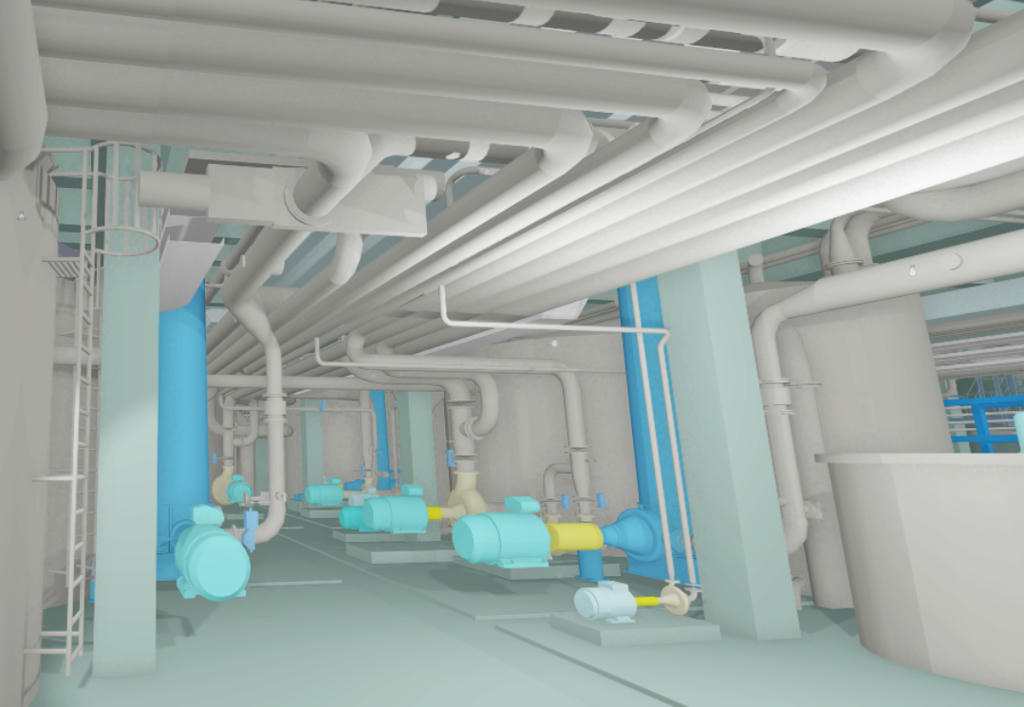
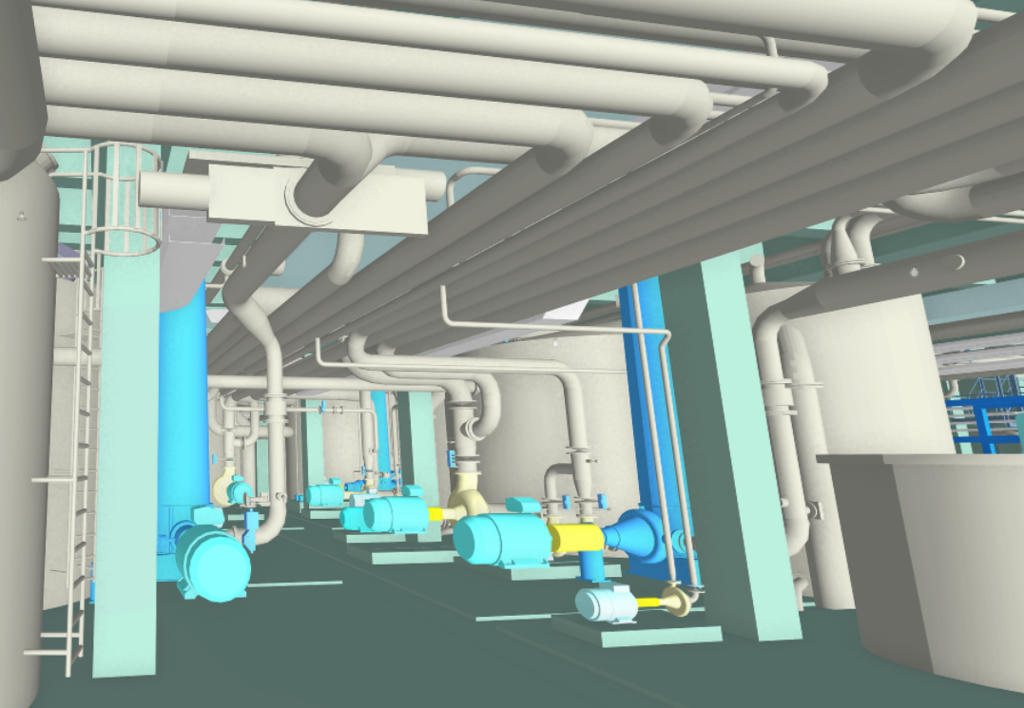
Point and spot lights cannot be added into the model, when Visual style is set to Basic.
Ambient Light and Directional Light
Ambient light illuminates equally all objects in the scene. You can edit color and intensity of it.
The Ambient light does not cast shadows as it does not have a direction.
Directional light that gets emitted in a specific direction. This light will behave as though it is infinitely far away and the rays produced from it are all parallel. The common use case for this is to simulate daylight; the sun is far enough away that its position can be considered to be infinite, and all light rays coming from it are parallel. Directional light’s settings are same as the settings of Ambient light.
Adjusting lights
-
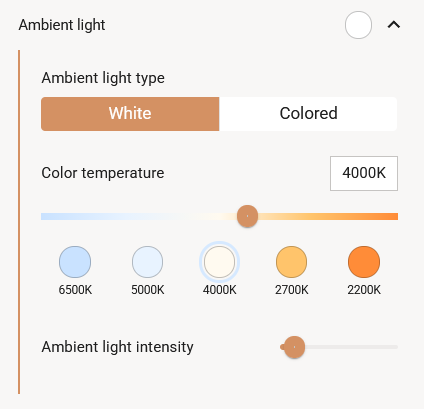
Select first white or colored light

White Light
-
Select the preferred color temperature using the temperature slider or use one of the presets
Preset light temperatures
-
-
-
2200K (Very Warm): Candlelight-like appearance. Very soft and atmospheric.
-
2700K (Warm Indoor Light): Traditional incandescent bulb tone. Comfortable and relaxing.
-
4000K (Neutral White): Natural general-purpose lighting suitable for most environments.
-
5000K (Cool White): Bright office-style lighting similar to morning daylight.
-
6500K (Cold Daylight): Bright bluish light comparable to an overcast sky or studio lighting.
-
-
Colored Light
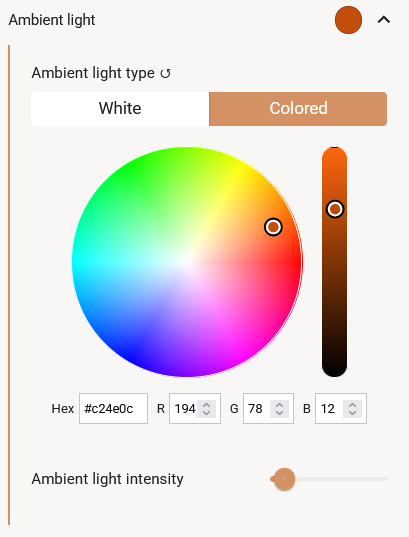
Select preferred light color using Color wheel and Brightness slider or give the Hexadecimal or RGB value.
-
Color wheel
-
Used to choose the basic color (hue).
-
-
Brightness slider
-
Adjusts how light or dark the selected color is.
-
-
HEX field
-
-
Give the Hexadecimal value of the color like an example
#c24e0c.
-
-
RGB inputs
-
The
R,G, andBfields. Red/Green/Blue channel controls. Values from 0 to 255
-
Shadows
You can switch shadows on and off.
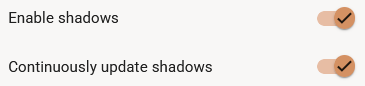
Shadow calculation is a heavy process. If you have a performance issues, try to turn shadows off.
Rendering
Edge lines
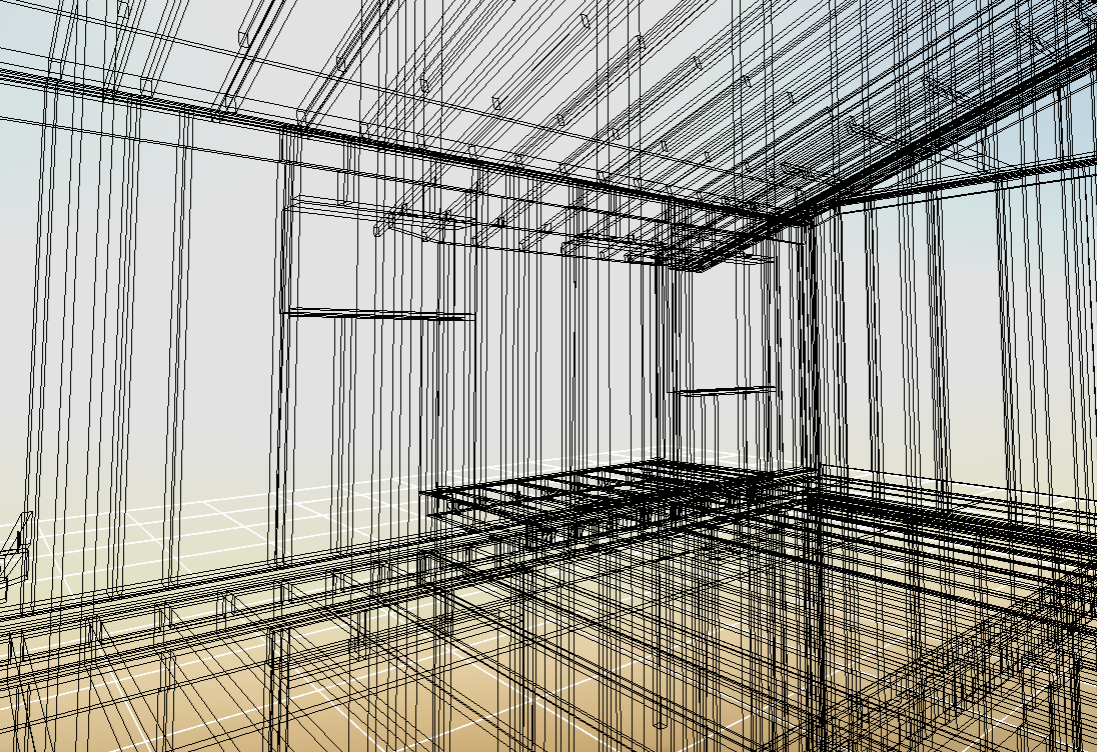
To get more clear separation between components turn on ‘Show edge lines’ want emphasize edges.

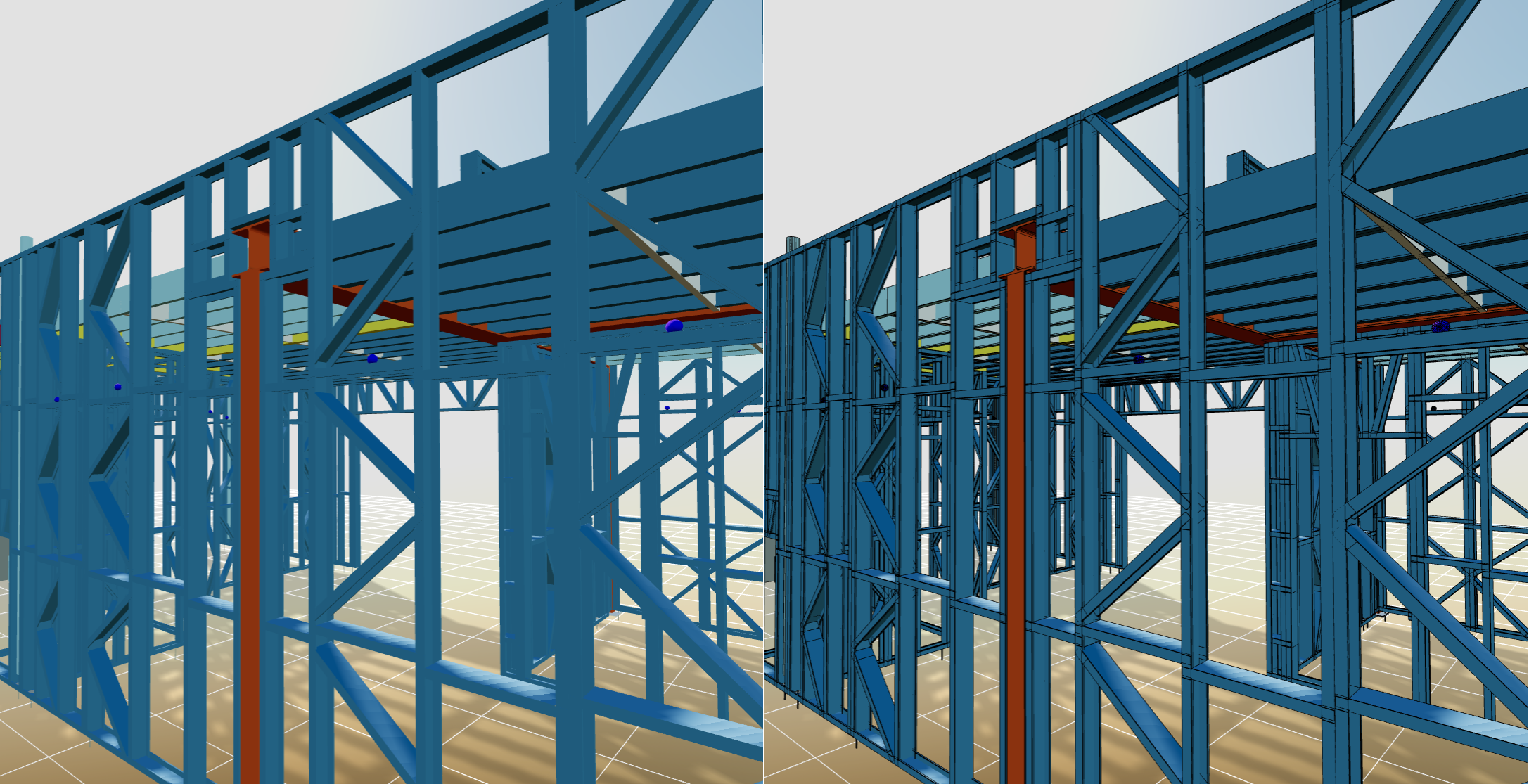
Wireframe only

Postprocessing Effects
Postprocessing effects strongly influence the model's appearance. Use the Postprocessing switch to toggle them.
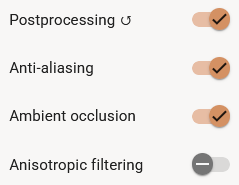
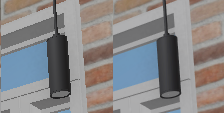
Anti-aliasing
Anti-aliasing smooths edges. Without it edges can look rough and serrated. Enabling anti-aliasing improves visual quality but reduces graphics performance.
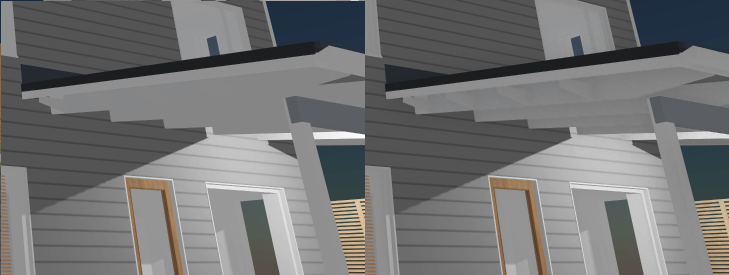
Ambient occlusion
Ambient occlusion estimates lighting by measuring how exposed each point is to light and how nearby geometry blocks it. The result is more realistic lighting and shadows. However, ambient occlusion requires significant computation and impacts performance.
If ambient occlusion is on, the system disables it while you move or rotate the model and re-enables it when movement stops.
Anisotropic filtering
Anisotropic filtering improves texture clarity and detail on surfaces viewed at steep or oblique angles, especially in the distance, by accounting for the angle of the surface relative to the camera. You can turn on and off the filtering using Anisotropic filtering switch.
Postprocessing effects may have a great impact to the performance, too. If you have any issues with the performance, check that these are turned off.
Measurements
Measure units
Show measure units

Turn on the Show units switch to show the unit after the dimension value.
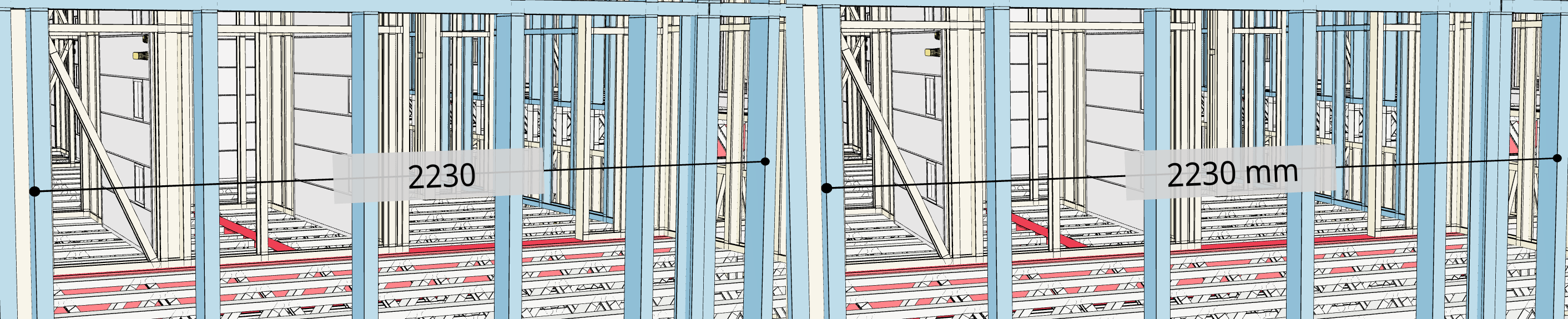
Dimensions are shown in different units depending on the Unit setting in the main menu. There are three options for metrical and four for imperial units.

Dimension background
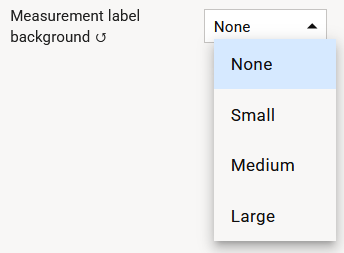
You can enable or disable the background displayed behind dimension values. Depending on the model, the background may either improve readability by emphasizing the value or obstruct model inspection by covering underlying geometry.
To configure the dimension value background, use the Measurement Label Background drop-down menu. This setting allows you to:
-
Toggle the background on or off.
-
Adjust the size of the background box.
Choose the setting that provides the best balance between value visibility and model clarity for your specific use case.
Precision

Set the decided decimal precision by entering the number of decimals into the Decimal precision.

Note: Decimal precision box is disabled if you have selected feet + inch +1/16 from the Unit drop down menu.
Text and marker size and line width
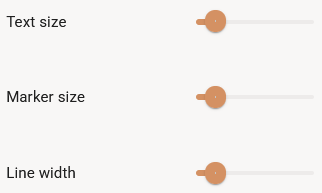
Adjust the line width, end marking size and text size of the dimension lines.

Magnifier

The Magnifier tool helps you select measurement points with greater precision by enlarging the area beneath the cursor. This makes it easier to identify exact measurement locations, especially when working with complex geometry, closely packed features, or distant targets in 3D models.
Use the Magnifier Size slider to adjust the size of the magnified view to suit the current task. Increasing the magnifier size provides a larger area of detail, while a smaller size minimizes screen obstruction.
The Magnifier tool can improve measurement accuracy and speed by bringing fine model details into focus, reducing the difficulty of selecting precise points in challenging viewing conditions.
Display
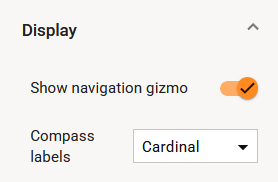
Navigation gizmo
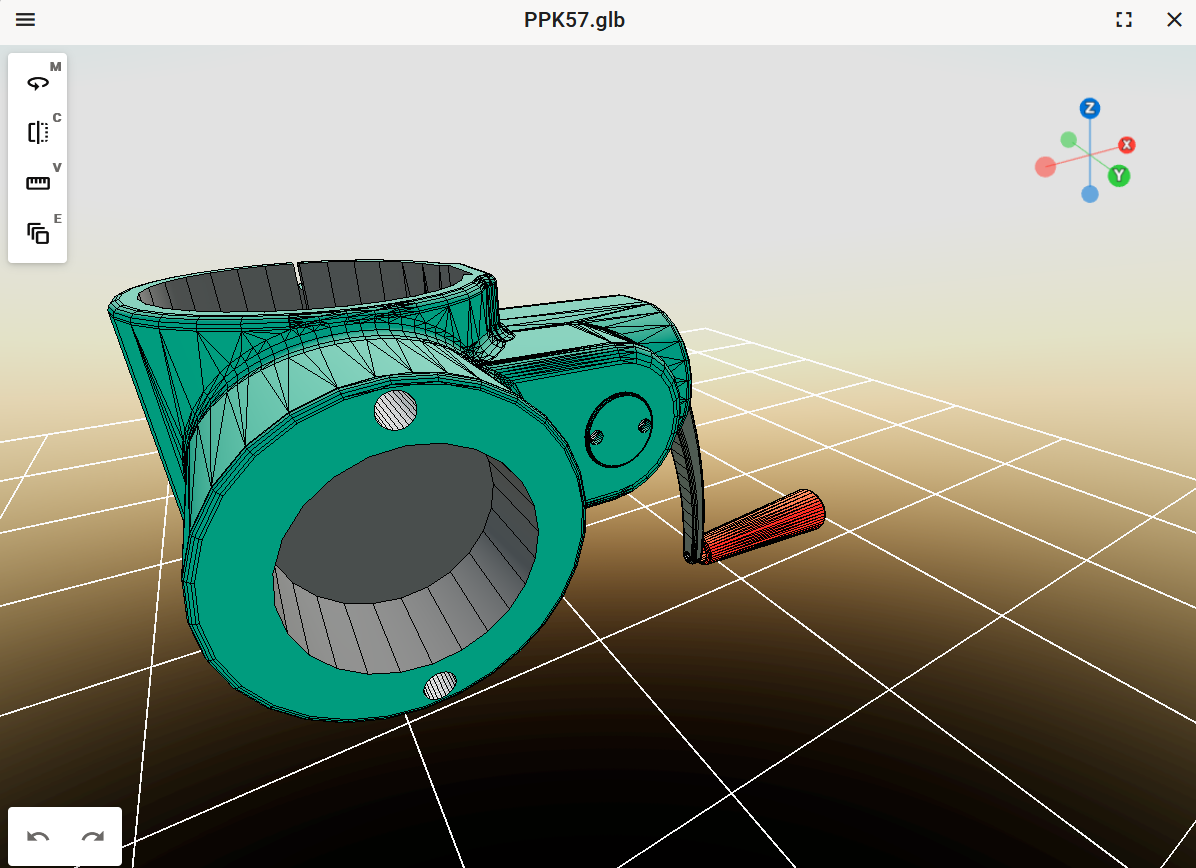
The Navigation gizmo, located in the upper-right corner of the viewer, helps you maintain awareness of the model’s current orientation and provides quick access to standard views.
To rotate the model, click the ends of the gizmo axes corresponding to the desired orientation. The model will automatically align to the selected view, making navigation and inspection more efficient.
Use the Show navigation gizmo switch to toggle the gizmo display as needed.
Compass labels
Select either cardinal or degree values from the Compass labels dropdown.
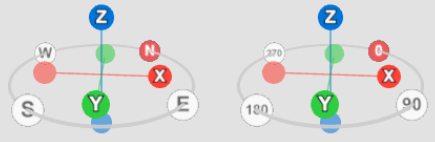
Compass is available only if the model contains suitable North direction definition.
Minimap
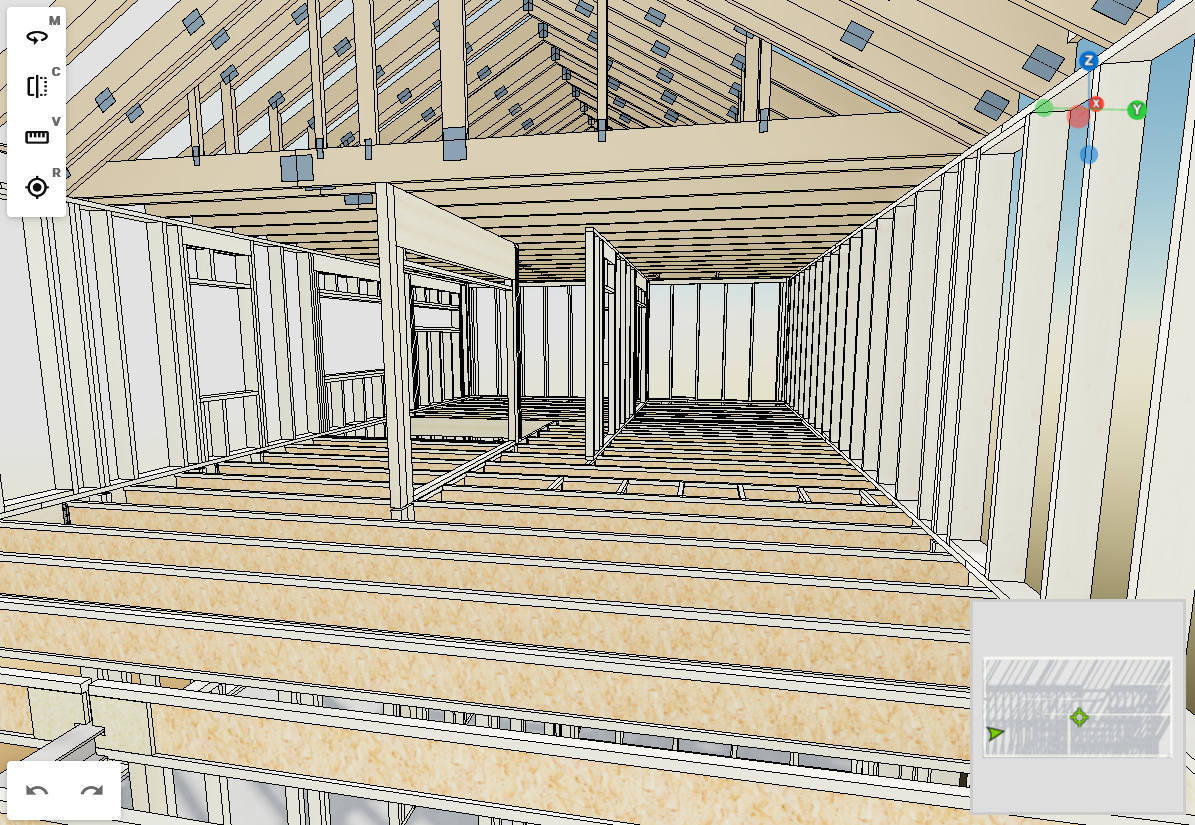
The Minimap provides an overview of the model and indicates your current position within it. This overview helps you maintain context while navigating large or complex models, making panning and zooming more efficient.

Use the Show Minimap switch to enable or disable the minimap display. When enabled, the minimap remains visible and updates dynamically as you move through the model, allowing you to easily track your location and navigate to areas of interest.