

We presented these reforms in the major version 32.0.0 (2026)
General new features and improvements
Automatic placement of device card information positions the selected fields on the PI symbol in the correct locations without manual work. This speeds up the workflow and ensures a consistent appearance in the diagram.
You can easily scale the placed symbol to the desired size using the mouse wheel.
You can copy device card information from another project according to predefined selections, which helps avoid copying unnecessary data.
Automatic placement of device card information on a PI diagram symbol
The new function allows you to define in advance which device card fields of a PI diagram symbol are transferred onto the diagram symbols and where they are placed. The text is then positioned automatically during symbol insertion and placement. The texts use predefined location and alignment settings and the selected font size. This replaces the previous fully manual workflow and ensures a consistent and professional appearance throughout the diagram. (Vertex ID: VXPLANT-497, VXPLANT-1046)
The definition and placement of the transferred texts can be done in two ways.
-
A new function Selected field to diagram has been added to the user interface. The function opens a window where you can define, symbol by symbol, which information should be transferred automatically. You can select the symbol from the library or pick it directly from the diagram. The program lists the available database fields for the symbol (Hidden fields), from which the user selects the Visible fields. Text placement is handled through both a table and a pick operation (Set location), assisted by the active diagram’s grid. The table allows adjusting the font size, font width and alignment.
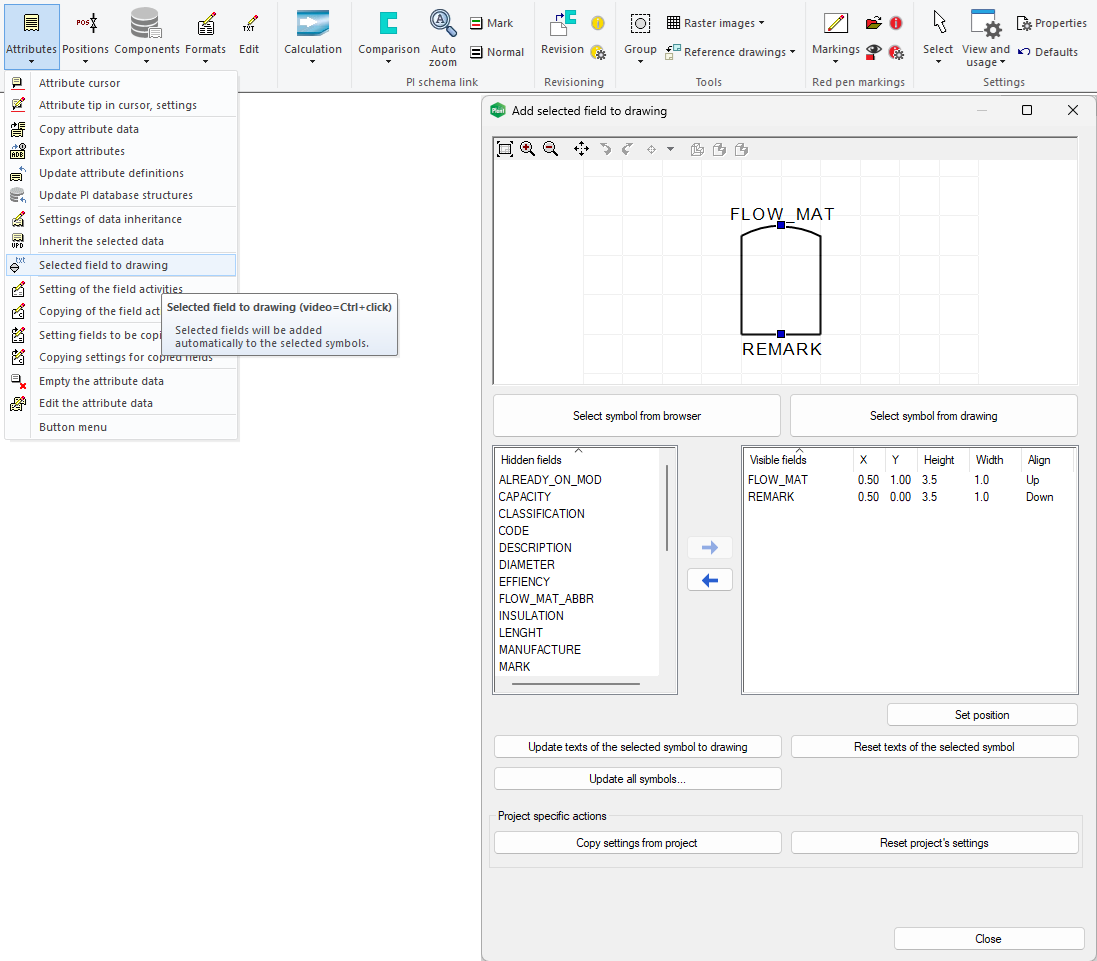
With the Selected field to diagram function, you can also update the defined information for symbols already placed in the diagram either for a single symbol (Update texts of the selected symbol to drawing) or for all symbols of the same type (Update all symbols...).
The definitions are project‑specific and can be copied from one project to another (Copy settings from project).
-
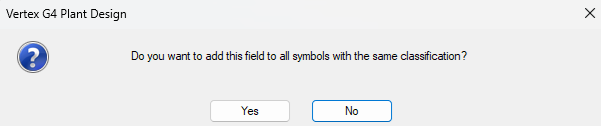
The definition can also be done as before, through the device card. Open the symbol’s device card and select the field that should be transferred as text to the drawing. After placement, the program asks whether the field should be added to all symbols of the same classification. By answering yes, the field is added to all PI diagram symbols in the diagram that share the same classification. The information is saved, so the same fields will be transferred automatically to newly placed symbols as well.
Scaling a PI diagram symbol during placement
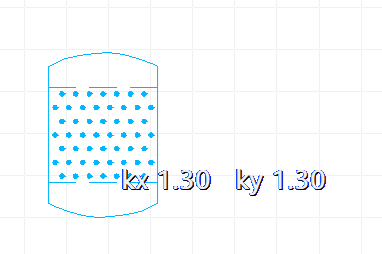
You can now change the size of a PI diagram symbol on the fly when the symbol is attached to the cursor and waiting for placement. This function uses the mouse wheel together with the Alt key. The scaling step is 0.10. The old function for setting the scale factor is still available. With the new function, scaling is faster and the symbol size is easier to assess because everything happens in real time directly on the screen. The functionality is also available when placing regular symbols, except for sheet templates. (Vertex ID: VXPLANT-1120)
Changing the classification of a symbol in the PI database using a dropdown menu
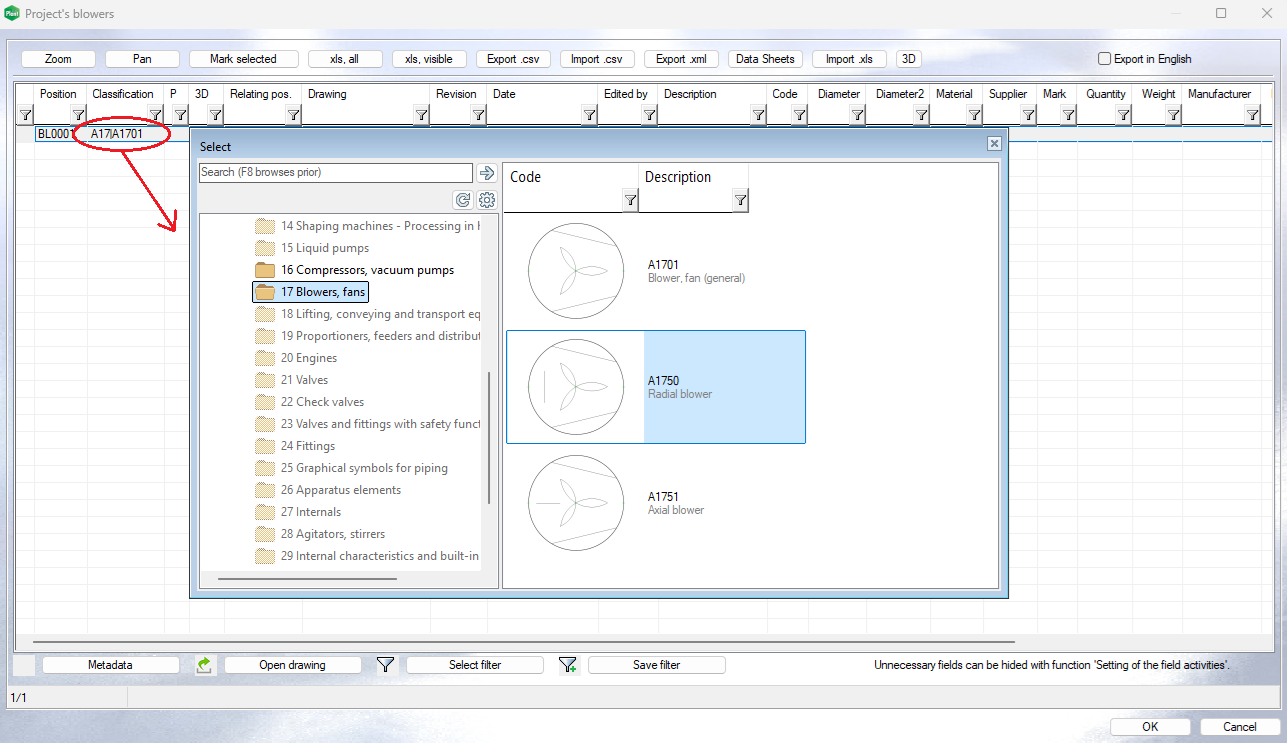
In the Components database view, you can now select a component classification through a dropdown dialog, similar to how it works on the component’s attribute data card. The feature works with both local databases and Flow. This makes the user experience consistent with the attribute card and helps the designer select the correct classification without needing to remember it by heart. We moved the Classification field to a new location in the database view, and it is now the second field from the left. (Vertex ID: VXPLANT-805)
Copy device card information from another project based on predefined selections
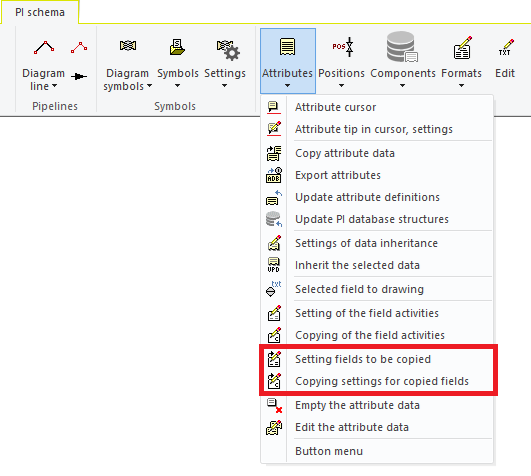
A PI diagram symbol can receive information from another or even the same project using the attribute card function From project. By default, the contents of all fields are copied, and the user is asked separately about copying position information when copying from another project. With the new function Setting fields to be copied, you can now specify, type by type, which fields should never be copied. The settings are project‑specific and are always saved to the active project. Using the function Copying settings for copied fields, these type‑specific settings can later be transferred from one project to another. (Vertex ID: VXPLANT-501)
The key benefits of the new function for the user:
-
Tailored data transfer: You can now define type‑specifically which field contents are copied and which are excluded. This reduces unnecessary data transfer and improves data handling efficiency.
-
Project‑specific control: The settings are saved to the active project, ensuring that each project’s special requirements are taken into account. This guarantees that the function always adapts to the current project situation.
-
Flexible settings transfer: You can later copy the defined type‑specific settings from one project to another, ensuring consistency and saving time when starting a new project.
Material defined in the diagram is now inherited correctly in the model
Equipment items in the diagram have their own material field, INSIDE_MAT. When an equipment item is added to the model as a pipe component through the diagram link, the diagram’s material is now used as the component material if no material is defined in the database or in Flow. This prevents situations where the field was previously left empty or received the pipe’s material incorrectly. (Vertex ID: VXPLANT-939)