
Switching drawing sheets
You can switch drawing sheets in a batch run
You can now conveniently switch drawing sheets in one or multiple drawings.
When do you need to switch drawing sheets?
For example, if your company starts using Vertex Flow, you may need to switch drawing sheets so they match the fields used in the data management system. You may also need to switch drawing sheets if, for example, the company logo changes or in connection with an acquisition.
Normally at this stage, you have to open the drawings one by one, remove the old sheet, place the new one in position, and save the drawing.
Switching a drawing sheet in a single drawing
You can switch drawing sheets from within the drawing via the tree:
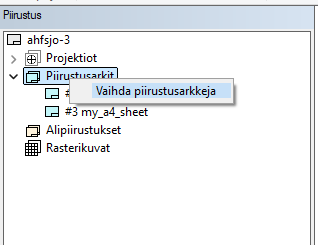
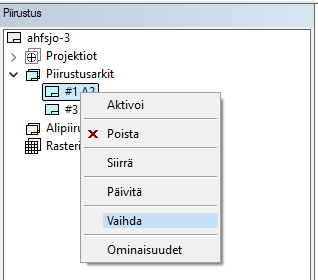
A dialog opens for the switch, allowing you to select the drawing sheet(s) to be replaced.
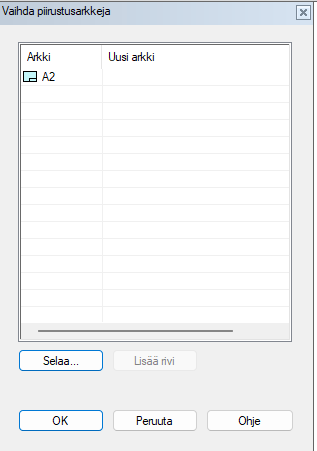
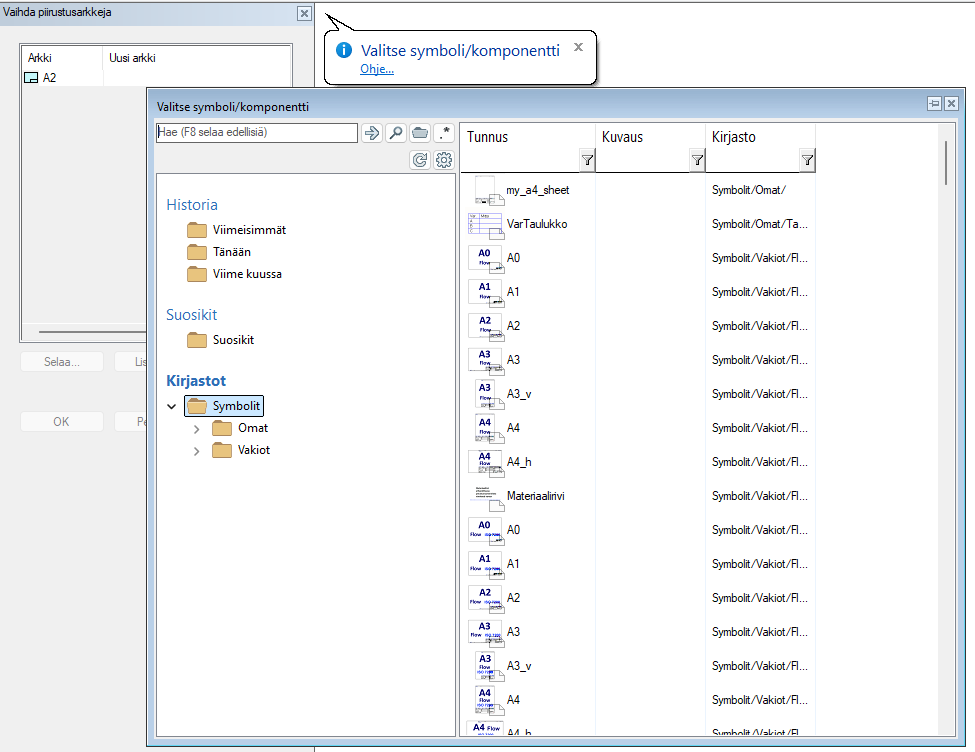
By selecting a row and clicking “Browse…”, the symbol selection browser opens. When you select a symbol, its details are filled into the “New sheet” field.
The “Add row” button is not active for a multi-sheet drawing. In other cases, you can use it to add new sheets to the dialog list.
Clicking “Apply” performs the sheet switch and prints information about the success of the switch in the results window.
Note! You can reset an already selected sheet via the right-click context menu:
Functionality
The new sheet replaces the old one so that their center points are in the same position.
The old sheet’s properties are copied to the new sheet, excluding the name, which is taken from the new sheet.
If there are constraints associated with the edges of the old sheet (e.g., positioning constraints between edges and projections), they are re-targeted to the new sheet.
Batch switching drawing sheets from the archive
The “Switch drawing sheets” function is started via Archive > Administration > Switch drawing sheets.
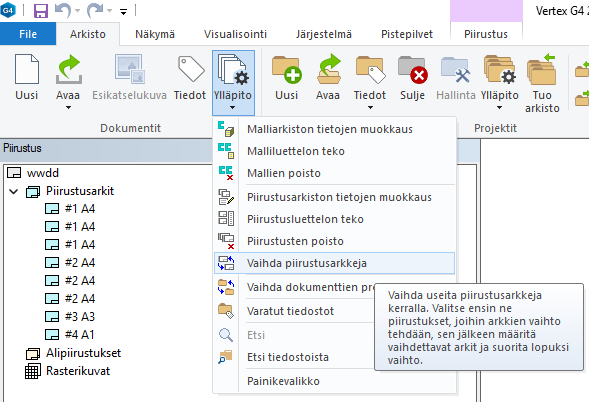
The switch is carried out in three steps:
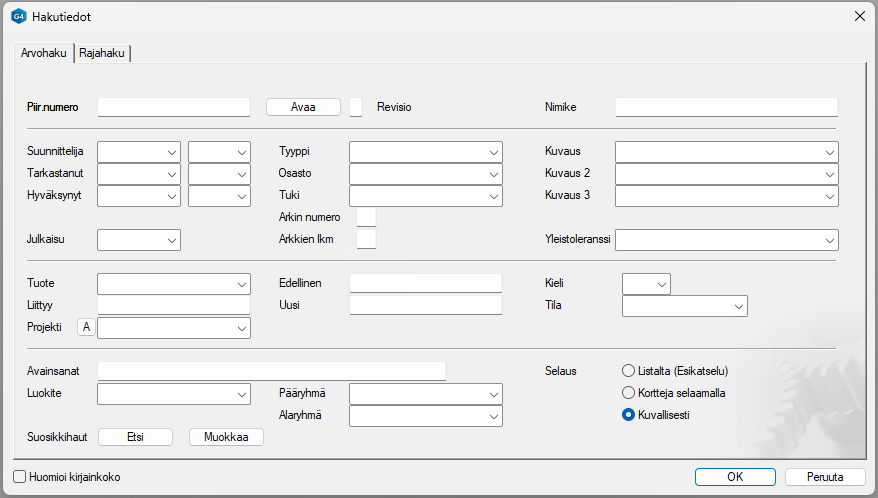
Database search using the selpic_form search card
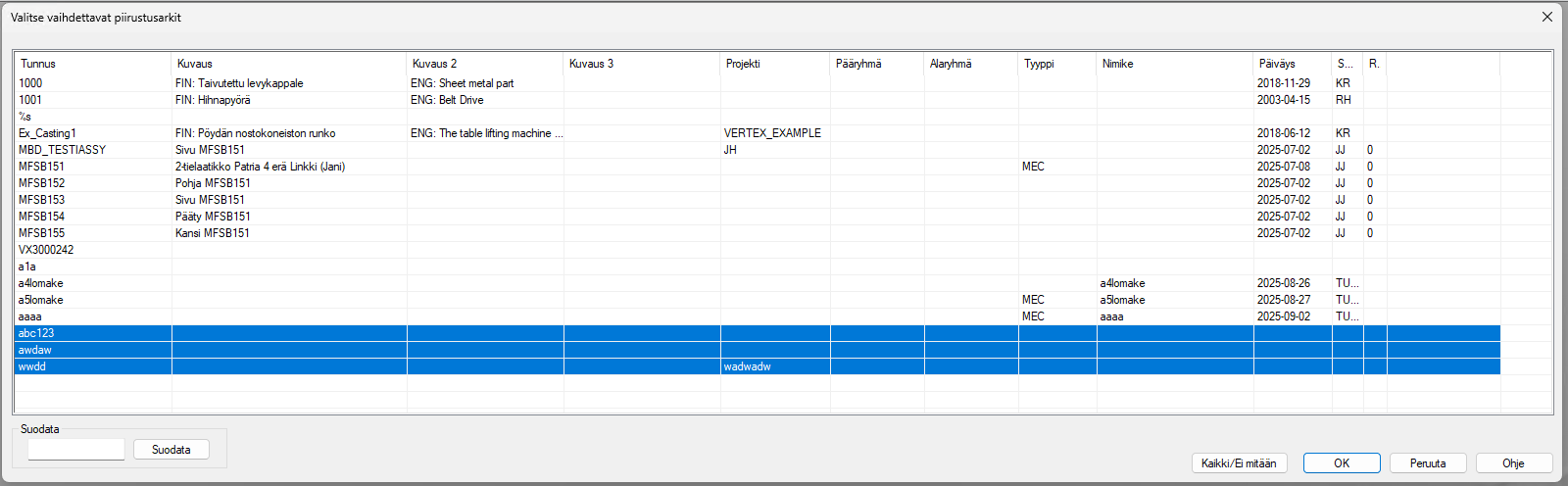
Selecting the drawings the switch applies to
Vaihtotietojen täyttäminen. Vaihdettavien arkkien tiedot täytetään manuaalisesti käyttäen toimintosarjaa
“Add row”
Edit the sheet name in the “Sheet” field, e.g. A4
Select the new sheet from the Symbols folder using “Browse…”
“Apply”
The switch is performed using a vxtask task file, and the results are logged to the results window
The results include, among other things, the drawing names, the number of sheets replaced, and the names of the remaining sheets.
Functionality:
The new sheet replaces the old one so that their center points are in the same position.
The old sheet’s properties are copied to the new sheet, excluding the name, which is taken from the new sheet.
If there are constraints associated with the edges of the old sheet (e.g., positioning constraints between edges and projections), they are re-targeted to the new sheet.
The functionality uses a task file for the batch switch. The file is temporarily written to user/drawing_sheet_change/drawing_sheet_change.txt, which is cleaned up after the run.
In the case of a multi-sheet drawing, the “Cancel” button restores the situation that was in effect before the switch.